
We test products ourselves and may earn a commission when you buy through our links, at no extra cost to you. Read our affiliate disclosure
Quick answer: turn on page cache, browser cache, HTML/CSS/JS minify, lazy loading and the emoji and font-display tweaks. Leave CSS/JS combine, delayed JavaScript and critical CSS off until you have tested them one at a time.
Before you touch anything
LiteSpeed Cache has well over a hundred options, and most broken layouts come from switching on twenty of them at once. Three rules keep you out of trouble:
- Check that your server runs LiteSpeed. The page cache only works on LiteSpeed Web Server or OpenLiteSpeed (Hostinger, for example, uses LiteSpeed). On Apache or NGINX the plugin can still optimise CSS, JS and images, but it will not cache pages.
- Record a baseline. Run your homepage and one article through PageSpeed Insights and note the scores.
- Change one group at a time. Save, purge the cache, open the site in a private window, click around, then measure again.
Settings to turn on
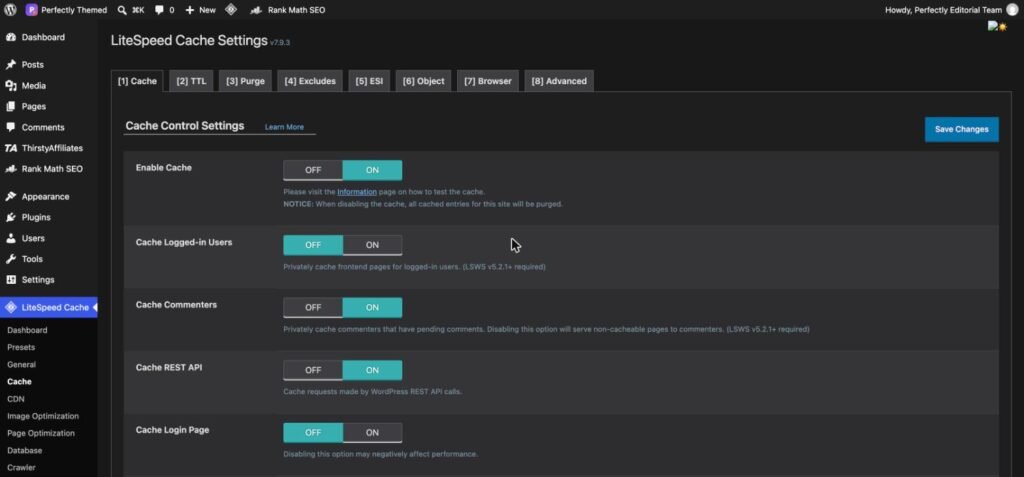
Cache
- Cache → Enable Cache: ON. This is the feature that matters most. A cached page is served without running PHP or touching the database.
- Cache Logged-in Users: OFF for a normal blog. Only you are logged in, and a private cache per user wastes space.
- Cache Mobile: OFF unless your theme sends different HTML to phones. Responsive themes do not.
- TTL: leave the defaults. LiteSpeed purges a post automatically when you update it.
- Browser → Browser Cache: ON. Returning visitors reuse images, CSS and fonts instead of downloading them again.
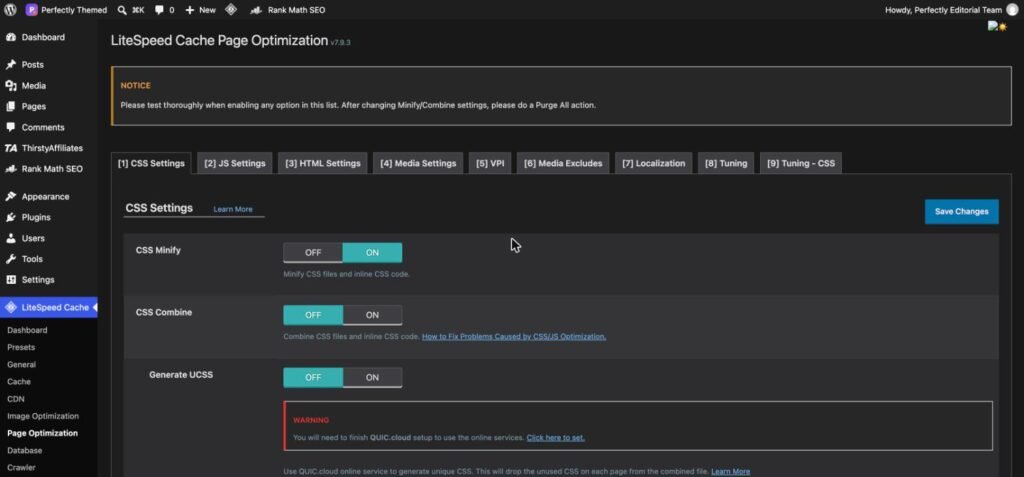
Page Optimization
- CSS Minify, JS Minify, HTML Minify: ON. These only strip whitespace and comments, so they rarely break anything.
- Font Display Optimization: Swap. Text shows immediately in a fallback font instead of staying invisible while web fonts load.
- Remove WordPress Emoji: ON. Removes a script that every page loads and almost no site needs.
- DNS Prefetch Control: ON.
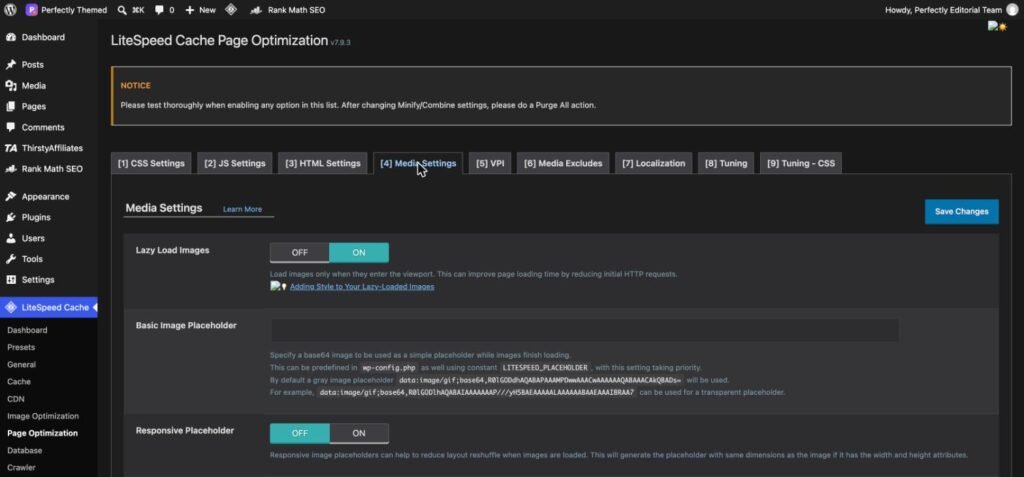
Media
- Lazy Load Images: ON and Lazy Load Iframes: ON.
- Add Missing Sizes: ON. Adds width and height to images that lack them, which prevents layout shift.
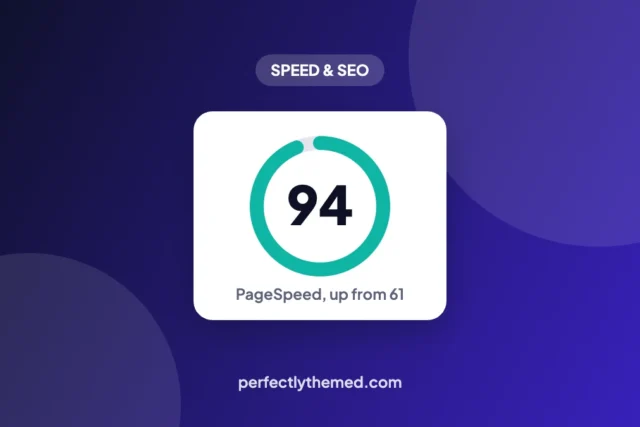
- Then open Media Excludes and exclude your logo and the first large image on the page. Lazy loading the image at the top of the page is the most common reason for a slow LCP. We covered a real example in our 61 to 94 PageSpeed case study.
Settings to test carefully
These can give the biggest gains and cause the most breakage. Turn each one on alone, purge, and test menus, sliders, forms and anything interactive.
| Setting | What it does | What can break |
|---|---|---|
| CSS Combine / JS Combine | Merges files into one | Order-dependent scripts and styles. With HTTP/2 or HTTP/3 the gain is small, so many sites are better off leaving both off. |
| Load JS Deferred | Runs scripts after the HTML is parsed | Inline scripts that expect jQuery to exist already |
| Load JS Deferred → Delayed | Runs scripts only after the first tap or scroll | Menus, cookie banners, analytics and ads that must run at load |
| Load CSS Asynchronously | Loads CSS without blocking, using generated critical CSS | A flash of unstyled content if the critical CSS is incomplete |
| Generate UCSS | Removes unused CSS per page | Styles for elements that only appear after interaction |
When something breaks, you do not have to switch the feature off for the whole site. Page Optimization → Tuning lets you exclude a single script or stylesheet by part of its file name.
What QUIC.cloud is, and what needs it
Some features do not run on your server. Image optimisation, critical CSS, unique CSS and low quality image placeholders are generated by QUIC.cloud, LiteSpeed’s online service, and need a domain key (General → Domain Key → Request). Each service has a free monthly quota.
The QUIC.cloud CDN is a separate product and is optional. Page cache, browser cache, minify and lazy loading work without any QUIC.cloud connection at all.
Image optimisation
Once the domain key is set, Image Optimization → Image Optimization Settings:
- Auto Request Cron: ON so new uploads are sent automatically
- Optimize Original Images: ON
- Image WebP Replacement: ON to serve WebP to browsers that support it
If your images are already compressed WebP when you upload them, you can skip this section entirely.
Settings most blogs can ignore
- Object Cache: only useful if your plan includes Redis or Memcached, and mainly for logged-in or WooCommerce traffic
- Crawler: pre-warms the cache, but many shared hosts disable it at server level
- ESI: for pages that mix cached and per-user content
- Database: a clean-up tool, not a speed setting. Take a backup before using it
How to test each change
- Toolbar → LiteSpeed Cache → Purge All
- Load the page twice in a private window. The first visit builds the cache
- In your browser’s developer tools, open Network, click the page request and look for the response header
x-litespeed-cache: hit - Run PageSpeed Insights three times and compare the median with your baseline
Do not stack cache plugins. Running LiteSpeed Cache together with WP Rocket, W3 Total Cache or WP Super Cache causes stale pages and conflicts. Pick one.
Frequently asked questions
Does LiteSpeed Cache work without a LiteSpeed server?
Partly. The optimisation features (minify, lazy load, image optimisation) work on any server, but the page cache needs LiteSpeed Web Server or OpenLiteSpeed.
Is LiteSpeed Cache free?
Yes. The plugin is free. QUIC.cloud services such as image optimisation and critical CSS have a free monthly quota, with paid credits beyond it.
Do I need the QUIC.cloud CDN?
No. It is optional. The server-level page cache works on its own, and you can use the online services without routing your traffic through the CDN.
My site looks broken after enabling a setting. What now?
Turn off the last option you enabled, click Purge All and reload. In most cases it is JS Combine, delayed JavaScript or asynchronous CSS. Then exclude the affected file under Tuning rather than abandoning the feature.

Leave a Reply