
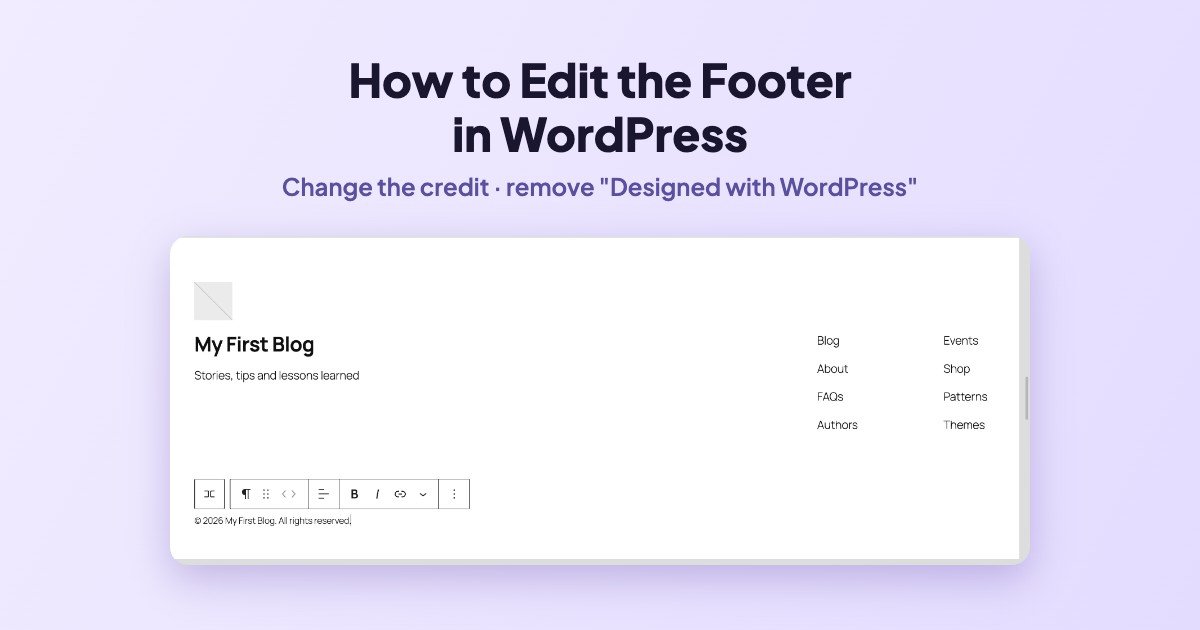
To edit the footer in WordPress with a block theme, go to Appearance → Editor → Patterns → Footer, open the footer, click the text you want to change and type, then click Save. With a classic theme, the footer is usually in Appearance → Customize or Appearance → Widgets instead.
We did it on a WordPress 7.1.4 test site running the default Twenty Twenty-Five theme on 16 November 2026: we replaced the “Twenty Twenty-Five” text with a copyright line and removed the “Designed with WordPress” credit. Here is every screen.
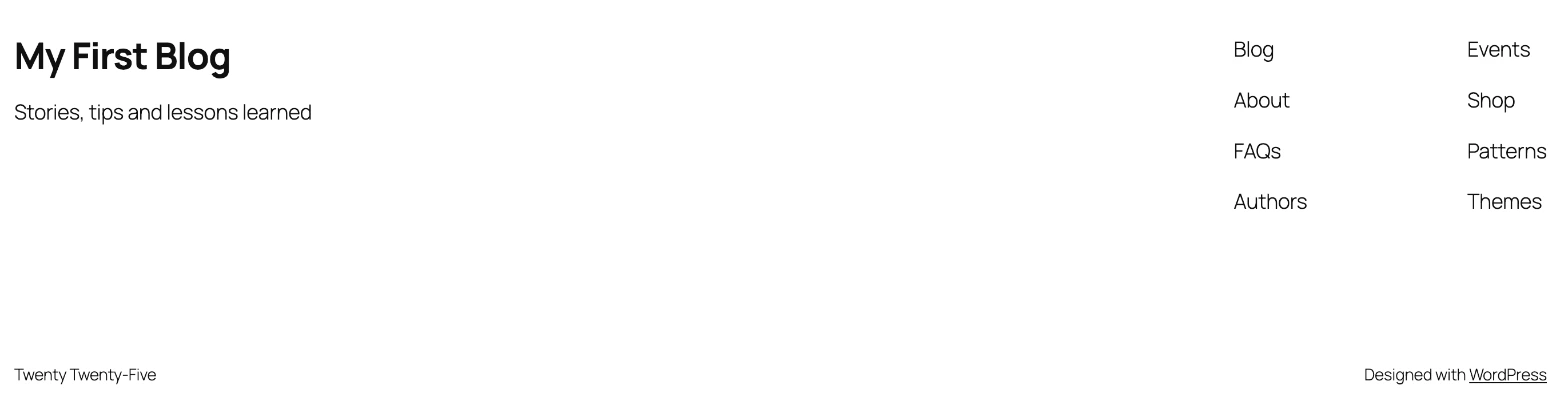
Before: the default footer
A fresh Twenty Twenty-Five site shows the site title, the tagline, two columns of placeholder links, the theme name on the left and “Designed with WordPress” on the right.
Step 1: Open the Site Editor
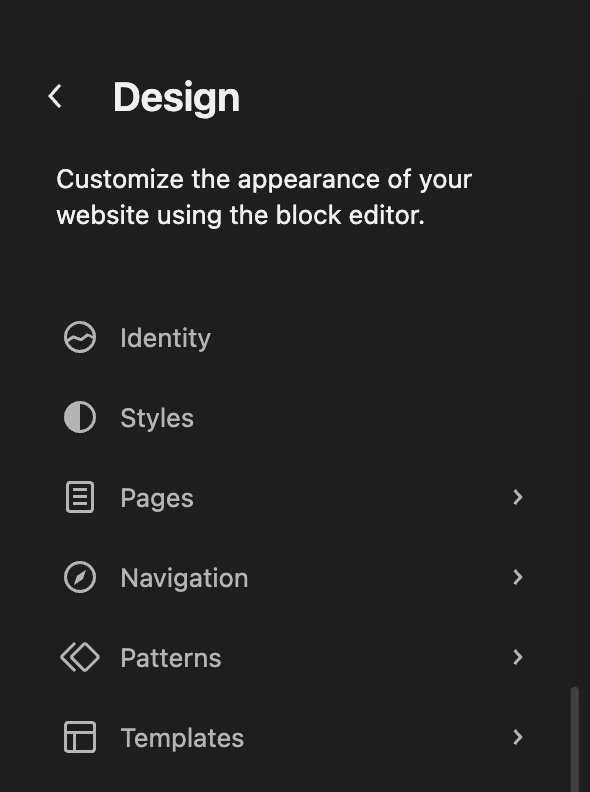
In the dashboard, go to Appearance → Editor. You land on the Design panel. Click Patterns.
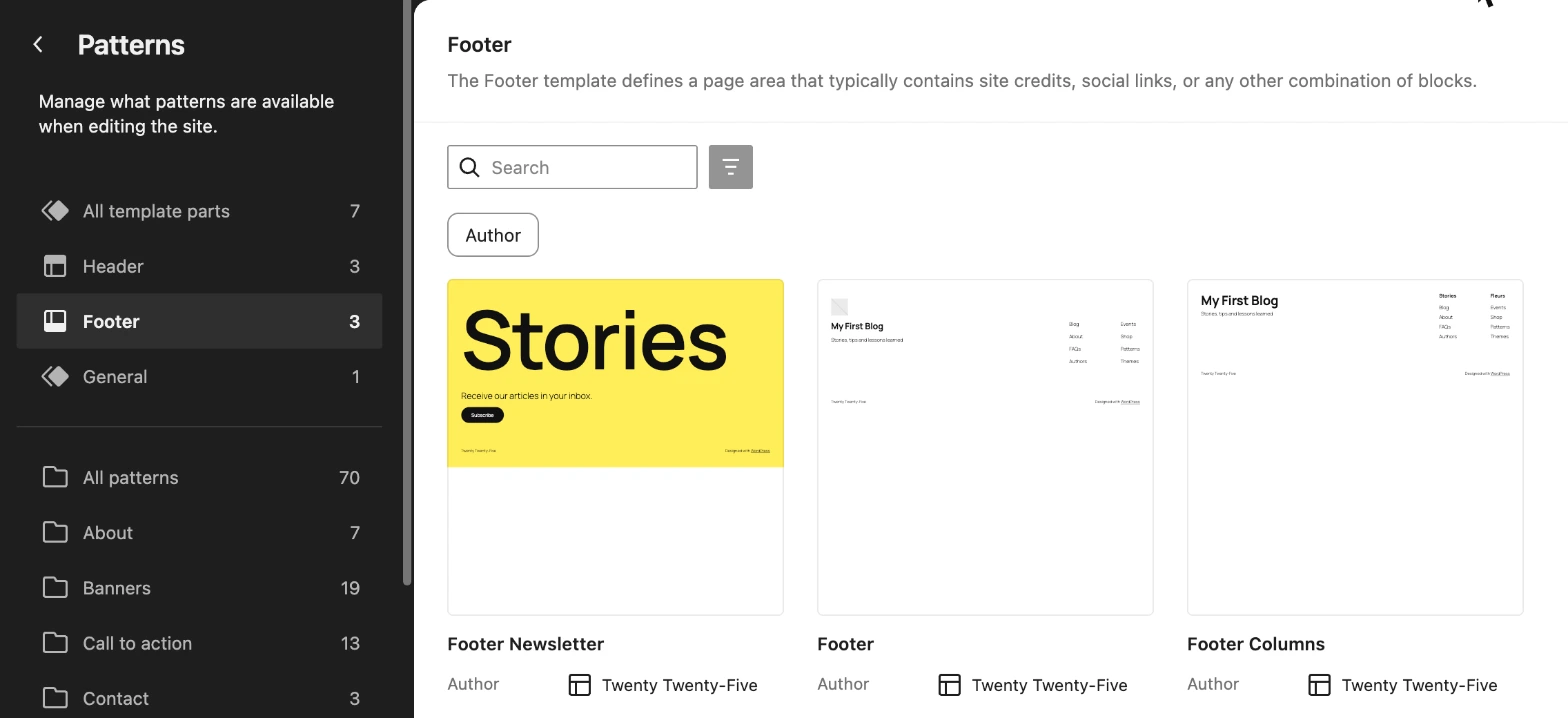
Step 2: Open the footer template part
Under Template parts, click Footer. Twenty Twenty-Five ships three footers. The one our site used is simply called Footer (the middle one). Click it to open it.
Tip: the first time you open the Site Editor, an Edit your site welcome box appears. Click Get started to close it.
Step 3: Change the footer text
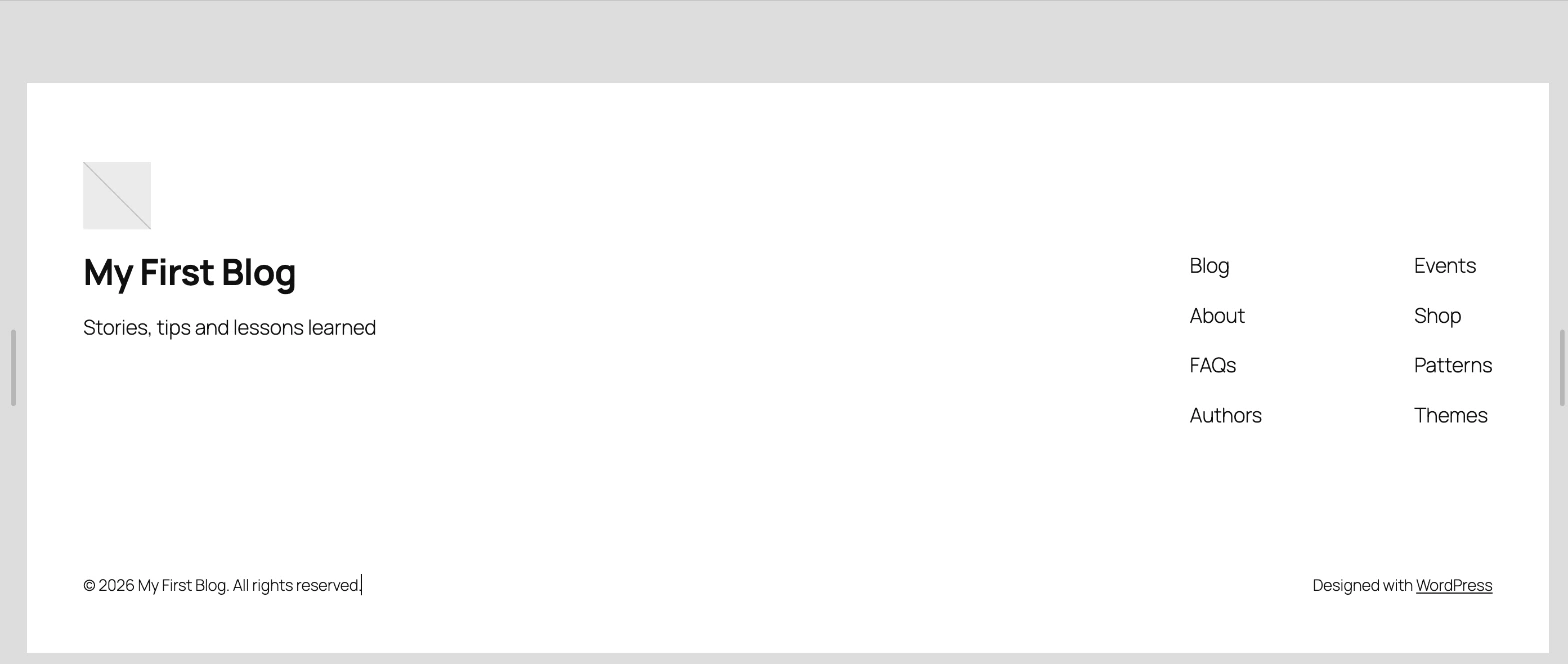
Click the text you want to change. We triple-clicked “Twenty Twenty-Five” to select the whole line and typed © 2026 My First Blog. All rights reserved.
Step 4: Remove “Designed with WordPress”
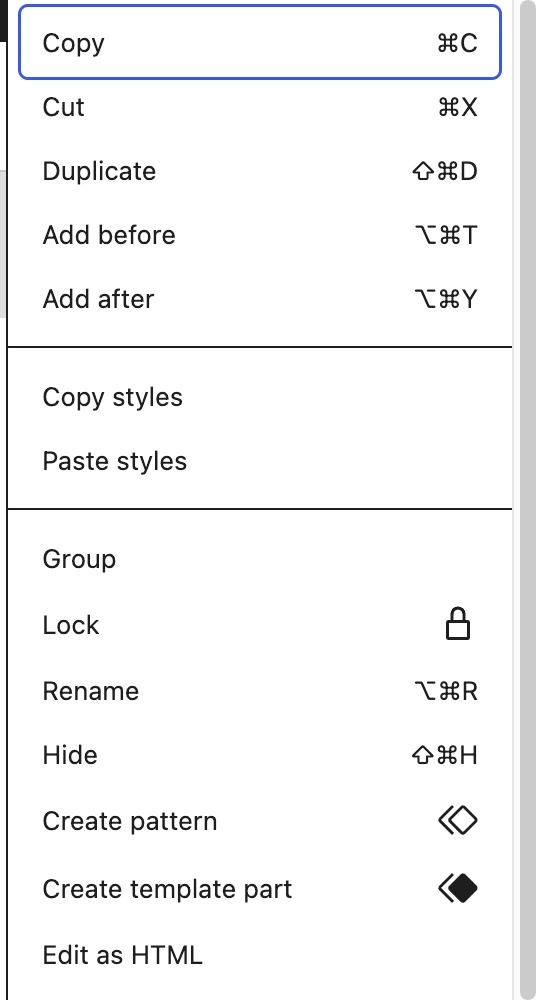
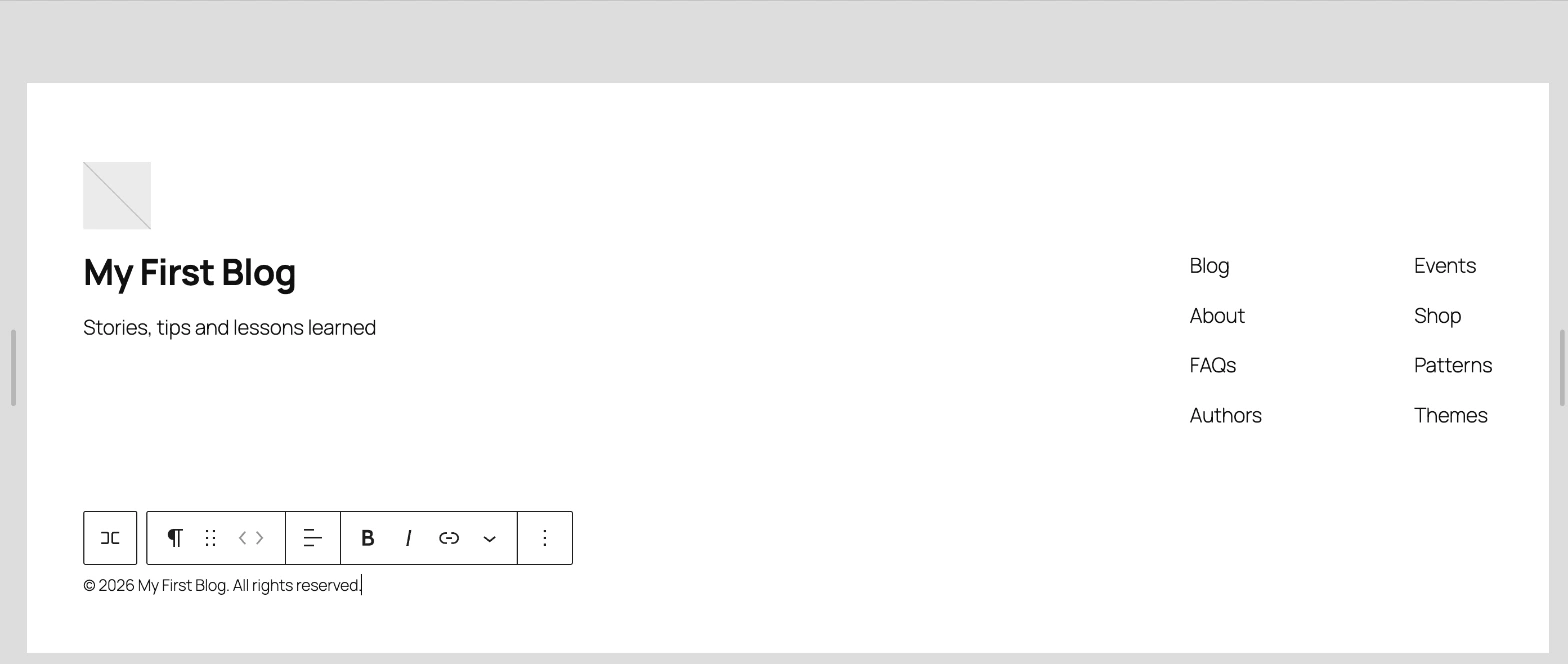
Click the “Designed with WordPress” line, then click the three dots in the block toolbar. Delete is at the very bottom of that menu.
Step 5: Save and check the site
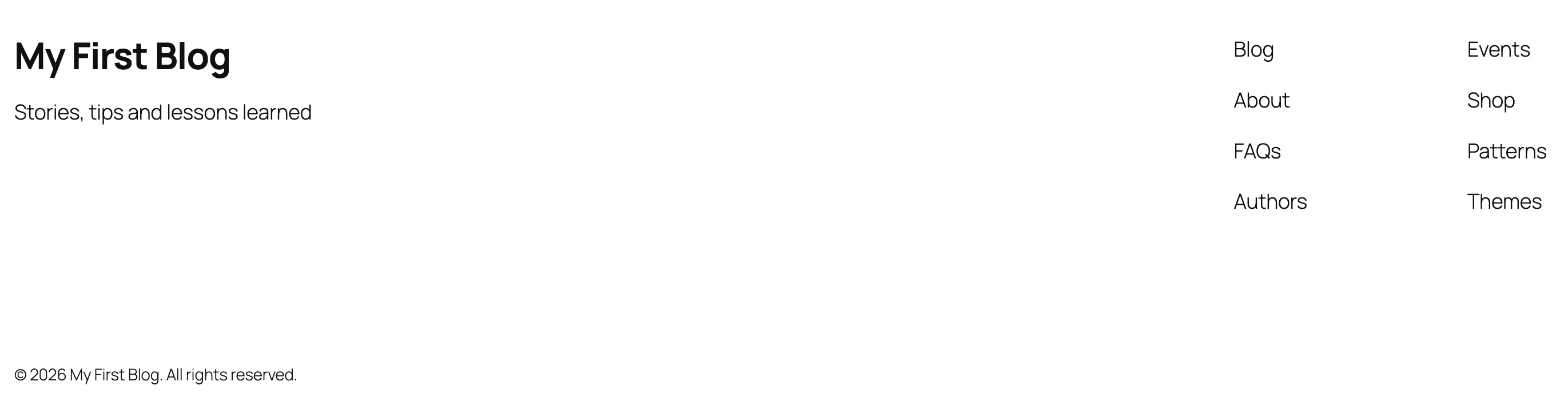
Click Save at the top right. WordPress confirmed with “Template part updated.” The change applies everywhere the footer is used, on every page.
What about the footer links?
The two columns of links (Blog, About, FAQs, Authors, Events, Shop, Patterns, Themes) are Navigation blocks. Several of them point to pages a new site does not have. In the same footer editor, click a column to select its Navigation block and edit, add or remove links, or delete the block if you do not need it. Then save again.
Classic themes: where the footer lives
- Appearance → Customize: many classic themes (Astra, for example) put footer options here, often under a “Footer” or “Footer Builder” section.
- Appearance → Widgets: footer columns are often widget areas.
- Theme options page: some premium themes have their own settings screen for the copyright text.
- Avoid editing
footer.phpdirectly: a theme update overwrites it. Use a child theme if you really need code changes.
How to undo your footer changes
Before you save, the Undo arrow at the top left reverts each change. After saving, open the footer again and change the text back, or add a new paragraph if you deleted one. Your edits are stored in the database, so switching to another theme leaves its own footer untouched.
Frequently asked questions
Is it allowed to remove “Designed with WordPress”?
Yes. WordPress is open source under the GPL, and the credit is optional. Many sites replace it with their own copyright line.
Why don’t I see Appearance → Editor?
Your theme is a classic theme. Look in Appearance → Customize or Appearance → Widgets instead.
Will a theme update undo my footer edits?
No. Edits made in the Site Editor are stored in your database, not in the theme files, so an update does not overwrite them.


Leave a Reply