
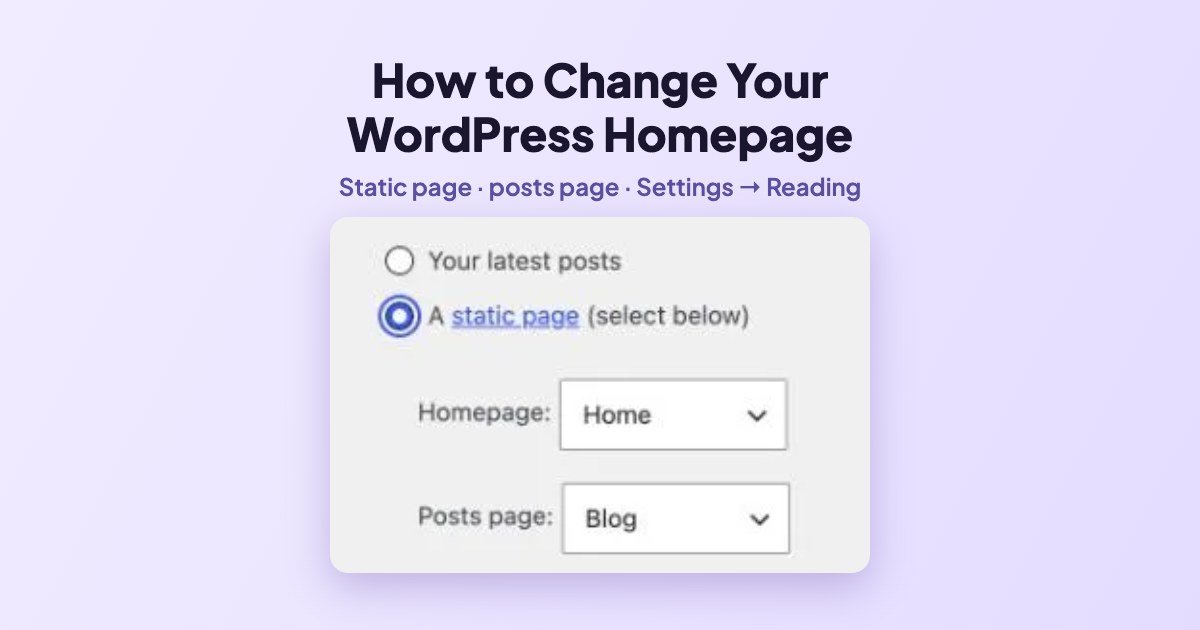
To change your homepage in WordPress, go to Settings → Reading, choose A static page, pick the page you want in the Homepage menu, pick another page for your posts in Posts page, and click Save Changes.
We did exactly that on a fresh WordPress 7.1.4 test site on 16 November 2026: we created a Home page and an empty Blog page, then switched the homepage from the list of latest posts to the new page. Here is every step and what changed on the site.
Latest posts or a static page?
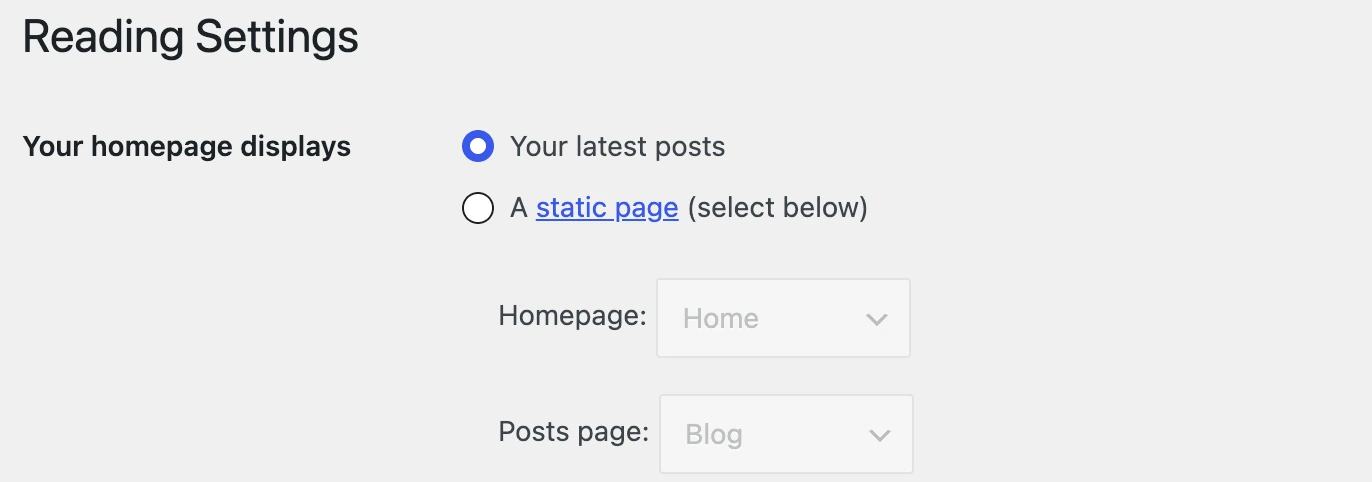
- Your latest posts (the default): the homepage is a list of your newest posts. Good for a pure blog.
- A static page: the homepage is a normal page you design (welcome text, buttons, your best guides). Your posts move to a separate page, usually called Blog. Better for business sites, portfolios and most new blogs.
Step 1: Create the two pages
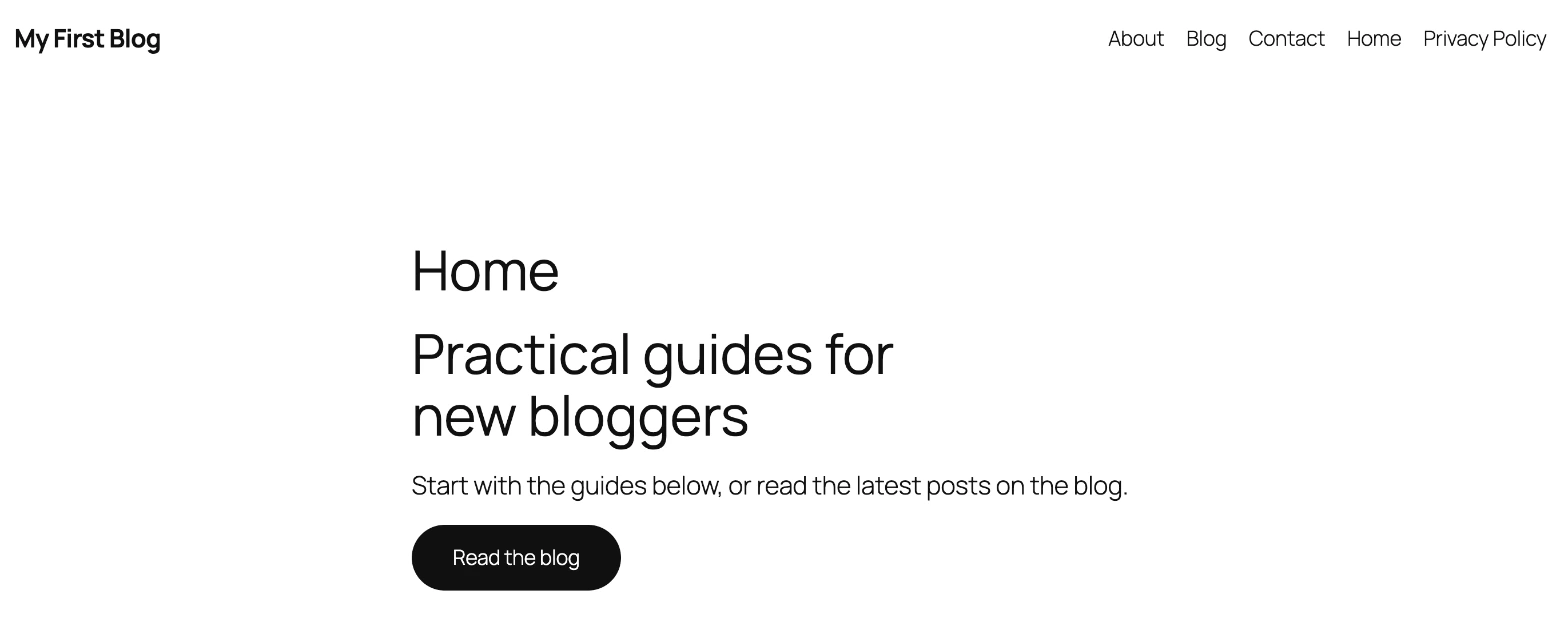
- Go to Pages → Add Page and create the page you want as your homepage. We called ours Home and added a heading, one sentence and a “Read the blog” button. Publish it.
- Create a second page called Blog and publish it empty. WordPress fills it with your posts automatically; anything you type in it will not show.
Tip: the page names do not matter to WordPress. You can call them Welcome and Articles if you prefer; only the choice in Settings → Reading counts.
Step 2: Set them in Settings → Reading
- Go to Settings → Reading.
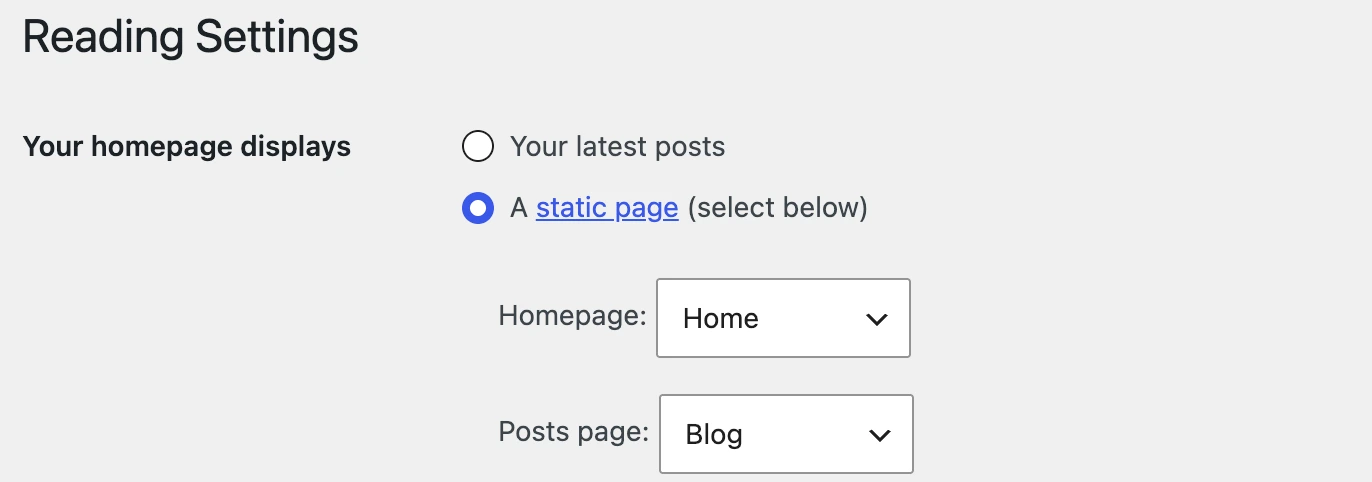
- Under Your homepage displays, select A static page (select below).
- In Homepage, choose your new page (Home).
- In Posts page, choose the empty page (Blog).
- Click Save Changes at the bottom.
Step 3: Check the result
Open your site address. Ours now shows the Home page instead of the post list:
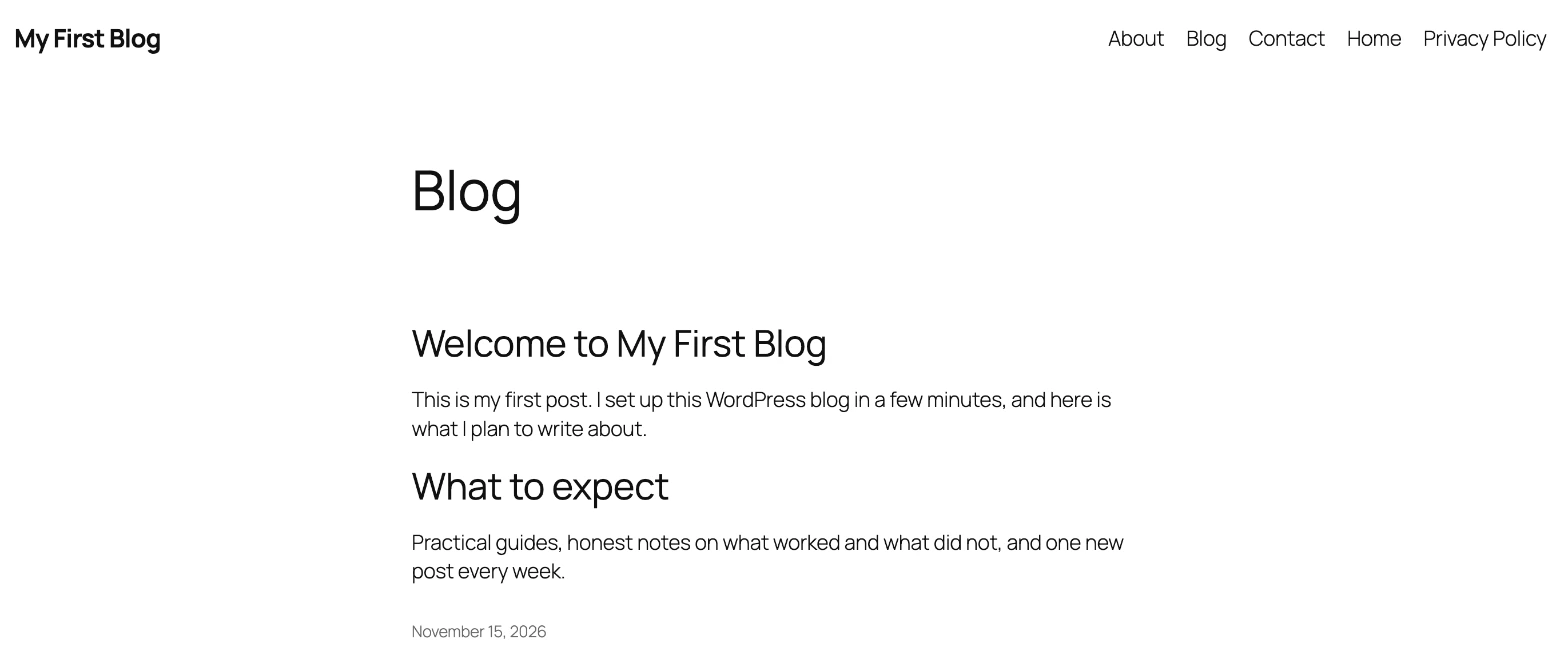
And /blog/ now lists the latest posts, exactly like the old homepage did:
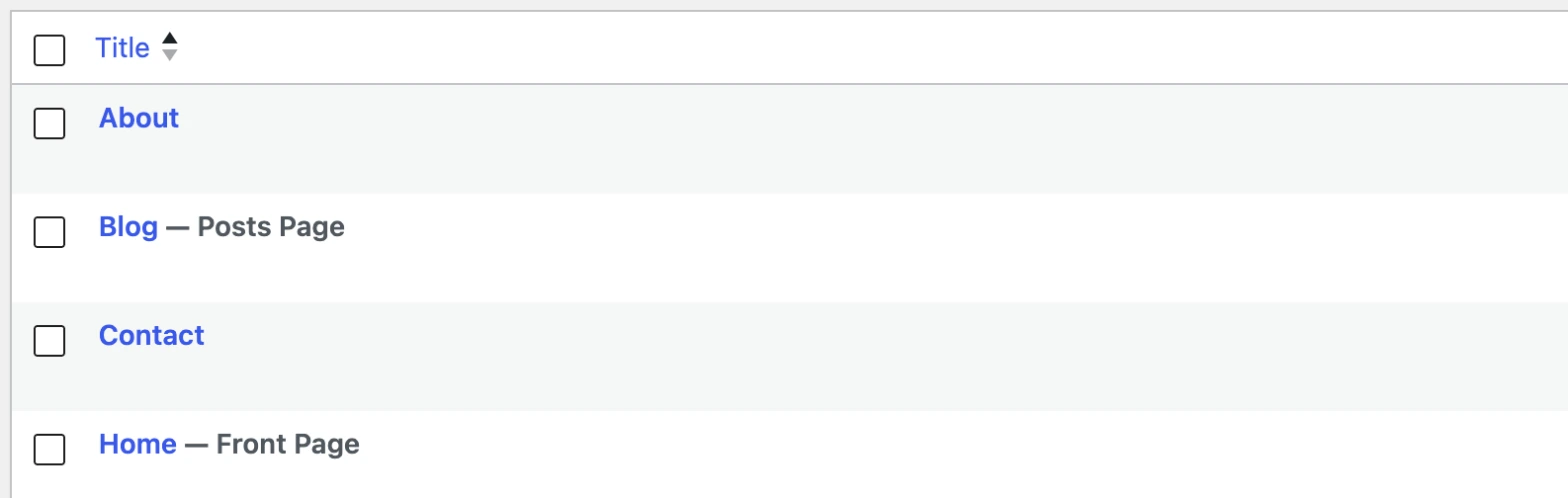
In Pages → All Pages, WordPress labels the two pages so you always know which is which: Front Page and Posts Page.
Two things we noticed
- The page title shows on the homepage. Our test theme printed “Home” above the content. To hide it, edit the page template in Appearance → Editor, or simply rename the page to something that reads well as a title.
- The new pages appeared in the menu. The theme’s navigation lists pages automatically, so Blog and Home showed up in the header next to About and Contact. If your menu is built by hand, add them yourself.
How to switch back to latest posts
Go back to Settings → Reading, select Your latest posts and save. Your Home and Blog pages stay in Pages; delete them if you no longer need them.
Frequently asked questions
Why are my posts not showing on the homepage anymore?
Because you chose a static page. Your posts are now on the page you set as Posts page (for example /blog/). Link to it from your menu or from a button on the homepage.
Why is my Blog page empty in the editor?
That is normal. WordPress ignores the content of the Posts page and shows your latest posts there instead.
Can I use a page builder page as my homepage?
Yes. Any published page can be chosen in the Homepage menu, whatever tool built it.
Does changing the homepage affect SEO?
Your homepage URL stays the same, so links keep working. The content changes, so make sure the new page still explains what your site is about and links to your best posts.

Leave a Reply