
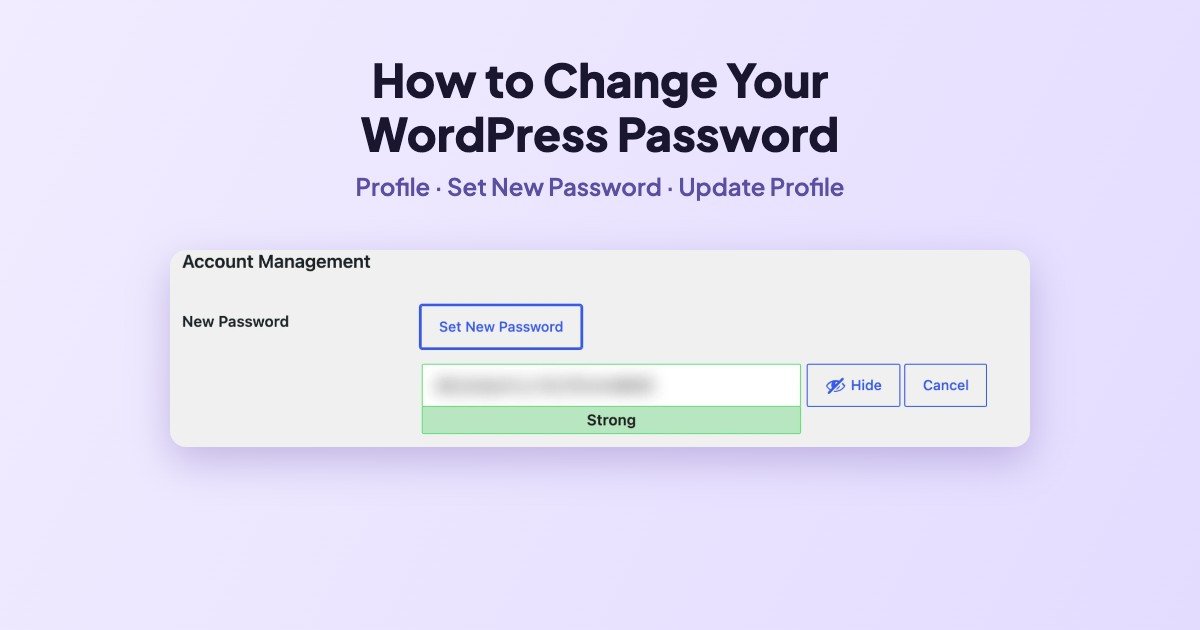
To change your WordPress password, go to Users → Profile, scroll to Account Management, click Set New Password, keep the strong password WordPress suggests (or type your own), then click Update Profile.
Screens below are from a WordPress 7.1.4 site on 16 November 2026. If you cannot log in at all, skip to forgot your password.
Step 1: Open your profile
In the dashboard menu, go to Users → Profile (or click your name at the top right). Scroll down to Account Management.
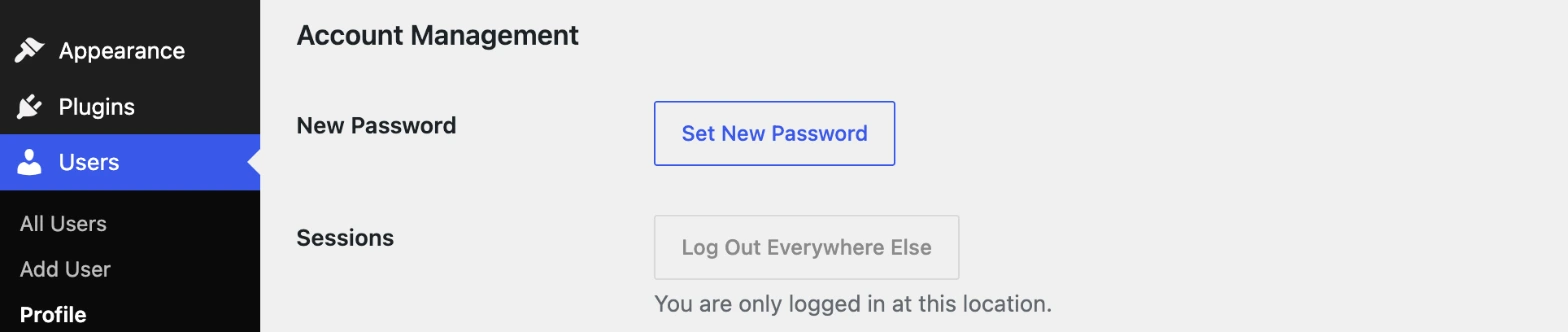
Step 2: Click Set New Password
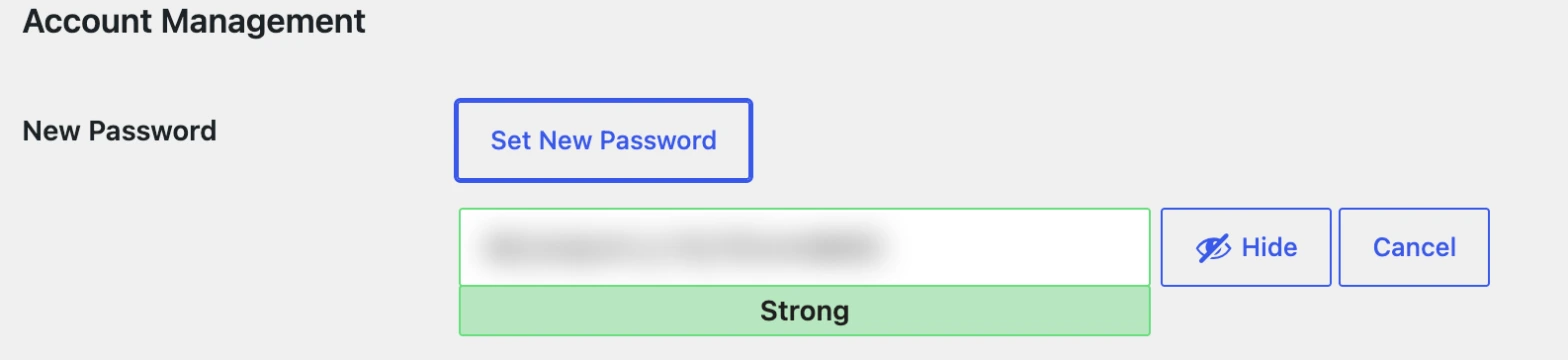
WordPress fills the field with a long random password and rates it Strong. Copy it into your password manager, or clear the field and type your own. If yours is weak, WordPress asks you to confirm before it accepts it.
Step 3: Click Update Profile
Scroll to the bottom and click Update Profile. The new password works right away, and you stay logged in on the computer you used.

Worried someone else is logged in? In the same section, Log Out Everywhere Else under Sessions signs your account out on every other browser and device.
Change another user’s password (admins)
Administrators can go to Users → All Users, hover over the user, click Edit, and use the same Set New Password button. Tell the user their new password through a safe channel, or let them use the reset link instead.
Forgot your password?
On the login page, click Lost your password?, enter your username or email and WordPress emails you a reset link. We show that screen in our WordPress login guide.
Tips for a safe password
- Use the generated password and store it in a password manager.
- Never reuse your WordPress password on other sites.
- Add two-factor authentication with a security plugin.
- Avoid the username
admin.
Frequently asked questions
Will changing my password log me out?
Not on the browser you are using. Other sessions can stay logged in until you click Log Out Everywhere Else.
Where is the password stored?
In your site database, hashed. Nobody, including your host, can read it back, which is why the only option is to set a new one.
Can I change my username the same way?
No. WordPress does not let you edit a username from the profile screen. The usual way is to create a new administrator with the username you want, log in with it, and delete the old account (WordPress lets you assign its posts to the new user).

Leave a Reply