
To install a WordPress plugin, go to Plugins → Add Plugin, search for the plugin, click Install Now, then click Activate. A plugin does nothing until it is activated.
We installed one on a fresh WordPress 7.1.4 site on Hostinger on 16 November 2026: Yoast Duplicate Post, which we use in our duplicate a page guide. These are the exact screens we saw.
Step 1: Open Plugins → Add Plugin
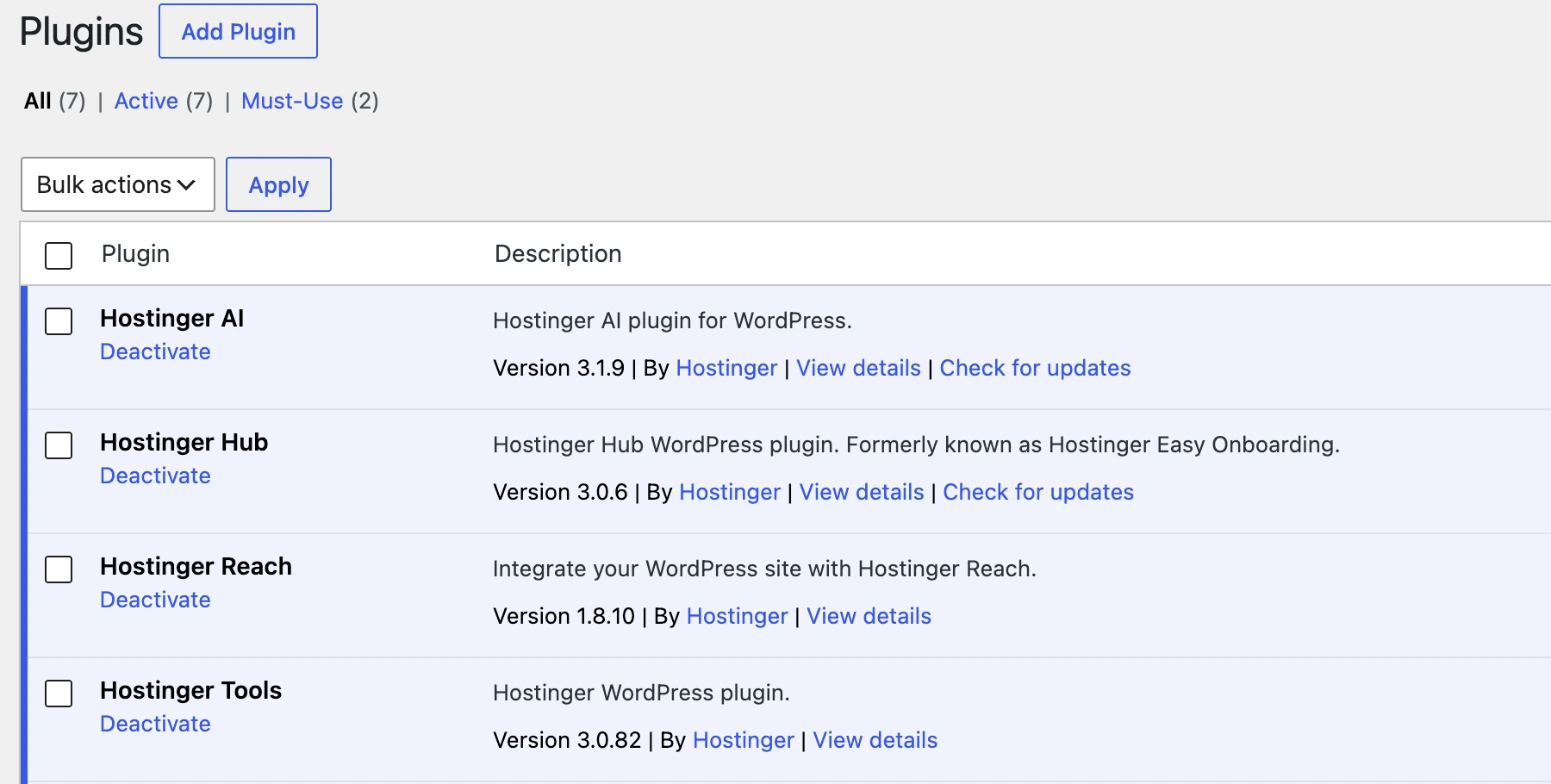
In the dashboard menu, go to Plugins. This screen lists what is already installed. Our brand-new Hostinger site already had six plugins (Hostinger AI, Hostinger Hub, Hostinger Reach, Hostinger Tools, LiteSpeed Cache and Rank Math SEO), because Hostinger adds them during setup. Click Add Plugin at the top.
Step 2: Search for the plugin
Type the plugin name, or what you need, in Search Plugins. Before you install, check the card: the number of active installations, the rating, Last Updated and the Compatible with your version of WordPress note.
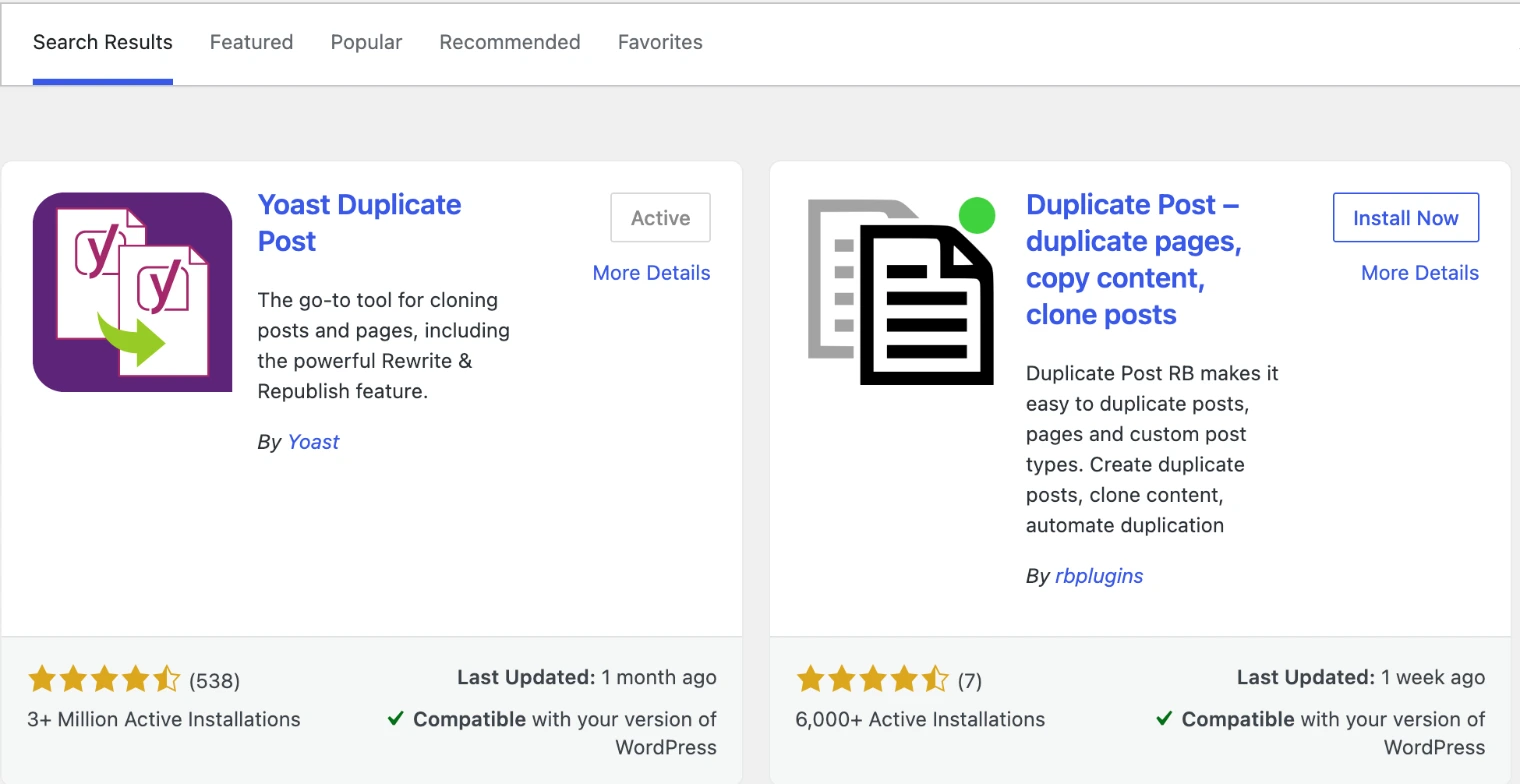
Our rule: prefer plugins with many active installs and a recent update. A plugin that has not been updated for a year or more is a risk, even if it still works.
Step 3: Click Install Now, then Activate
Click Install Now. After a few seconds the button turns into Activate. Click it.
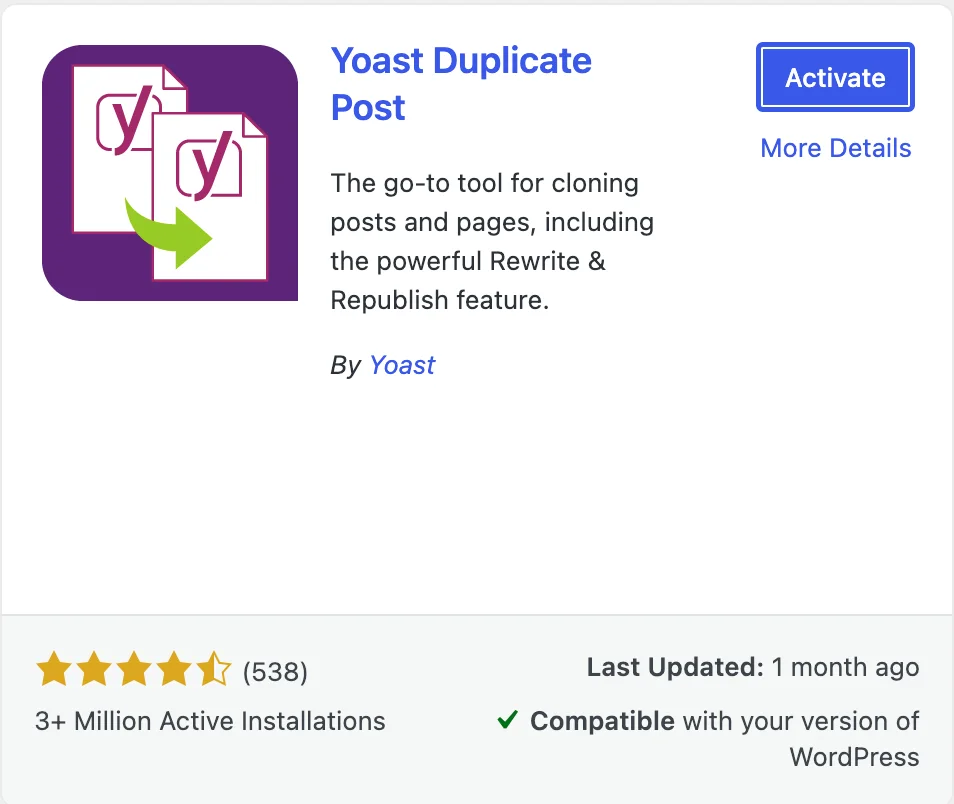
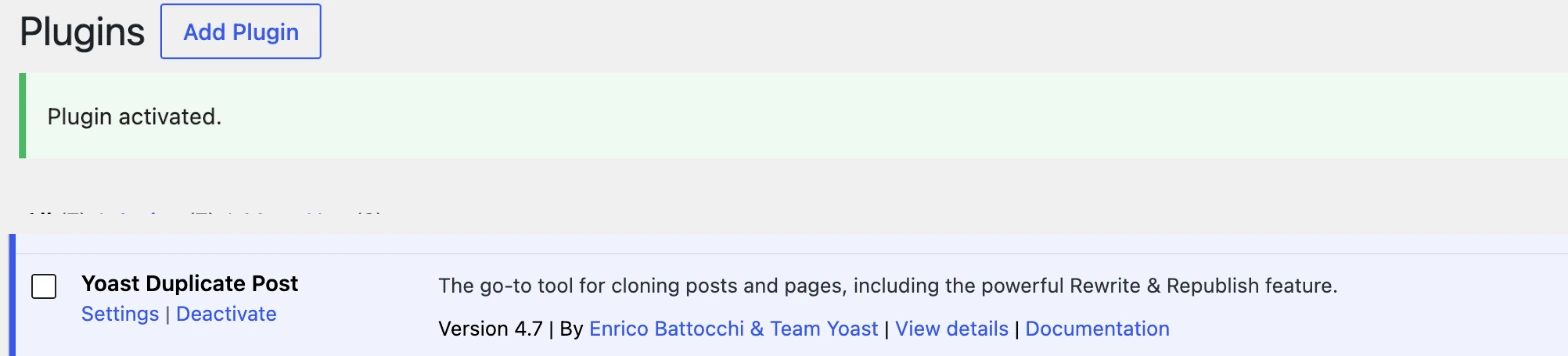
WordPress takes you back to the Plugins screen with a Plugin activated. notice. Some plugins also show their own welcome box, like Yoast did here.
Install a premium plugin (upload a .zip)
Paid plugins are not in the WordPress directory. You download a .zip file from the seller, then:
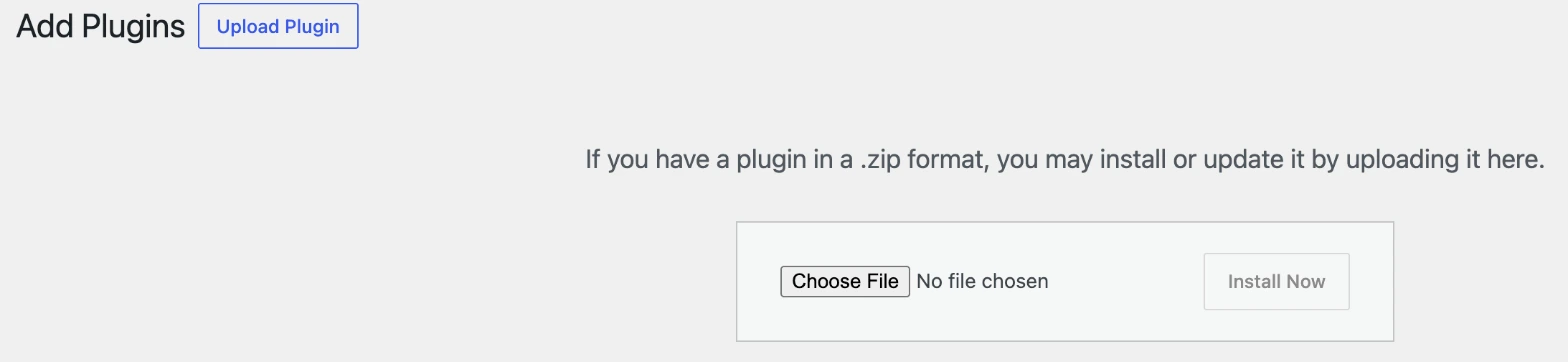
- Go to Plugins → Add Plugin and click Upload Plugin at the top.
- Click Choose File and pick the .zip (do not unzip it).
- Click Install Now, then Activate Plugin.
- Enter your license key in the plugin settings if it asks for one.
How to deactivate and delete a plugin
In Plugins → Installed Plugins, click Deactivate under the plugin name. Once it is inactive, a Delete link appears. Deactivate first if you only want to test whether a plugin causes a problem; delete it if you will not use it again.
Common problems
- No “Add Plugin” button: your user is not an Administrator, or you are on a WordPress.com plan that does not allow plugins.
- “The link you followed has expired” when uploading: the .zip is bigger than your upload limit. Ask your host to raise it, or upload the unzipped folder to
wp-content/pluginswith the File Manager. - Site broken after activating: follow our critical error guide to disable the plugin.
Frequently asked questions
How many plugins is too many?
There is no fixed number. One heavy plugin can slow a site more than ten small ones. Install what you need, remove what you do not use, and test speed after big changes.
Are free plugins safe?
Plugins in the official directory are reviewed before listing, but keep them updated and prefer actively maintained ones. Avoid “nulled” copies of paid plugins.
Do I need to activate a plugin after installing it?
Yes. An installed but inactive plugin does nothing.

Leave a Reply