
To log in to WordPress, add /wp-admin to the end of your site address (for example example.com/wp-admin), then enter your username or email and your password. That takes you to the dashboard, where you manage posts, pages, plugins and settings.
Below is every way to reach the login page, what each button on it does, and how to fix the login problems we have actually run into. All screenshots come from a fresh WordPress 7.1.4 install on Hostinger, taken on 16 November 2026.
Your WordPress login URL
A standard WordPress install answers on all of these addresses. Replace example.com with your own domain:
| Address | What it does |
|---|---|
example.com/wp-admin | Opens the dashboard, or sends you to the login page if you are logged out |
example.com/wp-login.php | The login page itself |
example.com/login | Redirects to the login page (built into WordPress) |
example.com/admin | Redirects to the dashboard (built into WordPress) |
Tip: if WordPress is installed in a subfolder, the folder goes first: example.com/blog/wp-admin. If a security plugin changed your login address, the four URLs above will not work; use the custom address you set in that plugin.
Step 1: Open the login page
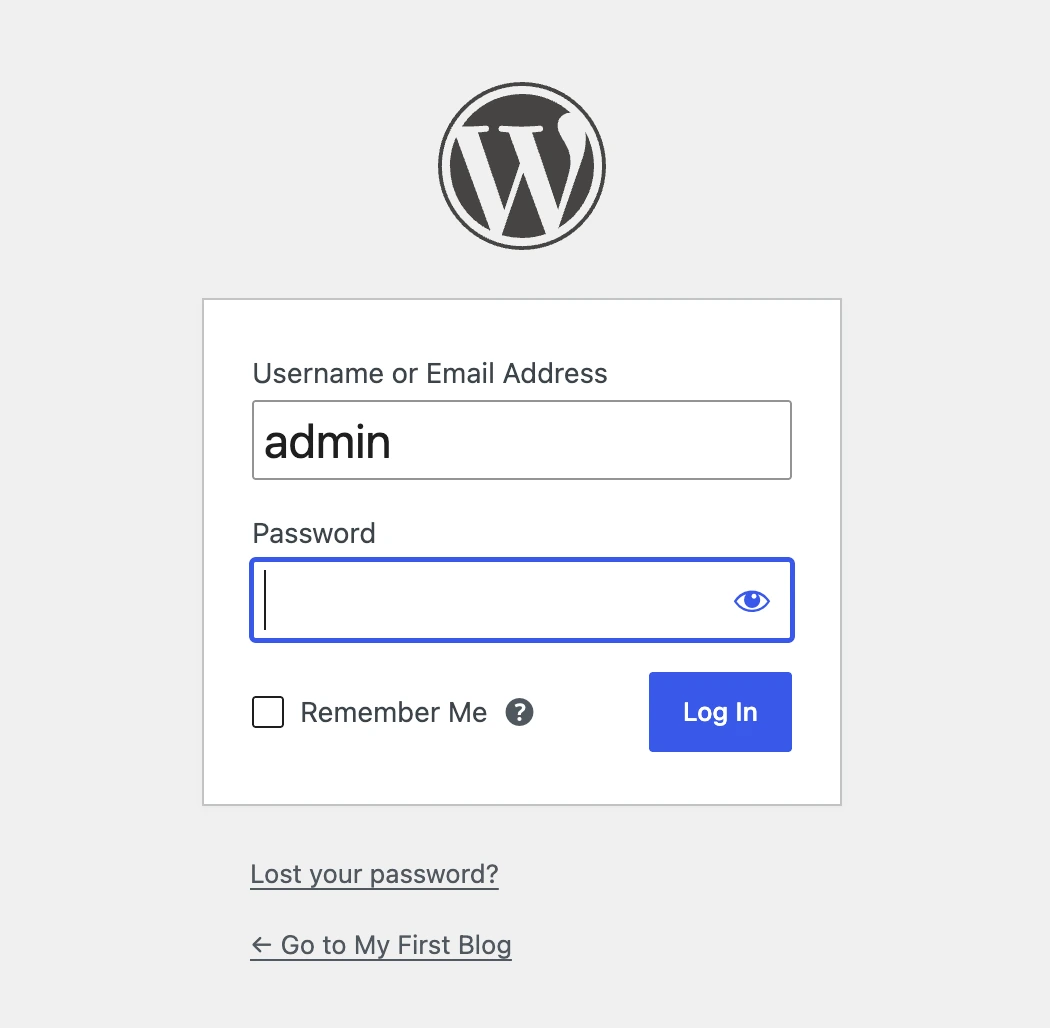
Type your address with /wp-admin at the end and press Enter. If you are not logged in, WordPress shows this page:
Step 2: Enter your username or email and password
- Username or Email Address: both work. The email is the one you used when you installed WordPress.
- Password: the eye icon shows what you typed, useful on a phone.
- Remember Me: keeps you logged in for 14 days on that browser instead of 2. Leave it unticked on shared computers.
- Log In: sends you to the dashboard.
Step 3: You are in the dashboard
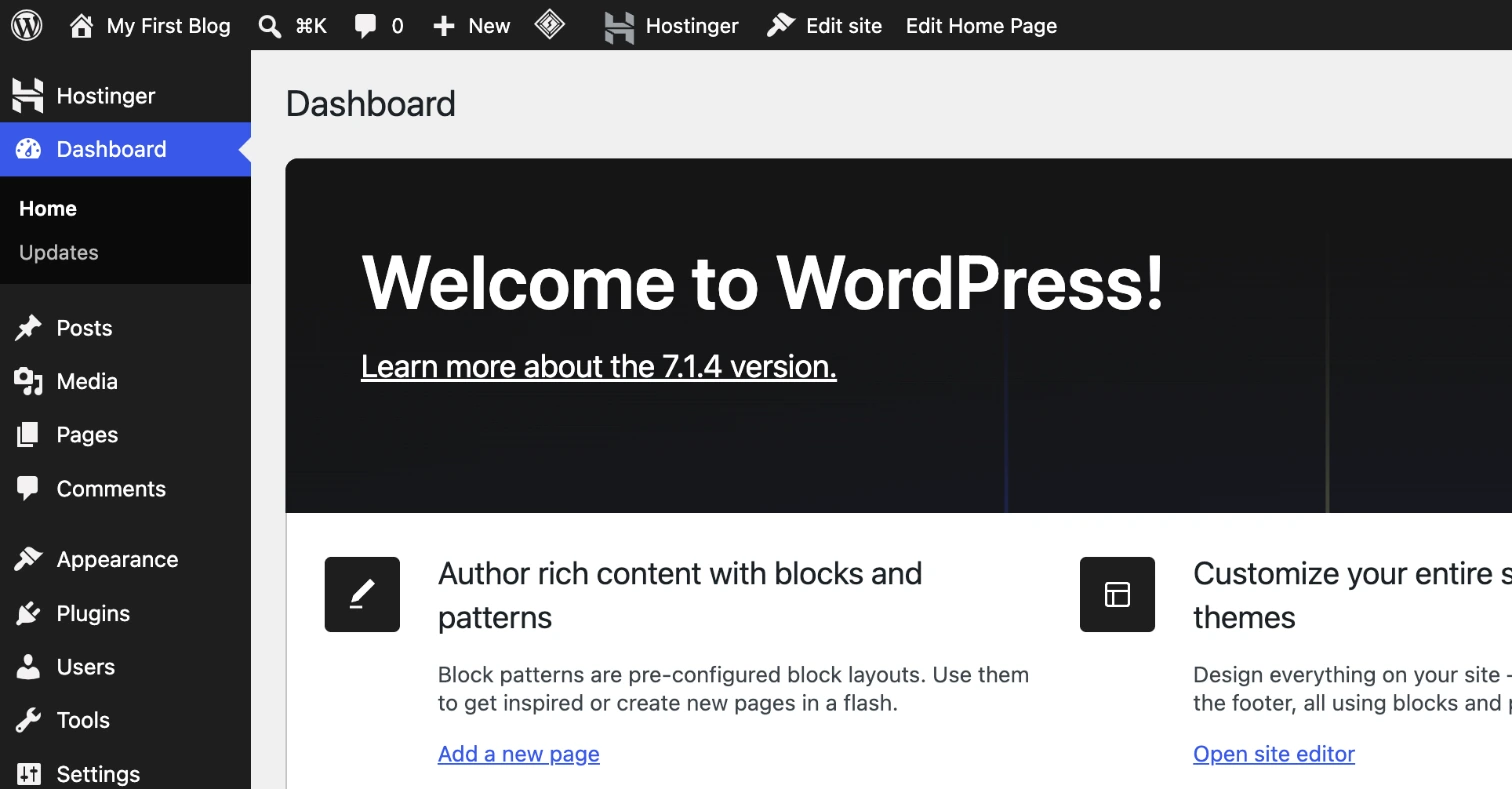
After logging in you land on Dashboard → Home. The black menu on the left is where everything lives: Posts, Media, Pages, Appearance, Plugins, Users and Settings.
Shortcut: the admin bar on your site
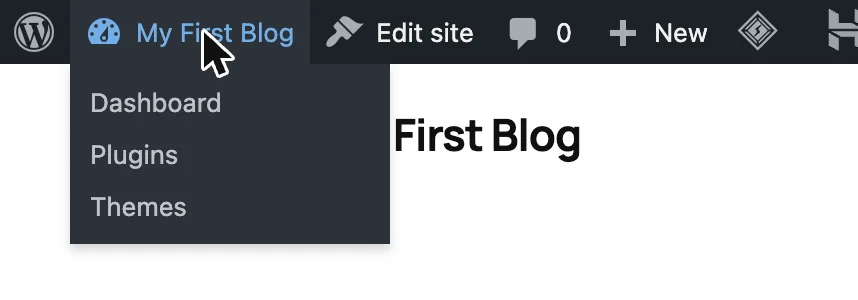
While you are logged in, WordPress shows a black bar at the top of your public site. Hover over your site name and click Dashboard to jump back to the admin.
How to log in from Hostinger (hPanel)
If your site is on Hostinger, you can also reach the admin from the control panel: open Websites, choose your site, then click the purple WP Admin button at the top of the site dashboard.
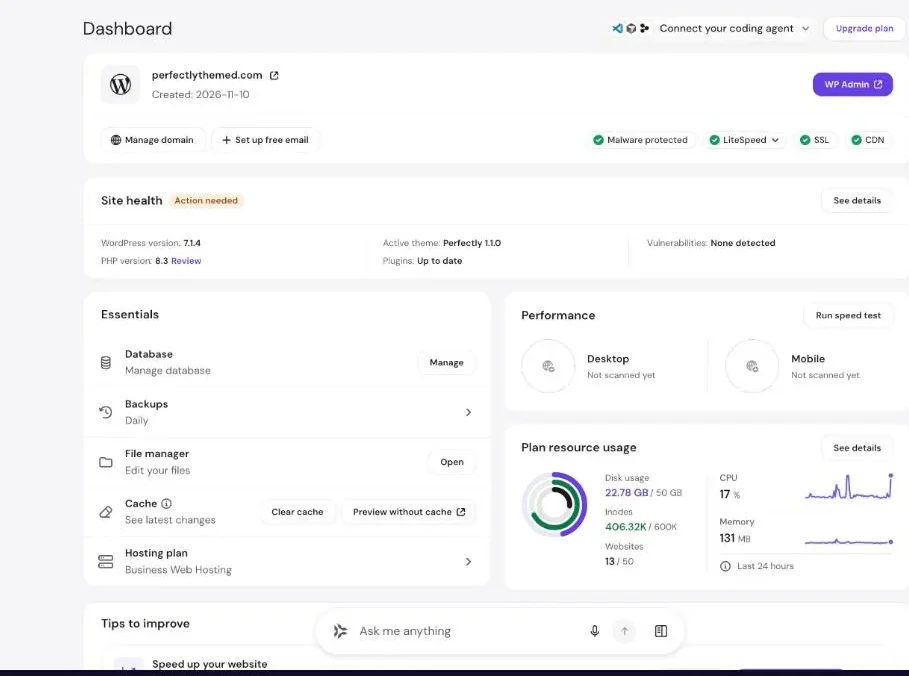
We cover the rest of hPanel in our Hostinger review, and the full install in how to start a WordPress blog.
Forgot your password?
Click Lost your password? under the login form, type your username or email, then click Get New Password. WordPress emails you a reset link.
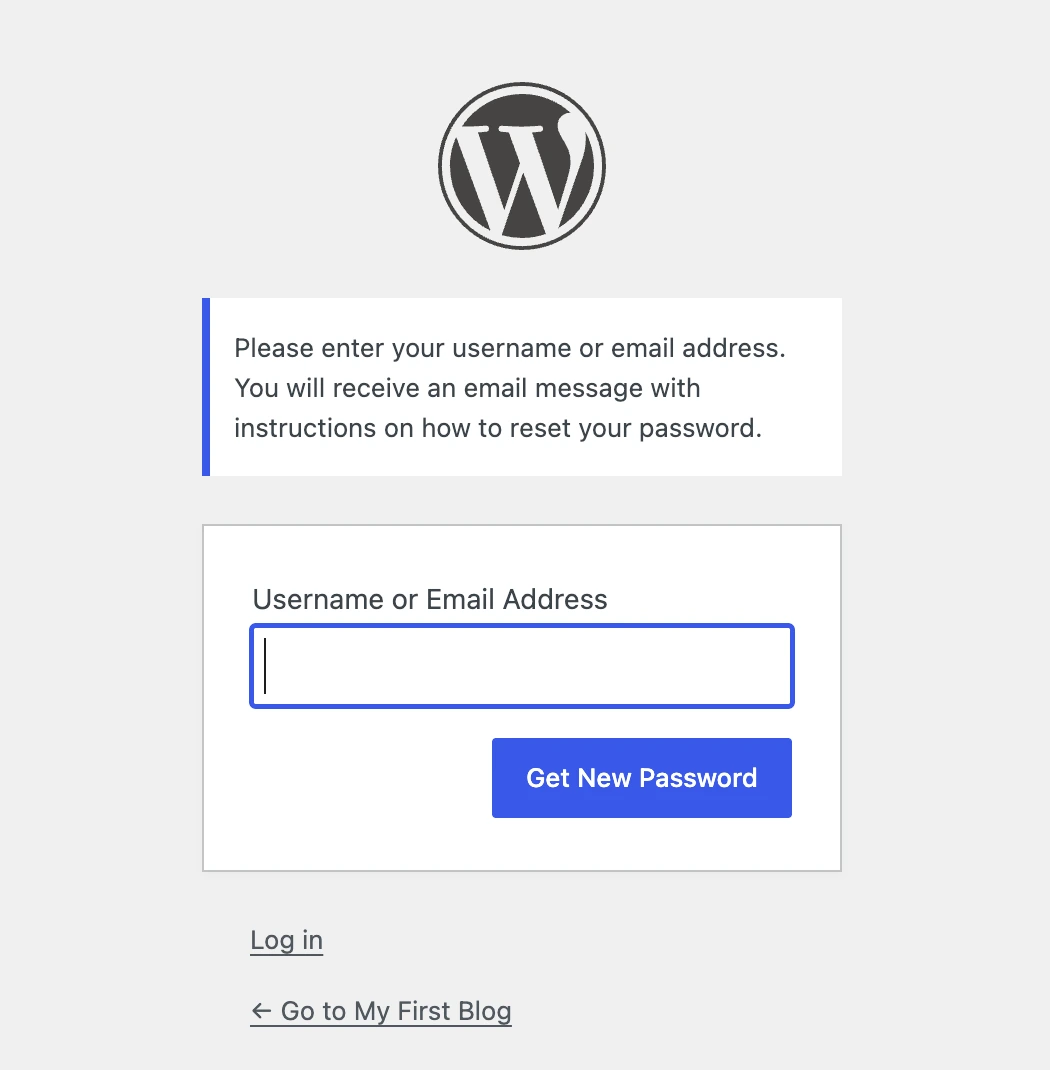
- No email after a few minutes? Check spam, and check that you used the admin email of the site (Settings → General).
- Still nothing? Many hosts cannot send email reliably until you set up SMTP. In that case reset the password from your hosting panel or ask your host.
Common WordPress login problems and fixes
The login page keeps reloading (login loop)
- Clear cookies for your site, or try a private window.
- Check Settings → General: WordPress Address and Site Address must both match the address you use, including https and www.
- If you cannot reach the admin, rename the
pluginsfolder (wp-content) by FTP or the File Manager to rule out a plugin, then rename it back.

“Cookies are blocked or not supported by your browser”
Allow cookies for your domain, disable a cookie-blocking extension for that site, or try another browser. If it happens on every browser, a caching or security plugin may be caching the login page: exclude wp-login.php from cache.
“Error establishing a database connection” or a blank page
That is not a password problem: the site itself is down. Follow our guides to the white screen of death and the critical error, or contact your host if the database is unreachable.
Locked out after too many attempts
Security plugins and some hosts block an IP after several failed logins. Wait for the lockout to end (the message usually says how long), or ask your host to whitelist your IP.
How to keep your login safe
- Use a long, unique password and a password manager.
- Avoid the username
admin: bots try it first. (Our throwaway test site above uses it; your real site should not.) - Turn on two-factor authentication with a plugin.
- Keep WordPress, themes and plugins updated.
Frequently asked questions
What is the default WordPress admin URL?
It is your domain followed by /wp-admin, for example example.com/wp-admin. The login form itself is at /wp-login.php.
Can I log in with my email instead of my username?
Yes. The field accepts either the username or the email address of the account.
How long does WordPress keep me logged in?
Two days by default, or 14 days if you tick Remember Me.
Why does /wp-admin show a 404 page?
Usually a security plugin moved the login page to a custom address. Use that address, or disable the plugin by renaming its folder in wp-content/plugins.
Is the WordPress.com login the same?
No. WordPress.com sites log in at wordpress.com. This guide is for self-hosted WordPress (WordPress.org) on hosts like Hostinger.

Leave a Reply