
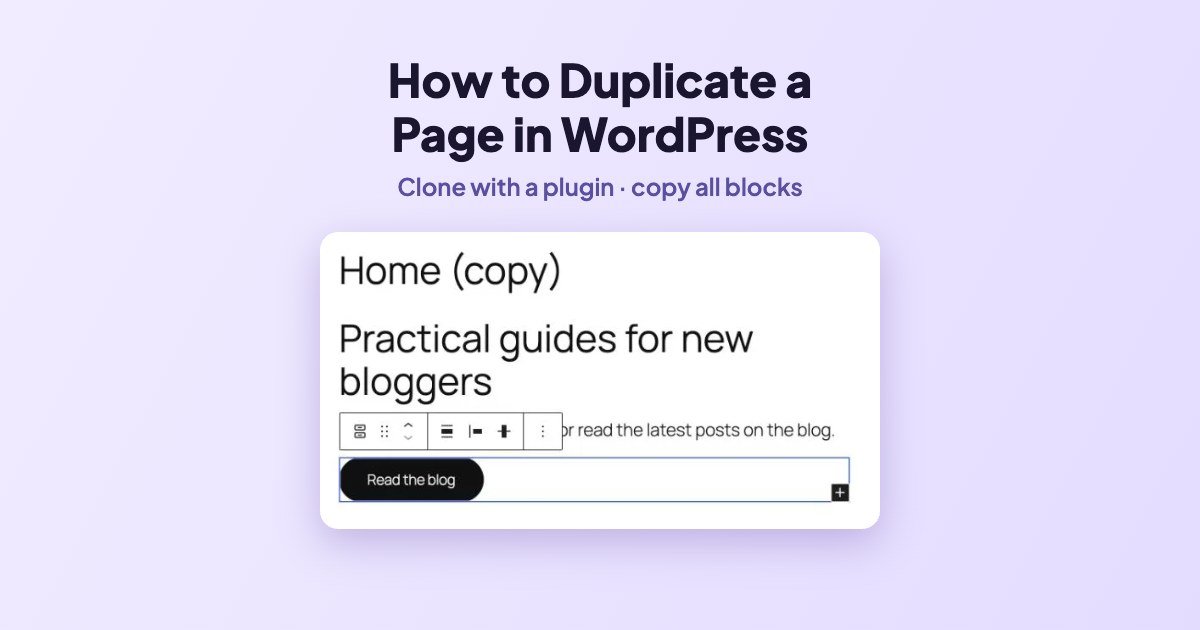
WordPress has no “Duplicate” button for pages out of the box. You have two options: install the free Yoast Duplicate Post plugin and click Clone, or use the built-in Copy all blocks and paste them into a new page.
We tested both on a WordPress 7.1.4 test site on 16 November 2026, duplicating our Home page. Here is what each method copies and what it does not.
| Method | What it copies | Best for |
|---|---|---|
| Yoast Duplicate Post (Clone) | The page as a new draft, with its content and settings | Copying pages often, including layout settings |
| Copy all blocks (no plugin) | Only the content (blocks) | A one-off copy, no plugin to install |
Method 1: Duplicate a page with Yoast Duplicate Post
- Install and activate Yoast Duplicate Post (see how to install a plugin).
- Go to Pages → All Pages and hover over the page you want to copy.
- Click Clone.

The copy appears right away in the list as a Draft with the same title. Open it, rename it and change the URL before you publish.

- Clone creates the draft and keeps you on the list.
- New Draft creates the draft and opens it in the editor.
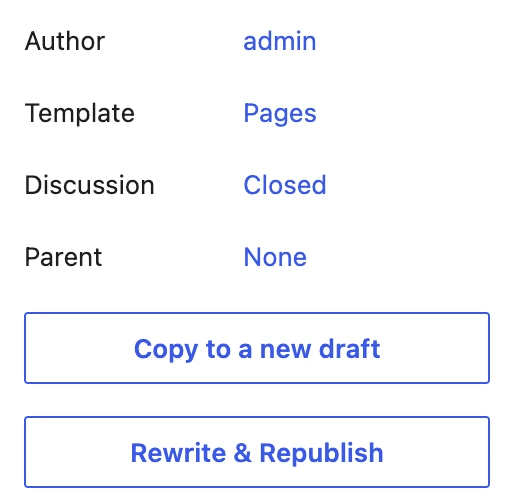
- Rewrite & Republish makes a working copy of a live page; when you republish it, it replaces the original. Handy for editing a published page safely.
You can do the same from inside the editor: the plugin adds Copy to a new draft and Rewrite & Republish buttons to the sidebar, and a Duplicate Post button to the admin bar.
Method 2: Copy all blocks (no plugin)
- Open the page in the editor.
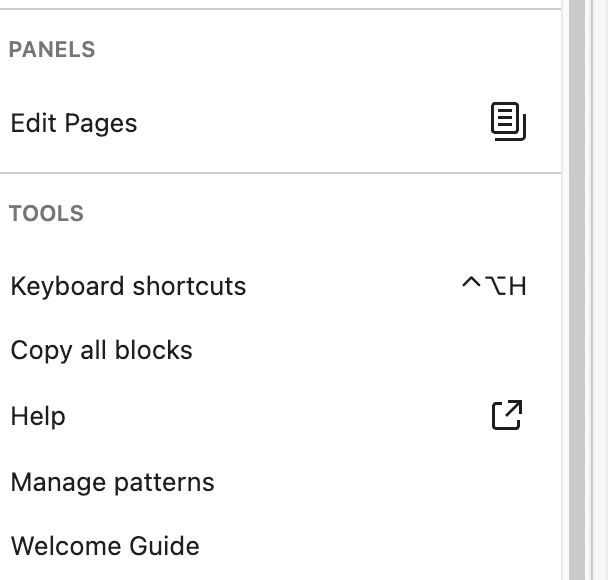
- Click the three dots (Options) at the top right.
- Under Tools, click Copy all blocks.
- Go to Pages → Add Page. If WordPress shows Choose a pattern, close it.
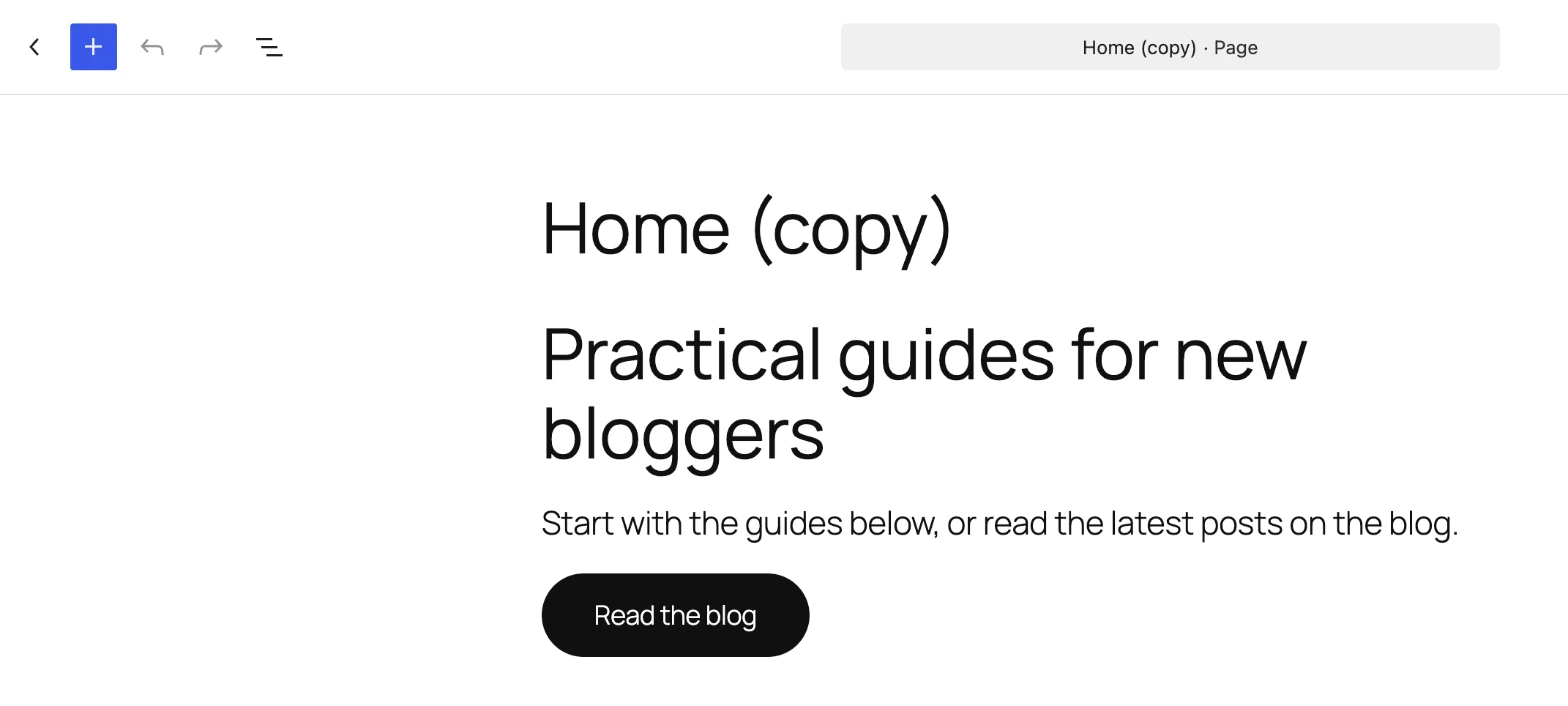
- Click in the content area and paste (Ctrl+V on Windows, Cmd+V on Mac).
- Add a title and publish.
What this method does not copy: the featured image, page template, SEO title and description, and other settings in the sidebar. Set them again on the new page.
Frequently asked questions
Does duplicating a page hurt SEO?
Not if the copy stays a draft or you rewrite it. Two published pages with the same text compete with each other, so change the content (or use Rewrite & Republish instead of a second page).
Can I duplicate a post the same way?
Yes. Both methods work for posts too; the Clone link appears under each post in Posts → All Posts.
Can I delete the plugin after duplicating?
Yes. The copies you made stay. Only the Clone links disappear.

Leave a Reply