
To install a WordPress theme, go to Appearance → Themes → Add Theme, search for the theme, click Install, then Activate. Your posts and pages stay; only the design changes.
We installed Astra, one of the most used free themes, on our WordPress 7.1.4 test site on 16 November 2026, activated it, switched back and deleted it. Here is each step and what changed.
Step 1: Open Appearance → Themes
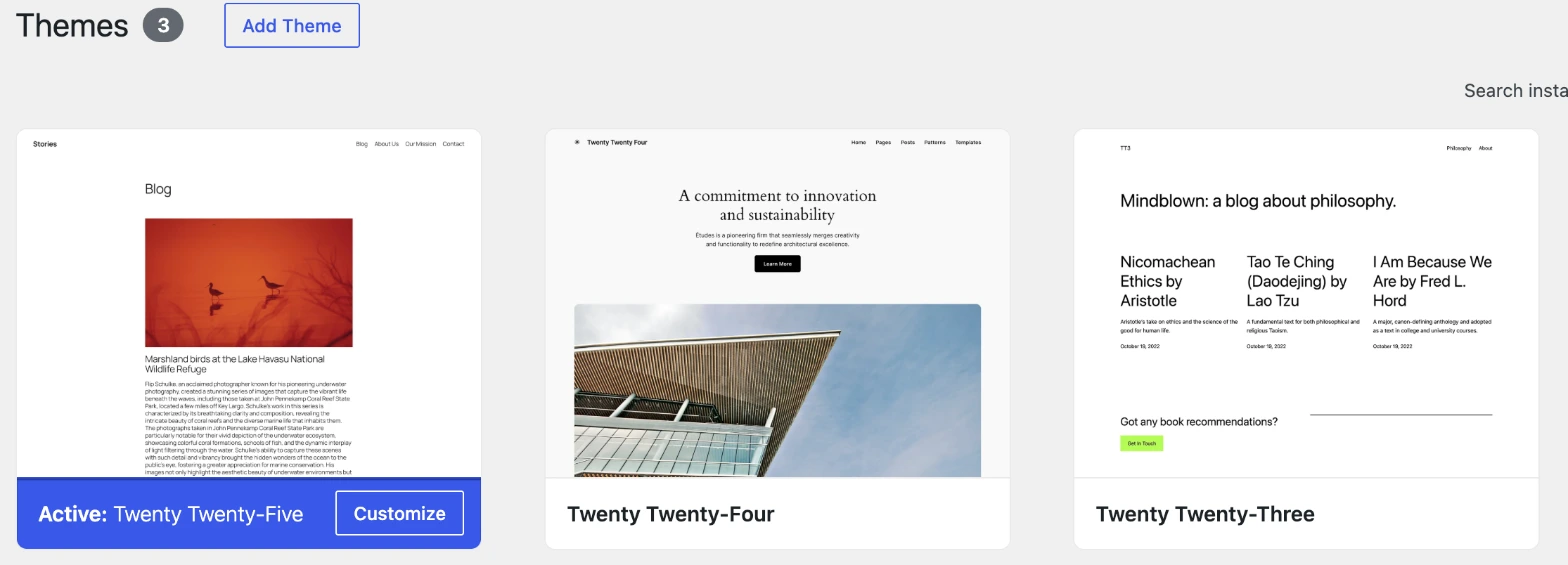
This screen shows the themes already installed. A new site comes with the default WordPress themes; ours had Twenty Twenty-Five (active), Twenty Twenty-Four and Twenty Twenty-Three. Click Add Theme.
Step 2: Find a theme and click Install
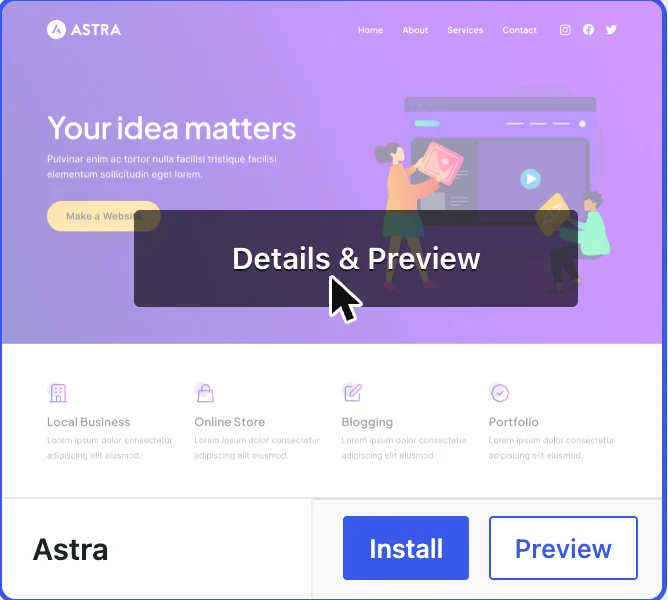
Search by name, or browse Popular, Latest or Block Themes. Hover over a theme to see Install and Preview. Preview shows the theme demo, not your own content.
Step 3: Live Preview, then Activate
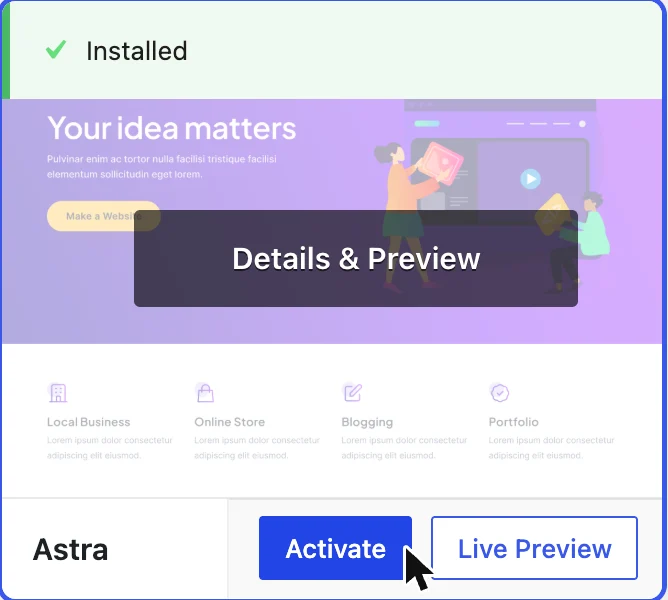
Once installed, the buttons change to Activate and Live Preview. Live Preview shows your site with the new theme before visitors see it. When you are happy, click Activate.
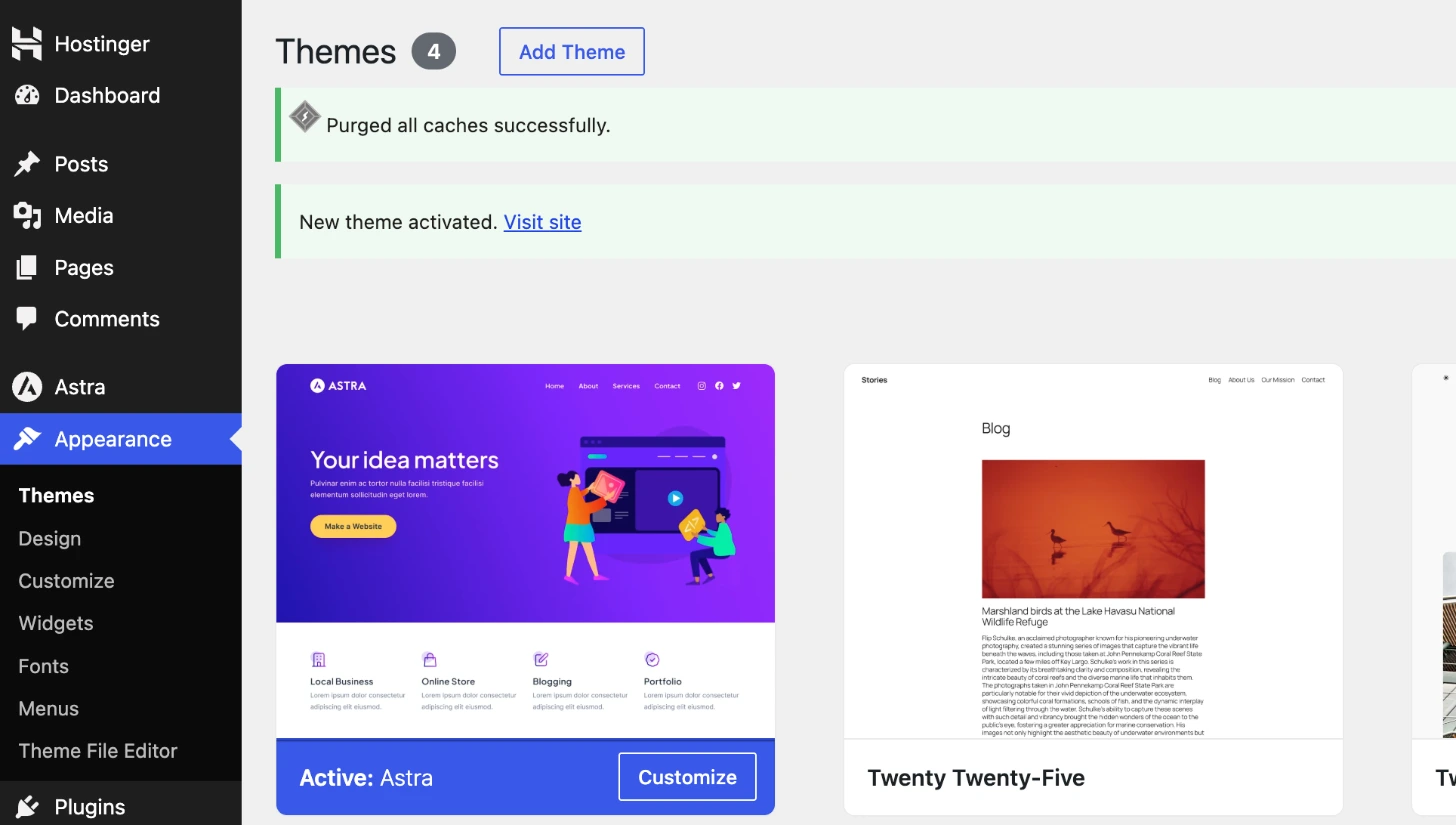
Here is our test site right after the switch. Same pages and menu, new design, and a “Powered by Astra WordPress Theme” credit in the footer.
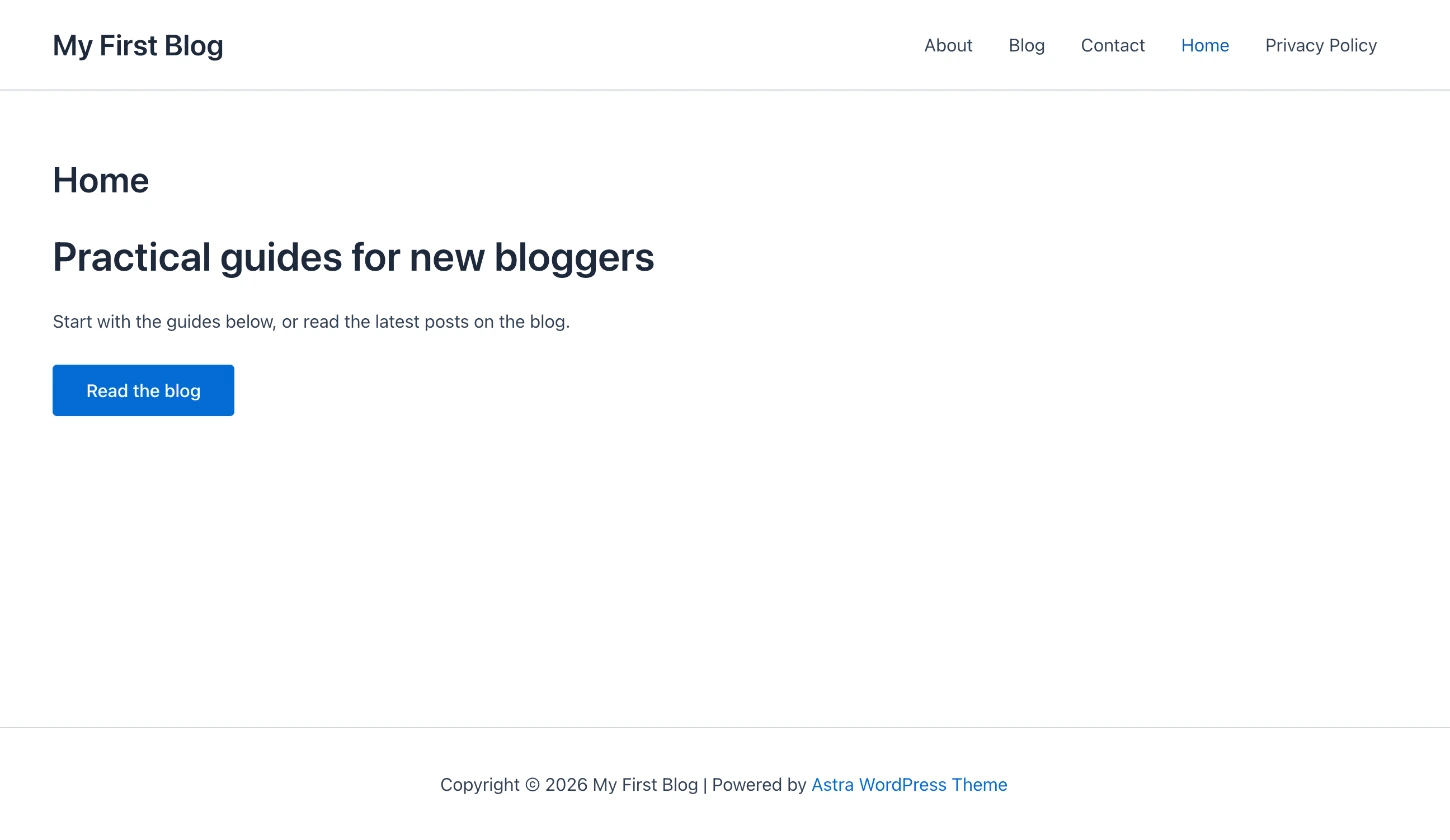
Block theme or classic theme? Twenty Twenty-Five is a block theme: you change the design in Appearance → Editor. Astra is a classic theme: after activating it, the menu showed Customize, Widgets and Menus instead. Same job, different tools, so expect the settings to move when you switch.
Install a premium theme (upload a .zip)
- Download the theme
.zipfrom the seller (some sellers ship a bigger package; use the file marked “installable WordPress file”). - Go to Appearance → Themes → Add Theme and click Upload Theme.
- Choose the .zip, click Install Now, then Activate.
How to delete a theme
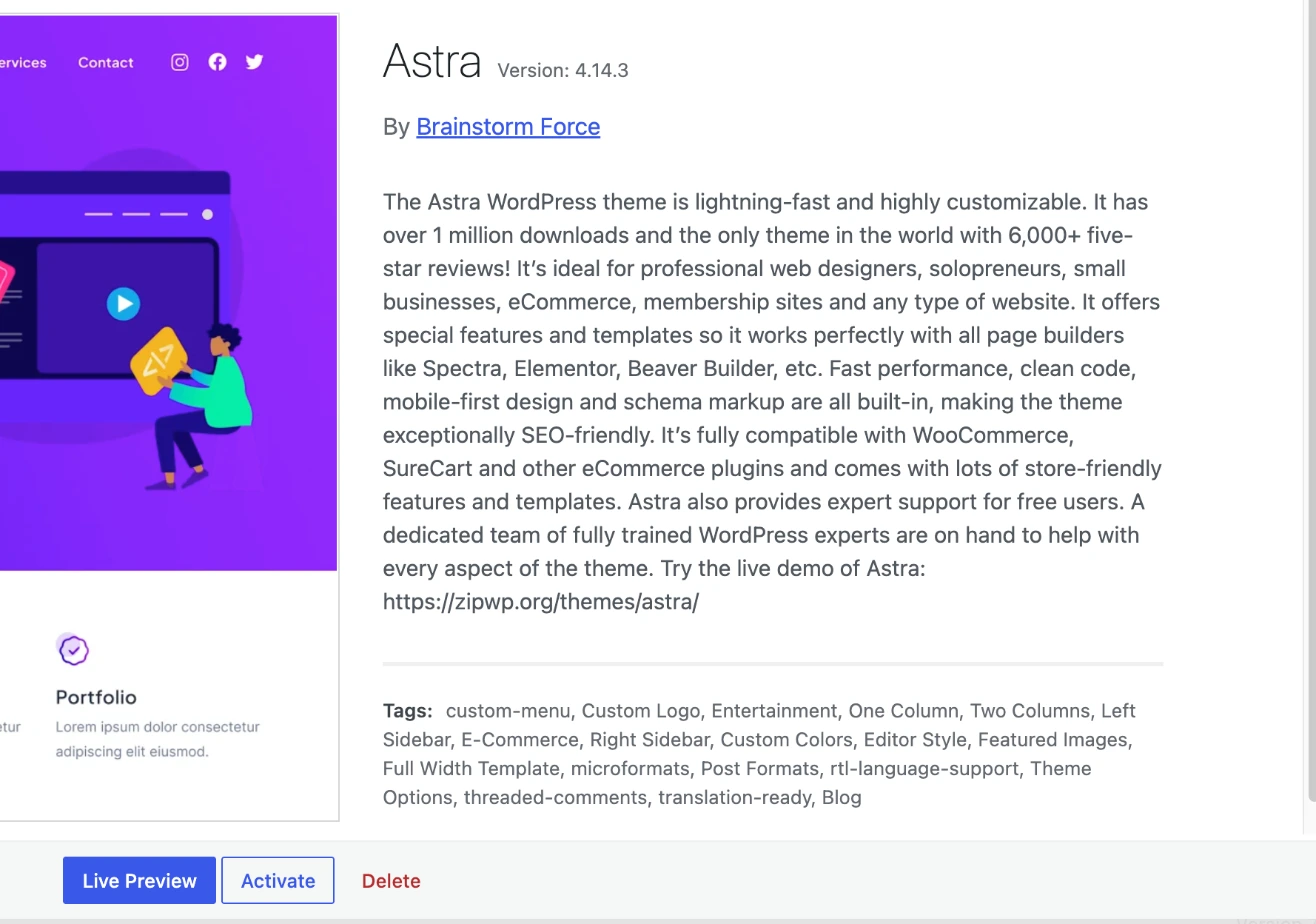
You cannot delete the active theme, so activate another one first. Then click the theme you want to remove in Appearance → Themes to open its details: a red Delete link sits at the bottom right. WordPress asks you to confirm.
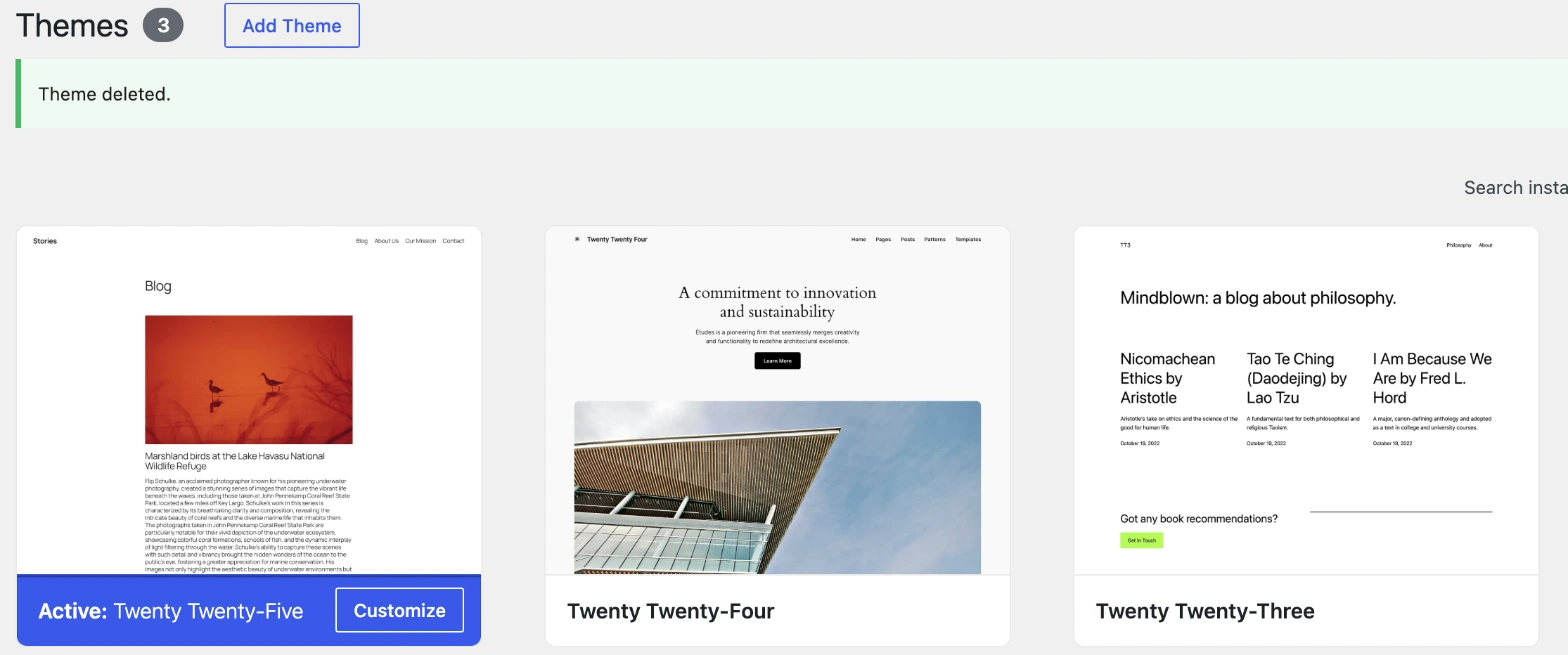
Keep one default theme (like Twenty Twenty-Five) installed as a fallback, and delete the others you do not use: inactive themes still need updates.
Before you switch themes on a live site
- Take a backup (most hosts, including Hostinger, have one-click backups).
- Use Live Preview first, or test on a staging copy.
- Note your widgets and menus: classic and block themes store them differently.
- Check the site on mobile and run a speed test after the switch. Our fast theme guide explains what to look for.
Frequently asked questions
Will I lose my content if I change my theme?
No. Posts, pages, images and users stay. What can change is the layout, menus, widgets and any styling the old theme added.
What is the difference between Preview and Live Preview?
Preview shows the theme demo before installing. Live Preview, after installing, shows your own content with the theme before you activate it.
Can I have two themes active at once?
No. Only one theme is active. A child theme is the exception: it runs on top of its parent theme.

Leave a Reply