
To disable comments in WordPress, go to Settings → Discussion and untick Allow people to submit comments on new posts. That only affects posts you publish from now on, so you also need to close comments on the posts you already have, which takes one Bulk Edit.
We did all of it on a fresh WordPress 7.1.4 test site on 16 November 2026, with no plugin. Here is each step with what we saw before and after.
| What you want | Where to do it |
|---|---|
| No comments on future posts | Settings → Discussion |
| Close comments on posts you already published | Posts → All Posts → Bulk Edit |
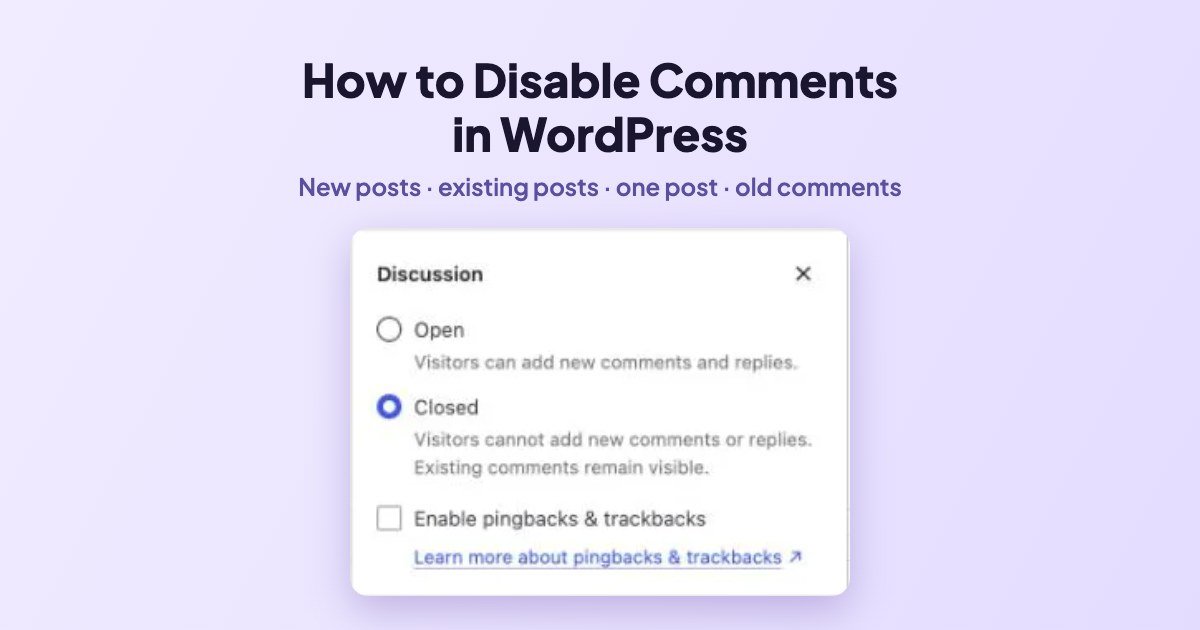
| Close comments on one post only | Post editor → Discussion |
| Remove old comments | Comments → Move to Trash |
| Close comments automatically after X days | Settings → Discussion |
Before: what a post with comments looks like
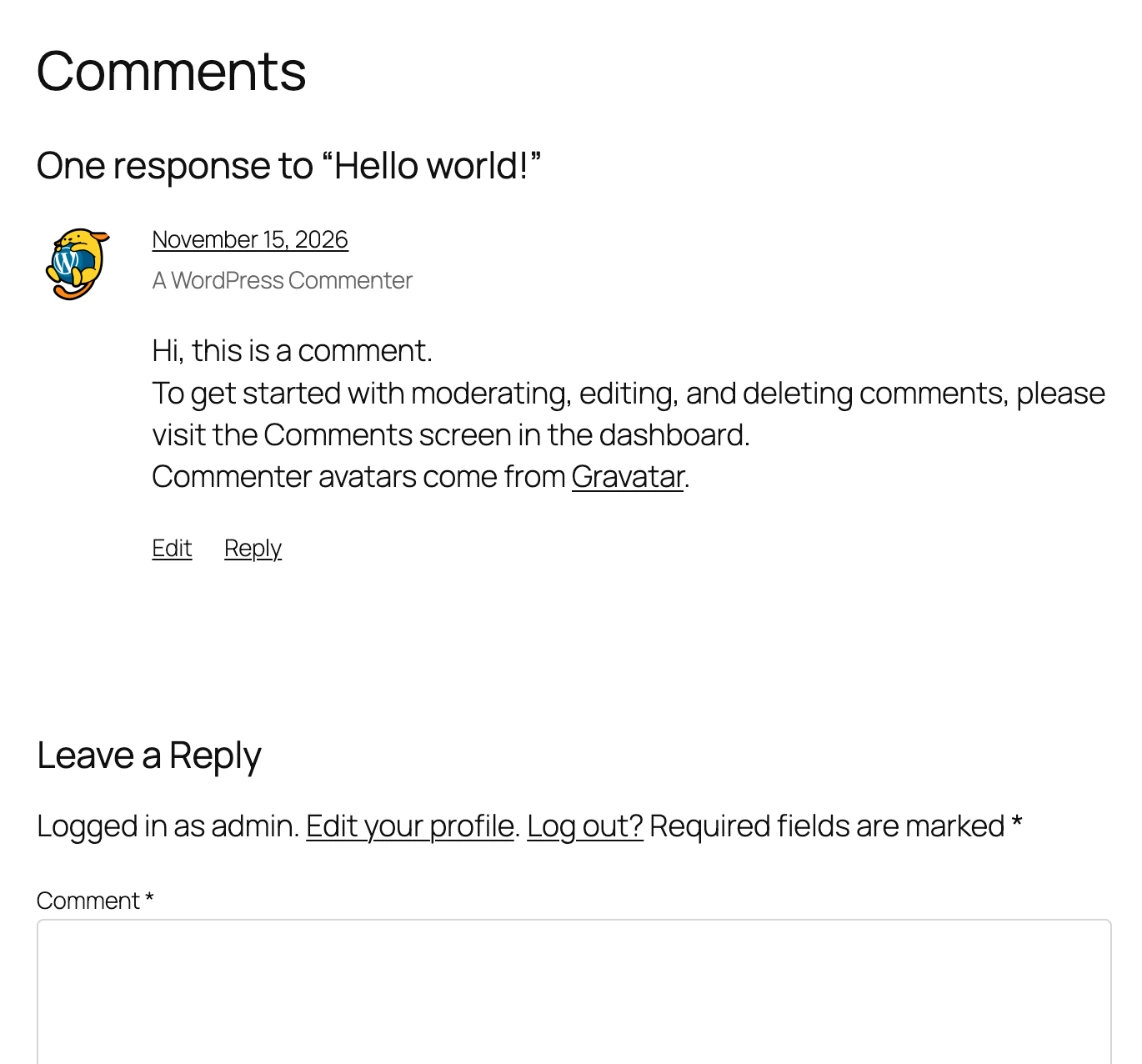
This is the default “Hello world!” post on our test site. It shows the existing comment, a Reply link and the Leave a Reply form.
Step 1: Turn off comments for new posts
- In the dashboard, go to Settings → Discussion.
- Under Default post settings, untick Allow people to submit comments on new posts.
- Optional: also untick Allow link notifications from other blogs (pingbacks and trackbacks). They are mostly spam.
- Scroll down and click Save Changes.

Important: WordPress says it right under the boxes: “Changes here will only be applied to new posts.” Your existing posts keep their comments open until you do Step 2.
Step 2: Close comments on existing posts (Bulk Edit)
- Go to Posts → All Posts.
- Tick the checkbox in the header row to select every post on the page. If you have many posts, open Screen Options first and raise the number of items per page.
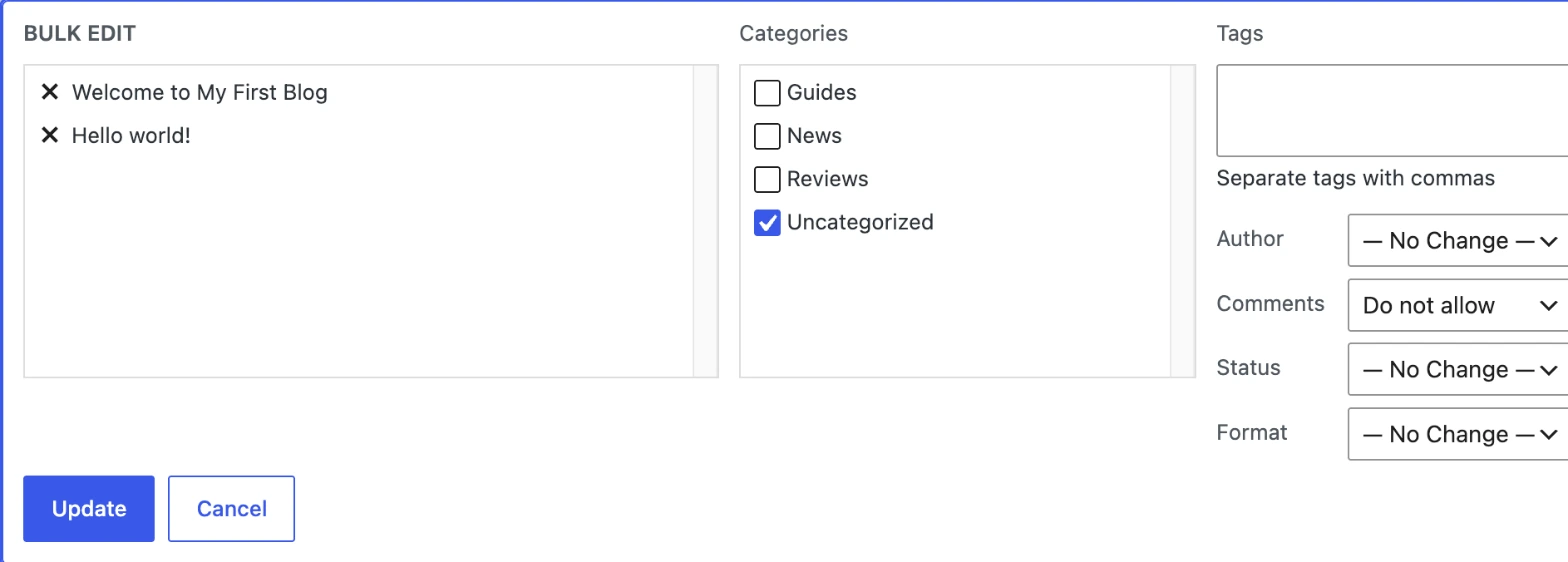
- In Bulk actions, choose Edit and click Apply.
- Set Comments to Do not allow (and Pings to Do not allow if you want).
- Click Update.
Do the same under Pages → All Pages if any of your pages show a comment form.
After: the comment form is gone
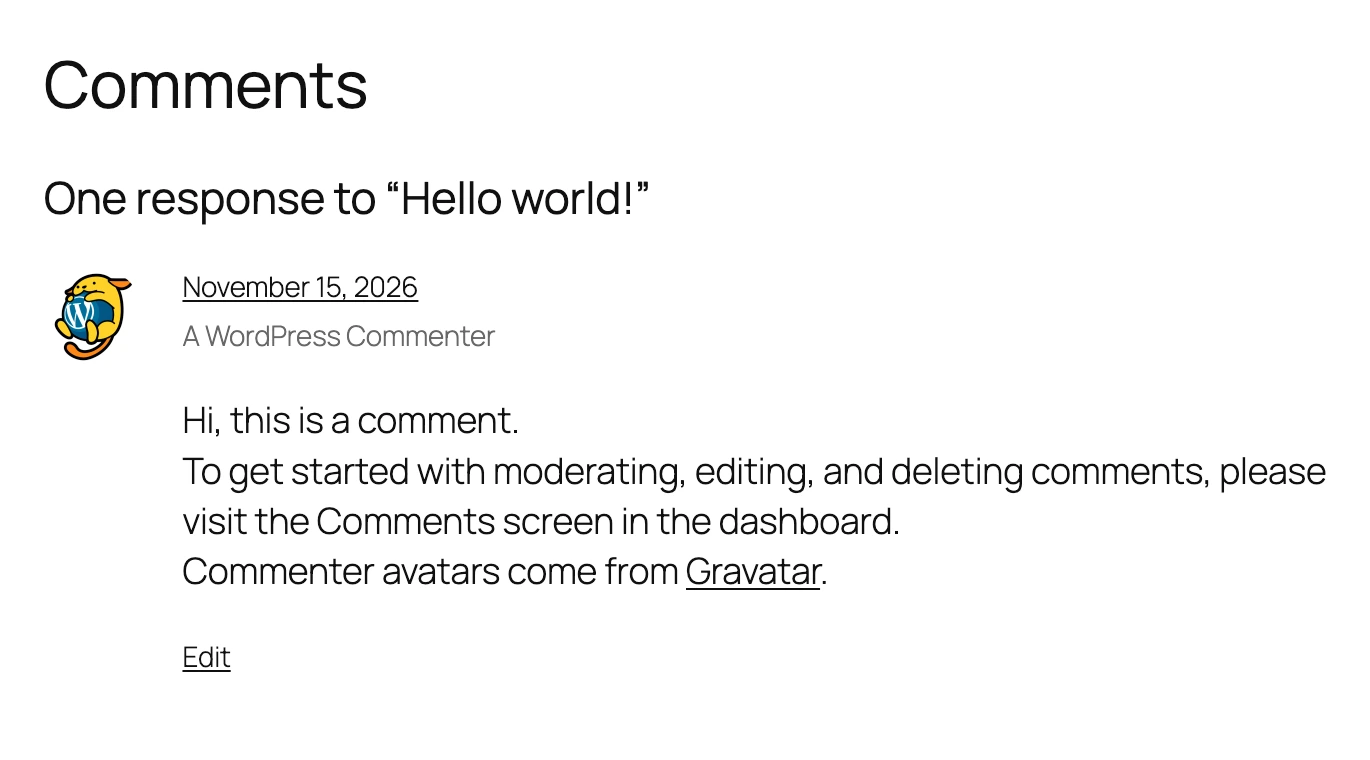
Here is the same post after the Bulk Edit. The Leave a Reply form and the Reply link are gone. The old comment is still visible, because closing comments does not delete them.
Close comments on a single post
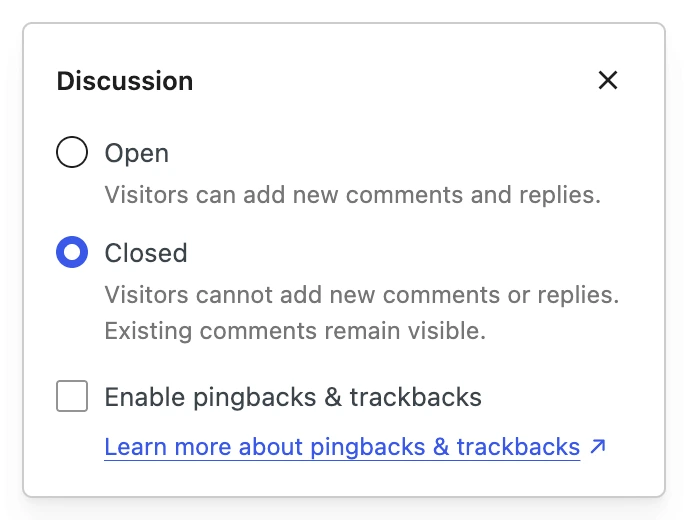
Open the post in the editor. In the right sidebar, on the Post tab, click the value next to Discussion and choose Closed, then click Save (or Update).
Delete the comments you already have
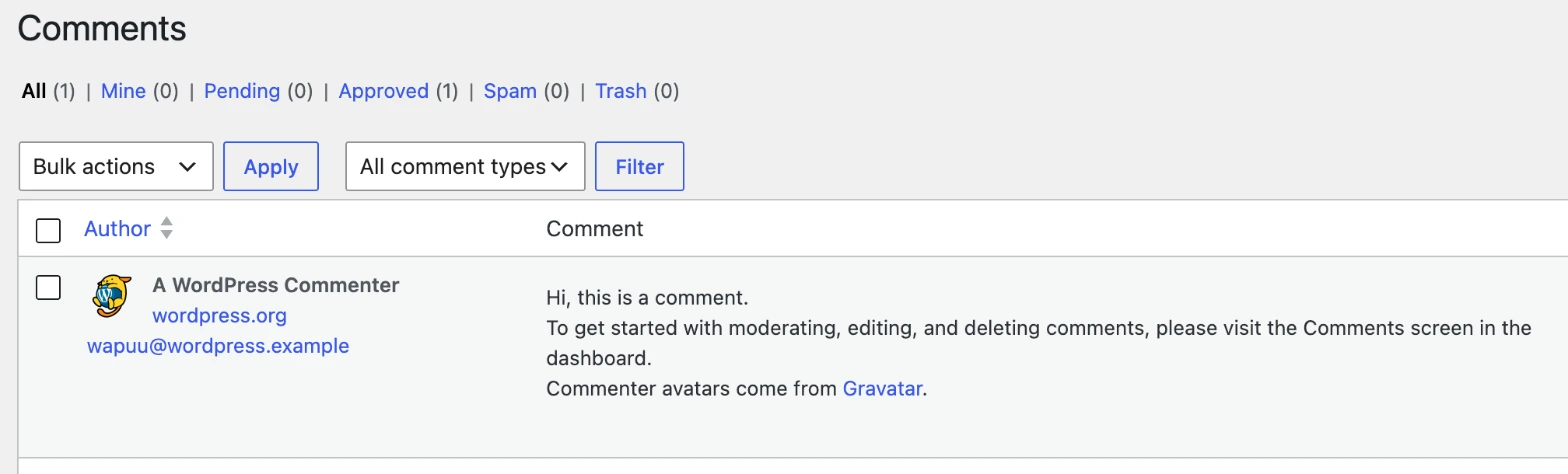
If you also want the old comments gone, go to Comments, tick the comments (or the header checkbox to select all), choose Move to Trash in Bulk actions and click Apply. Comments in the trash can still be restored, and WordPress empties the trash automatically after 30 days.
Close comments automatically on old posts
Prefer to keep comments on fresh posts only? On the same Settings → Discussion page, tick Automatically close comments on old posts and set the number of days. Spam bots love old posts, so this alone cuts most of the spam.
What about a plugin?
The steps above remove the comment form everywhere without adding a plugin. The Comments item stays in the admin menu, though. If you want it gone from the dashboard too, a plugin such as Disable Comments from WordPress.org can hide it. We did not need one on our sites, so we keep it simple and skip it.
Frequently asked questions
Does disabling comments delete existing comments?
No. Closing comments hides the form and the Reply links. Existing approved comments stay visible until you move them to the trash.
Why do I still see a comment form after changing Settings → Discussion?
Because that setting only applies to new posts. Close comments on existing posts with Bulk Edit (Step 2), then clear your cache if you use a caching plugin.
Does turning off comments hurt SEO?
Not by itself. Comments can add useful text, but spam and empty comment sections add nothing. Many blogs run without comments.
Can I turn comments back on later?
Yes. Tick the setting again for new posts, and use Bulk Edit with Comments set to Allow for existing posts.


Leave a Reply