
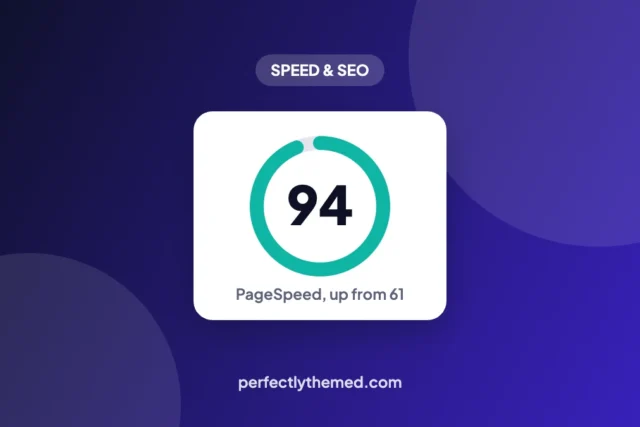
Quick answer: measure first, then fix in this order: server response and page caching, the largest image at the top of the page, unused JavaScript and CSS, fonts, and third-party scripts. On our own sites, the biggest single win was replacing a homepage slider, which took mobile PageSpeed from 61 to 94.
Most speed guides list thirty tweaks. In practice, three or four changes produce almost all of the gain, and which ones depends on what is actually slow on your site. This guide starts with how to find that out, then covers each fix in the order it usually pays off.
Step 1: Measure the right page, the right way
Run your homepage and your most visited article through PageSpeed Insights on the mobile tab. Note four numbers: the performance score, Largest Contentful Paint (LCP), Total Blocking Time (TBT) and Cumulative Layout Shift (CLS).
- Lab data (the score) comes from one simulated load on a throttled phone. It varies by a few points between runs, so test three times
- Field data (“Discover what your real users are experiencing”) comes from real Chrome visitors over 28 days. It is what Google’s Core Web Vitals assessment uses, but new or small sites often have none yet
- Open the Diagnostics section: it names the LCP element and the scripts that block the page
| Metric | Good | Needs improvement | Poor |
|---|---|---|---|
| Largest Contentful Paint | ≤ 2.5 s | 2.5–4 s | > 4 s |
| Interaction to Next Paint | ≤ 200 ms | 200–500 ms | > 500 ms |
| Cumulative Layout Shift | ≤ 0.1 | 0.1–0.25 | > 0.25 |
Step 2: Fix server response with page caching
If the first request in your browser’s Network tab takes more than about 600 ms to start returning HTML, the server is your bottleneck and nothing on the page will fix it. The cure is full-page caching: the server stores the finished HTML and skips PHP and the database for later visitors.
- On LiteSpeed hosting (Hostinger, for example), use the free LiteSpeed Cache plugin. Our LiteSpeed Cache settings guide lists the safe options
- On NGINX or Apache hosting, use the host’s own cache if it has one, or a single cache plugin
- Never run two cache plugins at once. Two caches fighting each other is a common cause of a blank white page
If cached pages are still slow to start, the problem is the plan or the server location. Our hosting guide explains what to check, and our Hostinger review shows what we get on shared LiteSpeed hosting.
Step 3: Make the largest element load first
LCP is usually the hero image, a featured image or a big heading. PageSpeed names it under Largest Contentful Paint element. Make it easy for the browser to find and fetch:
- Use a real
<img>tag, not a CSS background or a slider - Exclude it from lazy loading
- Add
fetchpriority="high" - Serve it in WebP or AVIF, at the size it is displayed
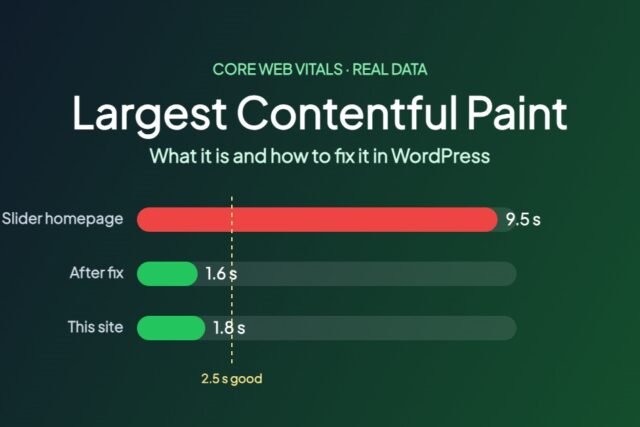
This is the fix with the biggest payoff we have measured. On one of our content sites, a JavaScript slider made the first image paint after 9.5 seconds. Replacing it with a static hero brought LCP to 1.6 seconds and the mobile score from 61 to 94. The full breakdown is in our case study.
Step 4: Shrink and lazy-load the other images
- Resize images before uploading. A photo displayed 800 px wide does not need to be 4,000 px
- Convert to WebP. Many cache plugins, including LiteSpeed Cache, can do this automatically
- Lazy-load everything below the first screen. WordPress does this by default for most images
- Make sure images have width and height attributes, so the layout does not jump while they load
Step 5: Cut unused JavaScript and CSS
Total Blocking Time measures how long scripts keep the phone’s processor busy. It is usually high because of page builders, sliders, popups and several plugins each loading their own files on every page.
- Open Diagnostics → Reduce unused JavaScript and note which plugin each file belongs to (the path contains
/plugins/plugin-name/) - Remove plugins you no longer use, and replace heavy ones with lighter alternatives
- Enable minification in your cache plugin. Test deferring or delaying JavaScript one option at a time, because these can break menus and forms
- Switching from a multipurpose theme or page builder to a lightweight block theme often removes more code than any setting. See what makes a theme fast
Step 6: Load fonts efficiently
- Use one or two font families, ideally variable fonts
- Host them on your own domain instead of loading them from a font service
- Use
font-display: swapso text appears immediately
Step 7: Tame third-party scripts
Ads, analytics, chat widgets, embedded videos and social buttons often cost more than everything else on the page combined. For each one, ask whether it earns its weight. Load chat and video embeds only when a visitor clicks, and keep only one analytics tool.
Step 8: Clean the database, then stop
Old revisions, spam comments and expired transients make the admin slower more than the front end, because cached pages do not touch the database. Clean them occasionally with a backup taken first, but do not expect a visible change in PageSpeed.
What a fast WordPress site looks like
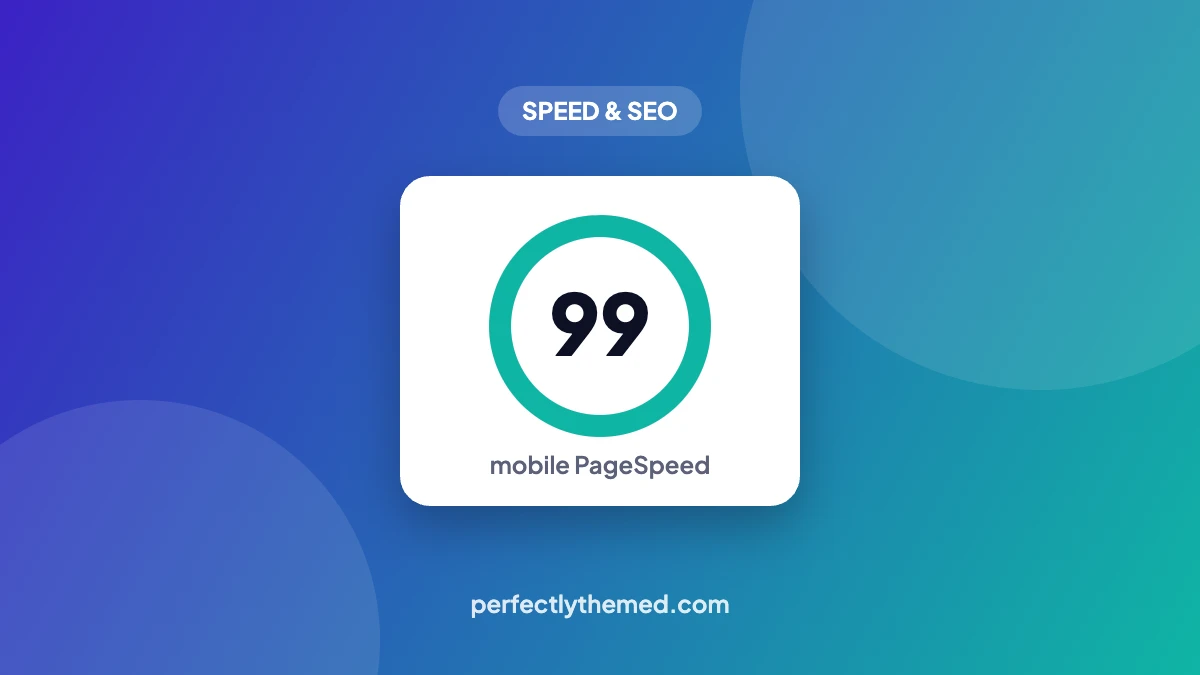
For reference, this site runs a lightweight block theme with LiteSpeed Cache on Hostinger shared hosting. On 14 November 2026 its homepage scored 99 on mobile in PageSpeed Insights, with a 1.7 s LCP, 0 ms TBT and a CLS of 0. A real site with ads and analytics will score lower, but the same principles apply.
Speed checklist
- Test mobile in PageSpeed Insights, three runs
- Page cache on, one cache plugin only
- LCP image: real img tag, not lazy, fetchpriority high, WebP
- All other images resized, compressed and lazy-loaded
- Unused plugins removed, JS minified, defer tested
- One or two local fonts with swap
- Third-party scripts reviewed
- Test again and compare
New to the metric? Our guide to Largest Contentful Paint explains what it measures and the four parts PageSpeed Insights reports.
Frequently asked questions
Why is my WordPress site slow?
Usually because of one of four things: no page cache, a large image or slider at the top of the page, too much JavaScript from plugins and page builders, or slow hosting. PageSpeed Insights’ Diagnostics section tells you which applies.
Which plugin speeds up WordPress the most?
A page cache plugin that matches your server: LiteSpeed Cache on LiteSpeed hosting, or the host’s own cache. After that, gains come from changing what the page loads rather than adding plugins.
Is a 100 PageSpeed score necessary?
No. Aim for good Core Web Vitals in field data. A lab score in the 90s on mobile is excellent, and small differences between runs are normal.
Why is WordPress admin slow but the site is fast?
Cached pages skip PHP and the database, but the admin never uses the page cache. A slow admin usually points to a heavy plugin, a large database or limited server resources.


Leave a Reply