
Quick answer: Largest Contentful Paint (LCP) is the time it takes for the biggest image or text block in the first screen to appear. Google rates 2.5 seconds or less as good. On WordPress, the usual culprits are a slider or background-image hero, a lazy-loaded hero image, render-blocking CSS and JavaScript, and a slow server response. Fix the one PageSpeed Insights points to, in that order.
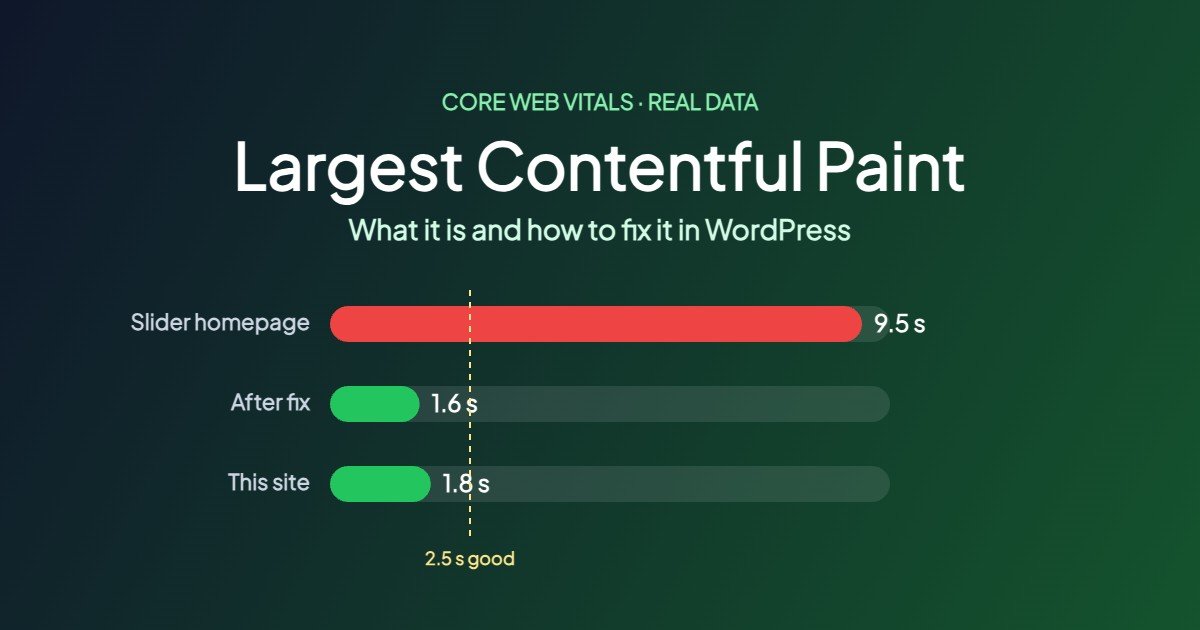
This guide uses real numbers from our own sites: one homepage where LCP was 9.5 seconds, and this site, where it is 1.8 seconds on mobile. The definitions and thresholds come from Google’s web.dev documentation, linked at the end.
What Largest Contentful Paint measures
LCP marks the moment the largest visible element in the viewport finishes rendering. It is one of the three Core Web Vitals, alongside Interaction to Next Paint and Cumulative Layout Shift. In practice it answers one question: when does the page look loaded?
The elements Chrome can count as the LCP element are:
<img>images<image>elements inside an SVG<video>poster images or first frames- elements with a CSS background image loaded with
url()(gradients do not count) - block-level elements that contain text, such as a large heading or paragraph
On most WordPress homepages that means the hero image, the featured image of a post, or the first slide of a slider.
What is a good LCP score?
| LCP | Rating |
|---|---|
| 2.5 s or less | Good |
| 2.5 to 4.0 s | Needs improvement |
| More than 4.0 s | Poor |
That percentile matters: if three quarters of your real visitors see the main content within 2.5 seconds, the page passes. Mobile is usually the hard part, because PageSpeed Insights simulates a slower phone and network.
Our real examples
| Page | Device | LCP | What the LCP element was |
|---|---|---|---|
| Farming blog homepage, before | Mobile | 9.5 s | First slide of a JavaScript slider (CSS background image) |
| Same homepage, after | Mobile | 1.6 s | A static hero image with fetchpriority=”high” |
| perfectlythemed.com homepage | Mobile | 1.8 s, then 1.4 s | Hero preview image (before and after fetchpriority=”high”) |
| Hostinger AI Builder test site | Mobile / desktop | 2.5 s / 1.2 s | Hero photo |
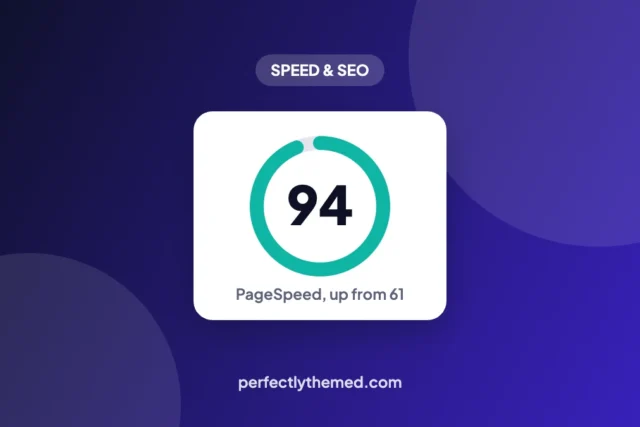
The full story of the first example is in our 61 to 94 PageSpeed case study. The AI Builder numbers come from our Hostinger AI Website Builder review.
The four parts of LCP
PageSpeed Insights now splits LCP into four subparts. Knowing which one is large tells you what to fix.
| Subpart | What it is | Healthy share | Ours (perfectlythemed.com, mobile) |
|---|---|---|---|
| Time to First Byte | Server response time for the HTML | About 40% | 130 ms |
| Resource load delay | Time before the browser starts downloading the LCP image | Under 10% | 490 ms |
| Resource load duration | Time to download the image | About 40% | 260 ms |
| Element render delay | Time between download and the element appearing | Under 10% | 370 ms |
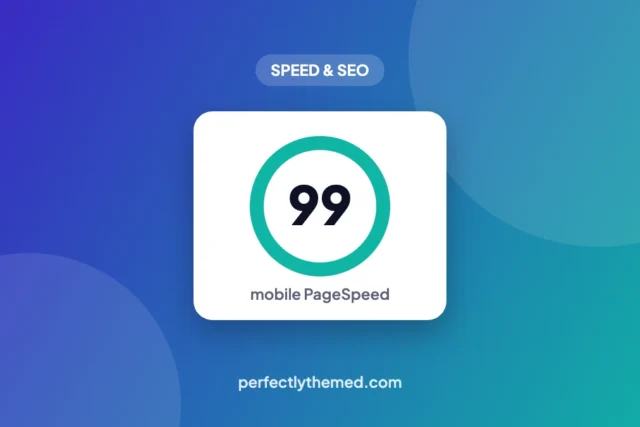
Our own breakdown shows the point of this table. The server and the download are fast, but the browser waits almost half a second before it even asks for the hero image, and PageSpeed flags that the image does not have fetchpriority="high". A score of 99 can still hide a quick win.
Update, same morning: we added fetchpriority="high" plus the image’s width and height to that hero image and ran PageSpeed Insights again at 10:31. Mobile LCP went from 1.8 s to 1.4 s and the performance score from 99 to 100. That was one run each, so expect a few hundred milliseconds of variation, but the direction is clear.
How to find your LCP element
- Run your page in PageSpeed Insights on mobile
- Open the LCP breakdown and LCP request discovery insights. They name the element and show its HTML
- Check the three flags under request discovery: the image should be in the initial HTML, should not use
loading="lazy", and should havefetchpriority="high" - Look at the four subparts and work on the biggest one first
How to fix a slow LCP in WordPress
1. Replace sliders and background-image heroes
This was the 9.5-second problem. A slider shows its first image only after its JavaScript loads, and a CSS background image is found only after the stylesheet is downloaded. Use a single, static hero with a normal image tag instead.
2. Never lazy-load the LCP image
Lazy loading is great below the fold and harmful above it. WordPress usually skips lazy loading for the first content image, but themes, page builders and optimisation plugins can add it back. In LiteSpeed Cache, add the hero image’s filename or class to the lazy-load exclude list (see our LiteSpeed Cache settings).
3. Give the hero image high priority
Tell the browser this image comes first:
<img src="hero.webp" width="1200" height="675" alt="..." fetchpriority="high">If the image only appears in CSS or JavaScript, preload it in the page head with <link rel="preload" as="image" href="hero.webp" fetchpriority="high">.
4. Make the image smaller
Serve WebP or AVIF, size the file to the space it fills, and use srcset so phones get a smaller version. WordPress generates the sizes; an image optimisation plugin can convert them.
5. Remove render-blocking CSS and JavaScript
Large stylesheets and synchronous scripts in the head delay rendering even after the image has arrived. Generate critical CSS, defer non-essential JavaScript, and drop plugins that load scripts on every page. Our WordPress speed checklist covers each step.
6. Speed up the server response
If Time to First Byte is the large part, the HTML itself is slow. Turn on full-page caching, avoid redirect chains, and consider faster hosting. With LiteSpeed Cache on Hostinger our TTFB in this test was 130 ms.
What not to do
- Do not chase a perfect lab score while ignoring real-user data in Search Console
- Do not preload several images “just in case”: priority only helps when it is reserved for one
- Do not install a second cache plugin to fix LCP; two caches conflict
Frequently asked questions
What does Largest Contentful Paint mean?
It is the time from when the page starts loading until the largest image or text block visible in the first screen has rendered. It measures how fast the page appears loaded to a visitor.
What is a good LCP?
2.5 seconds or less is good, 2.5 to 4 seconds needs improvement, and more than 4 seconds is poor, measured at the 75th percentile of page loads.
Why is my LCP slow on mobile but fine on desktop?
PageSpeed Insights tests mobile with a slower CPU and network, so large images and heavy scripts cost much more. Our AI Builder test site, for example, measured 2.5 seconds on mobile and 1.2 seconds on desktop.
Does LCP affect SEO?
LCP is one of the Core Web Vitals Google uses as a page experience signal. Content relevance matters far more, but a slow LCP also hurts conversions and bounce rate.
Which WordPress plugin fixes LCP?
No plugin fixes it alone. A cache plugin such as LiteSpeed Cache helps with server time and CSS, but the biggest wins usually come from replacing sliders, not lazy-loading the hero, and giving it fetchpriority=”high”.
Sources: Google web.dev, Largest Contentful Paint and Optimize LCP.


Leave a Reply