
We test products ourselves and may earn a commission when you buy through our links, at no extra cost to you. Read our affiliate disclosure
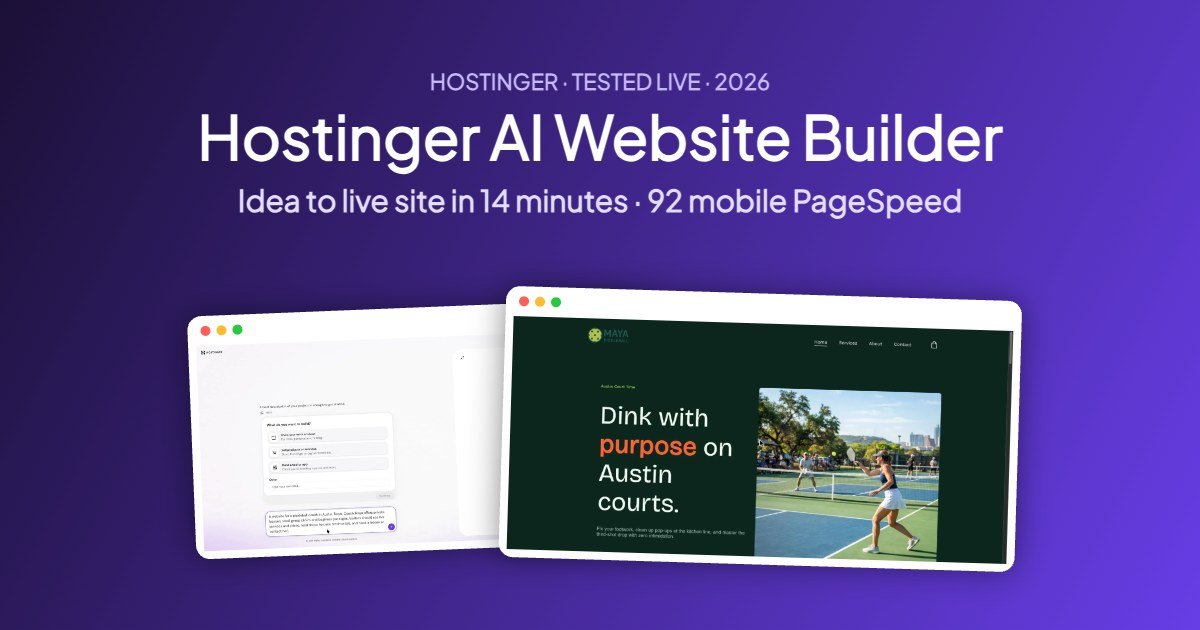
Quick verdict: Hostinger AI Website Builder took a one-paragraph idea to a live, good-looking site in about 14 minutes in our test, with 92 on mobile PageSpeed. It is a strong pick for small-business sites if you are not a developer. But the first draft is not ready to publish as is: it invented social-proof numbers, used the wrong currency and skipped a section we asked for. Plan 20 to 30 minutes of checking and editing.
We tested Hostinger’s AI Builder live on 16 November 2026, inside our own Hostinger Business hosting account, on a temporary domain. Everything below comes from that one test: the timings are from the timestamps in the builder, the scores are from Google PageSpeed Insights, and the screenshots are ours. Where something went wrong, we say so.
What we built
To keep the test realistic, we picked a small local business with a few typical needs: a pickleball coach in Austin, Texas, called Maya (a fictional business). The site needed services with prices, an about section, testimonials, online booking and a contact form. Pickleball coaching is a growing niche, and a coach is exactly the kind of person who wants a site without learning WordPress.
| Item | Result |
|---|---|
| Time from idea to live site | About 14 minutes (09:17 to 09:31) |
| Time to first draft | About 2 minutes after the last question |
| Questions asked before building | 3 (style, build mode, domain) |
| Pages generated | Home, Services, About, Contact, plus a booking store |
| PageSpeed mobile / desktop | 92 / 93 performance, 100 SEO |
| Fixes we had to make | Currency, invented stats, missing testimonials |
How to build a website with Hostinger AI Builder, step by step
This is the exact path we followed. You do not need any coding at any point.
1. Start a new AI Builder site
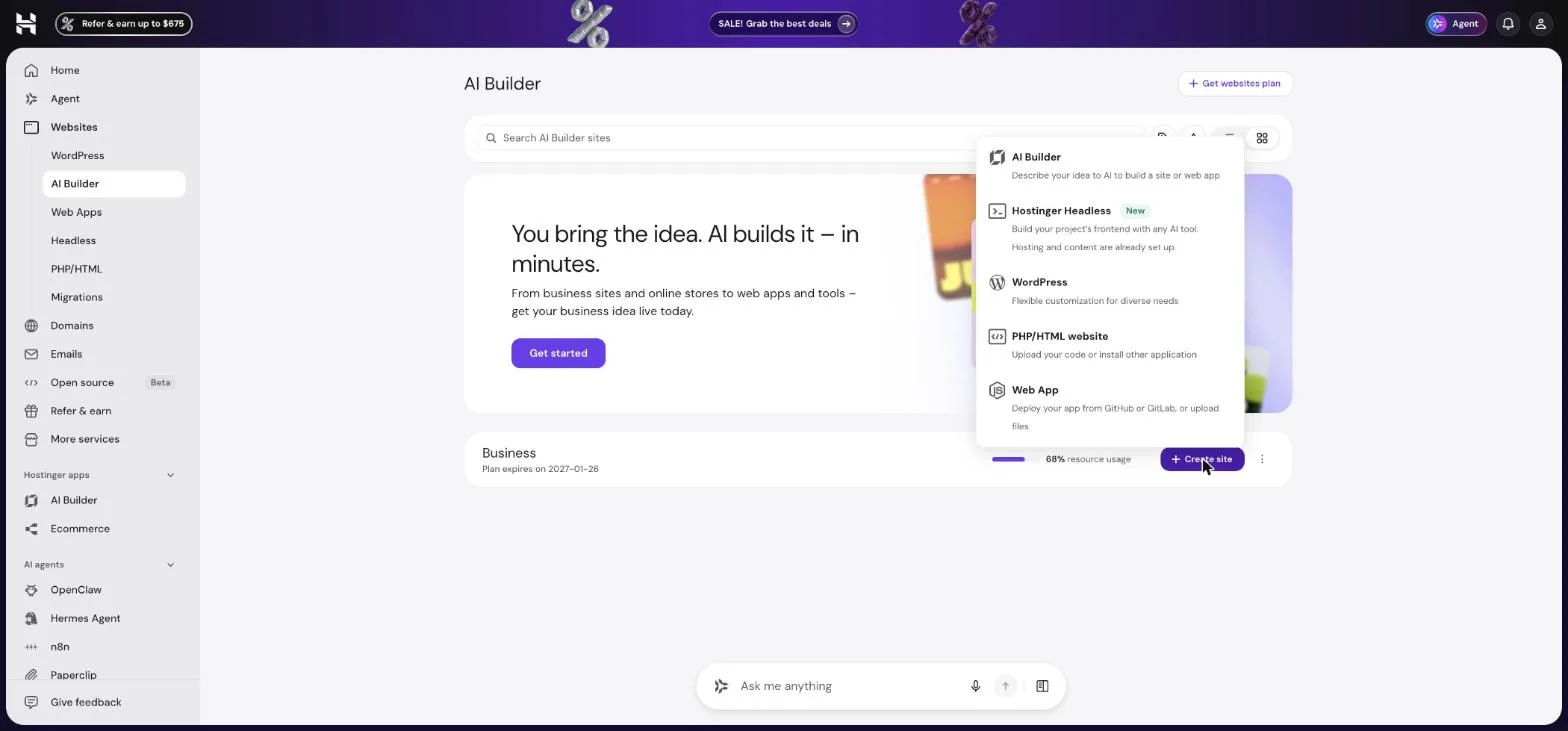
In hPanel, open Websites → AI Builder and click Create site, then choose AI Builder. The same menu offers WordPress and other site types, so make sure you pick the right one.
2. Describe your business in one paragraph
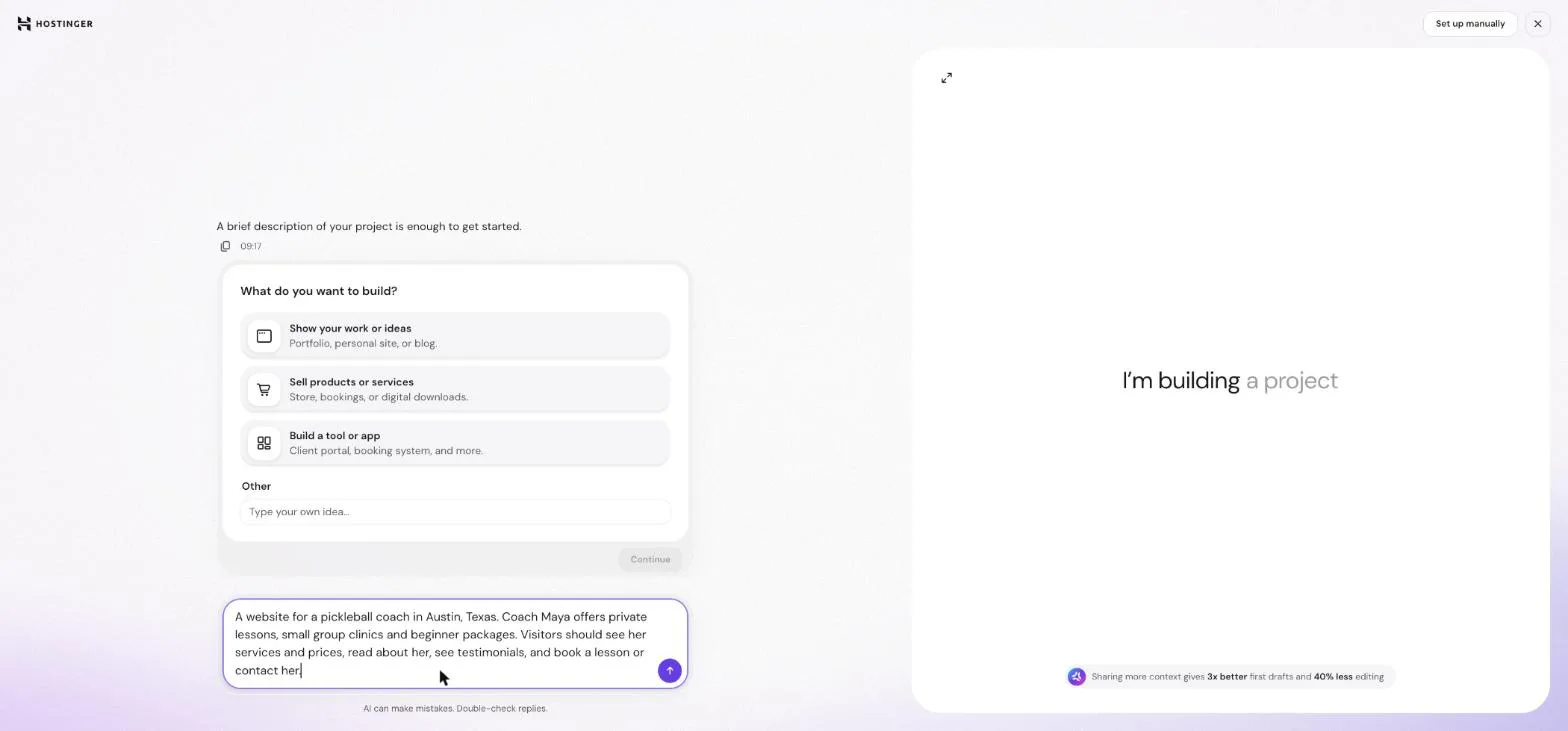
The onboarding is a chat. We typed one paragraph: who the business is for, where it is, what it sells, and what visitors should be able to do. Be specific about the pages and features you need, because the builder uses this text for everything that follows.
3. Answer the style and build-mode questions
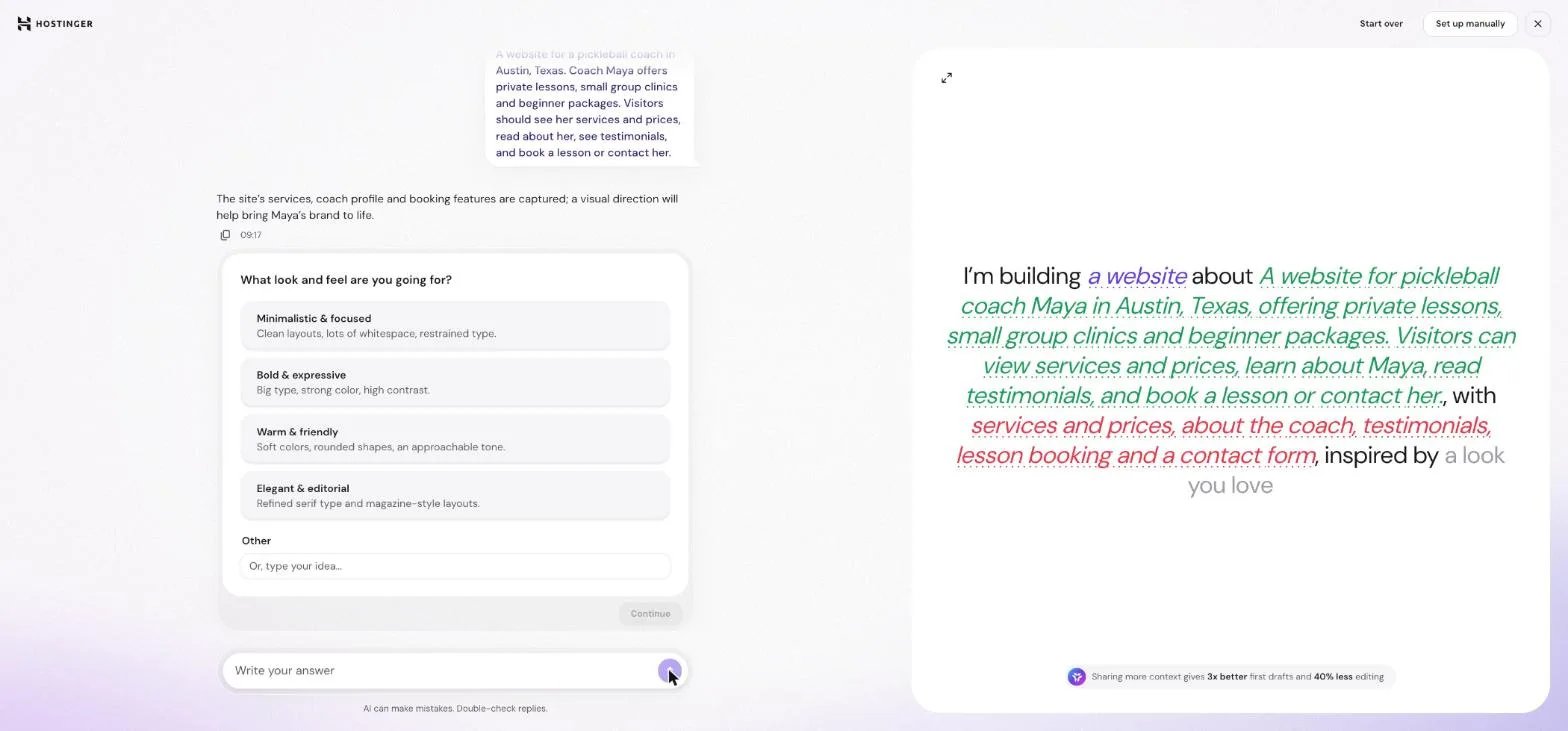
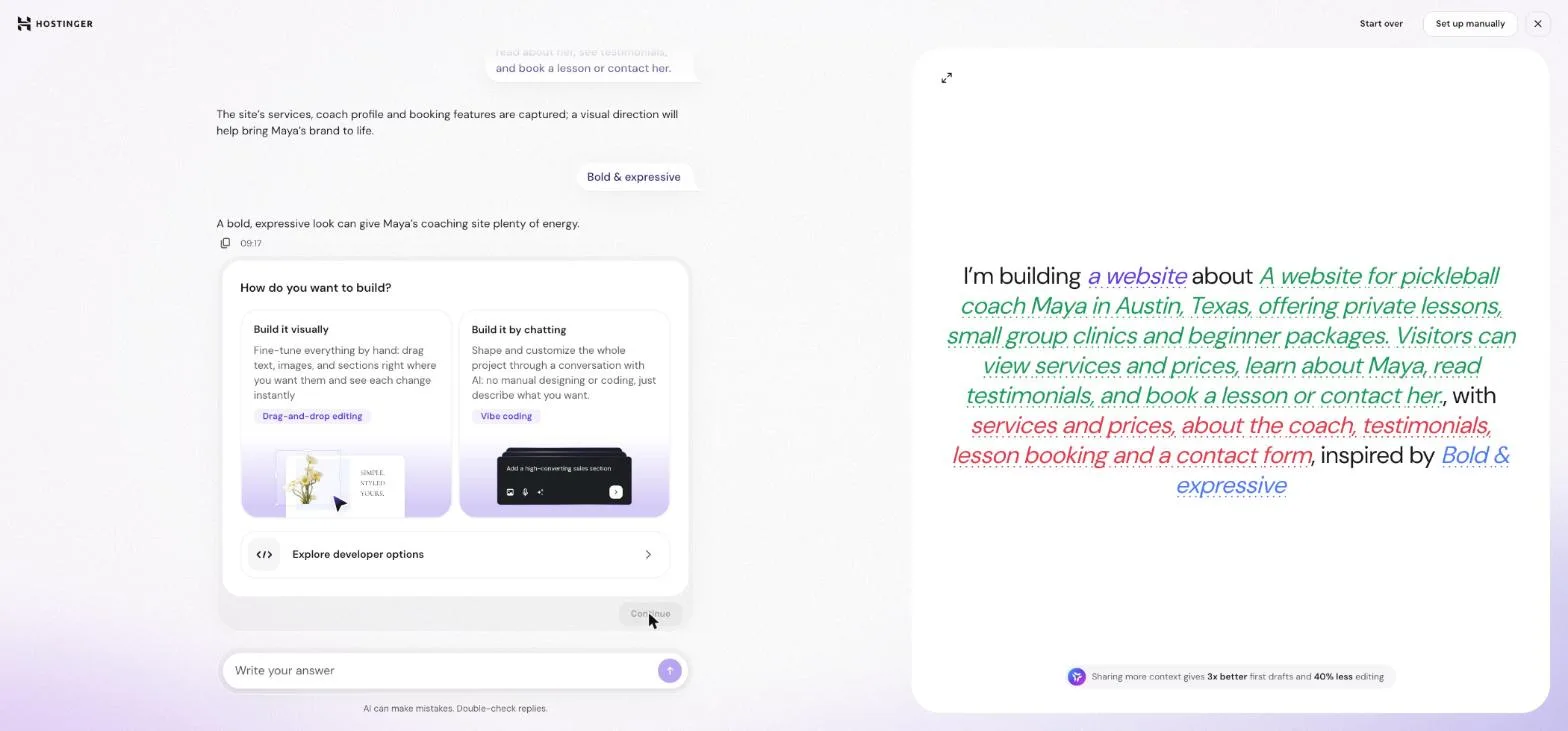
The builder asked two quick questions. First the look: we chose Bold & expressive. Then the way you want to edit: Build it visually (drag and drop) or Build it by chatting (you describe every change to the AI). If you have never built a site, choose visually: you can still use the AI later.
4. Skip the domain for now
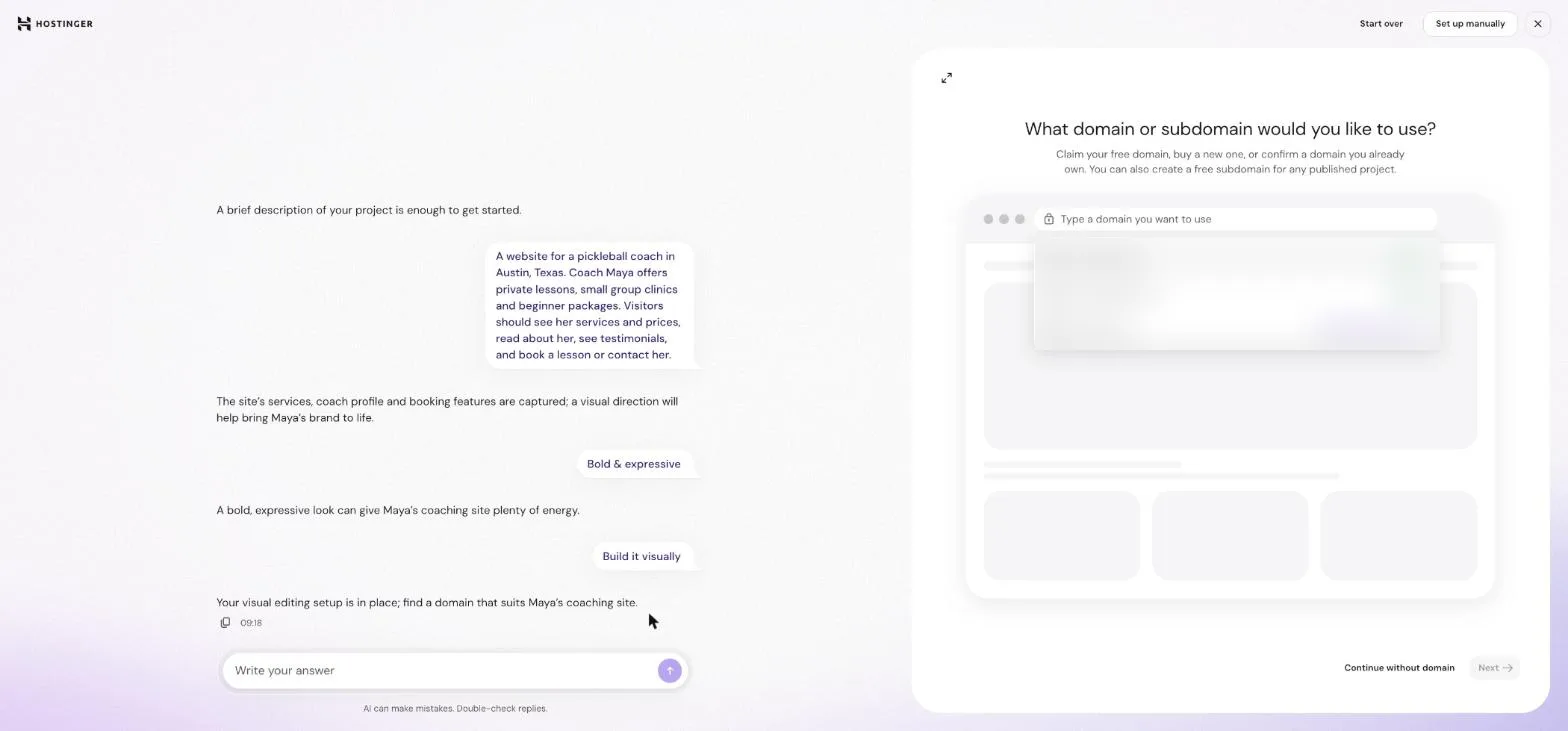
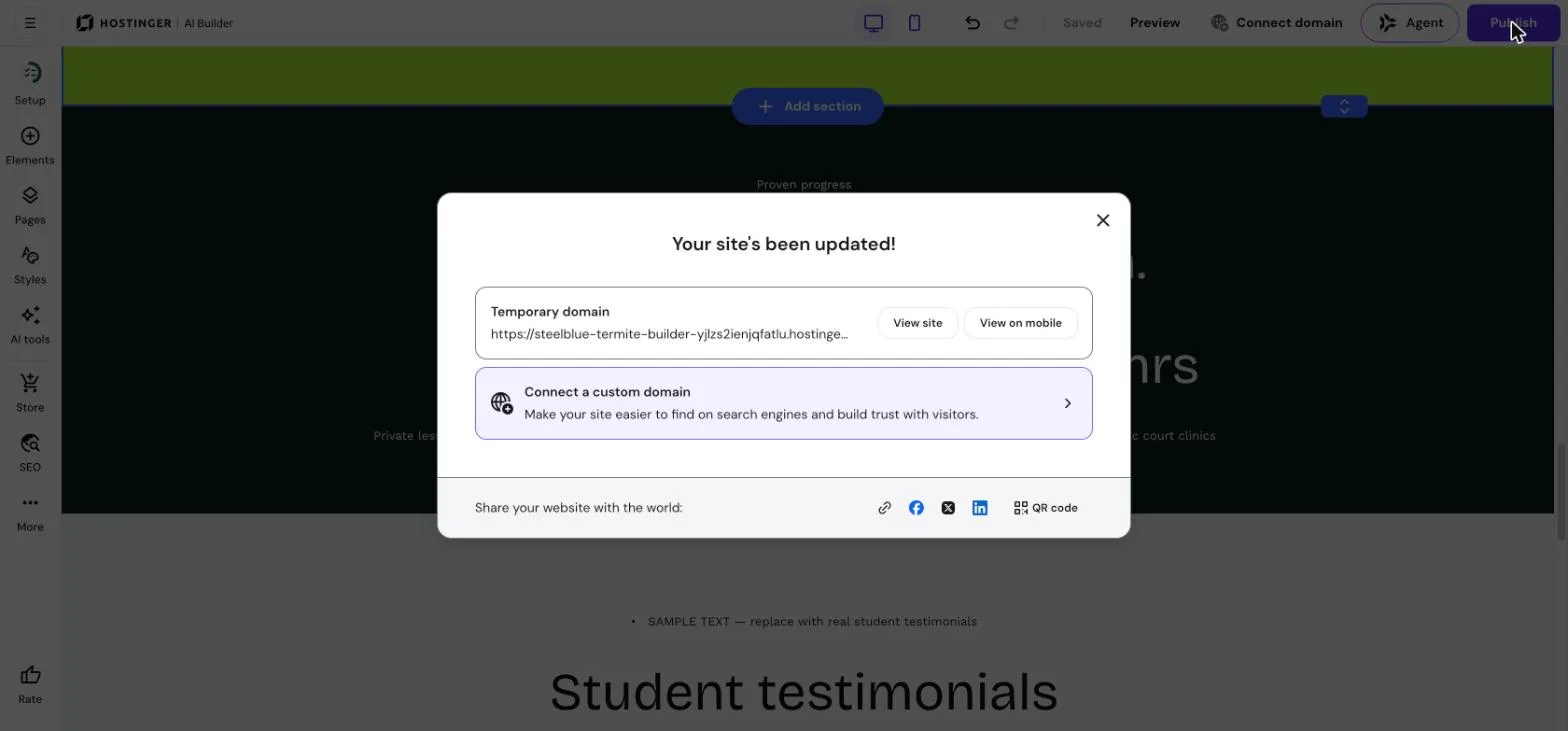
You can connect a domain you own, buy one, or click Continue without domain to work on a free temporary address. We skipped it and connected nothing, which is the safest way to test.
5. Wait about two minutes
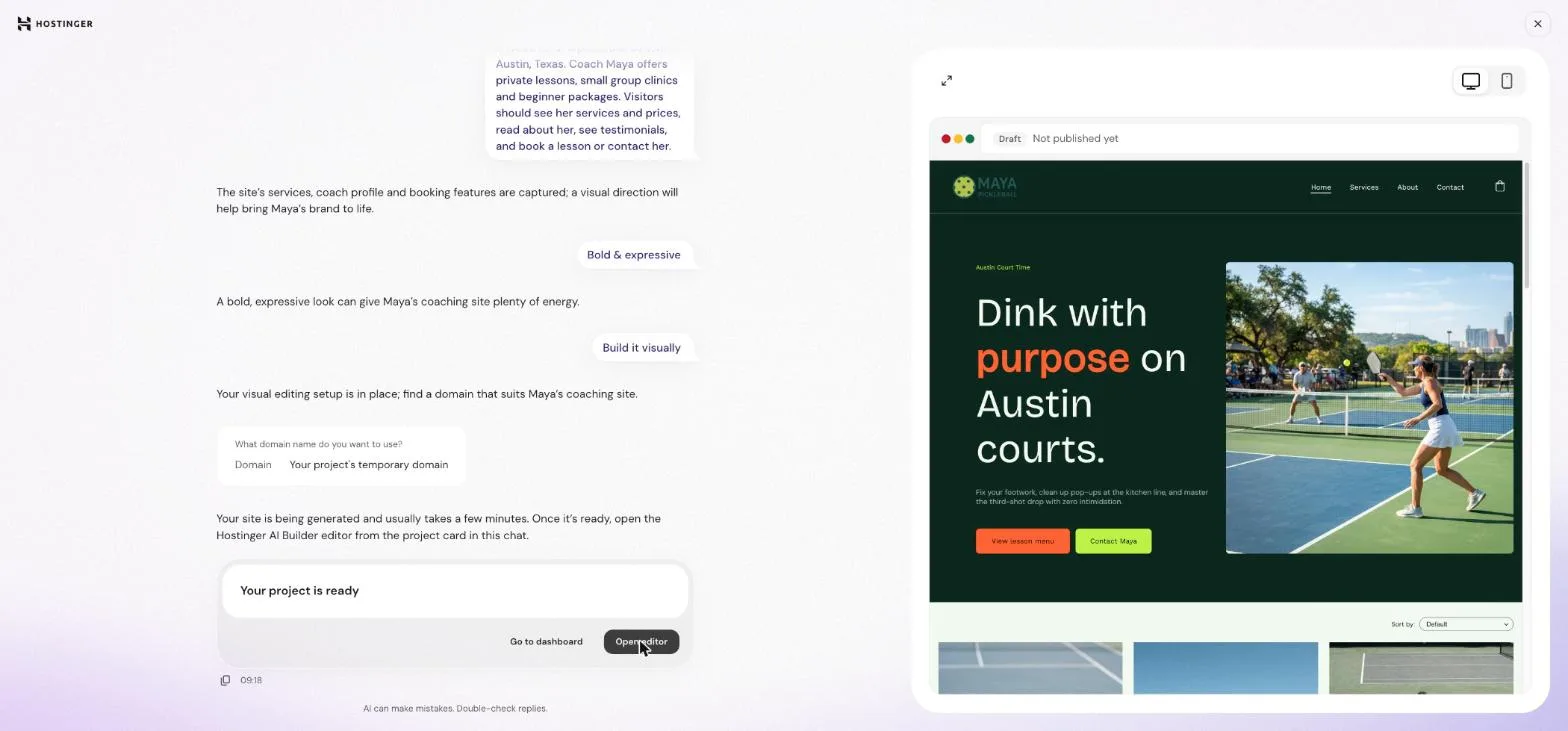
Generation started at 09:18 and the “Your project is ready” card appeared roughly two minutes later. The preview on the right already showed a complete homepage.
6. Fix what the AI got wrong
This is the step most tutorials skip. Open the editor and read every section before you publish. In our draft, three things needed fixing (details below). We used both tools the builder gives you: the Agent for bigger changes and plain double-click editing for text.
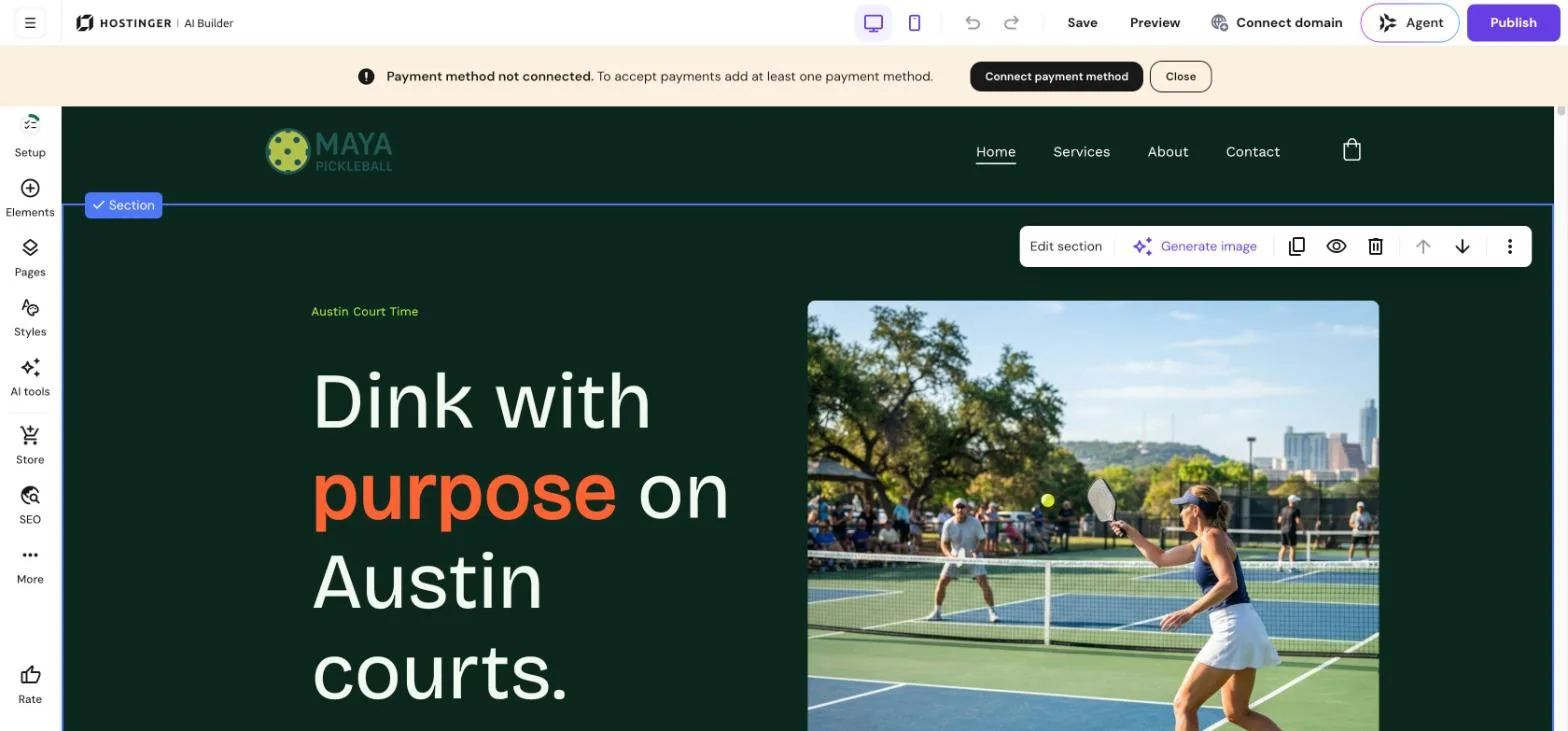
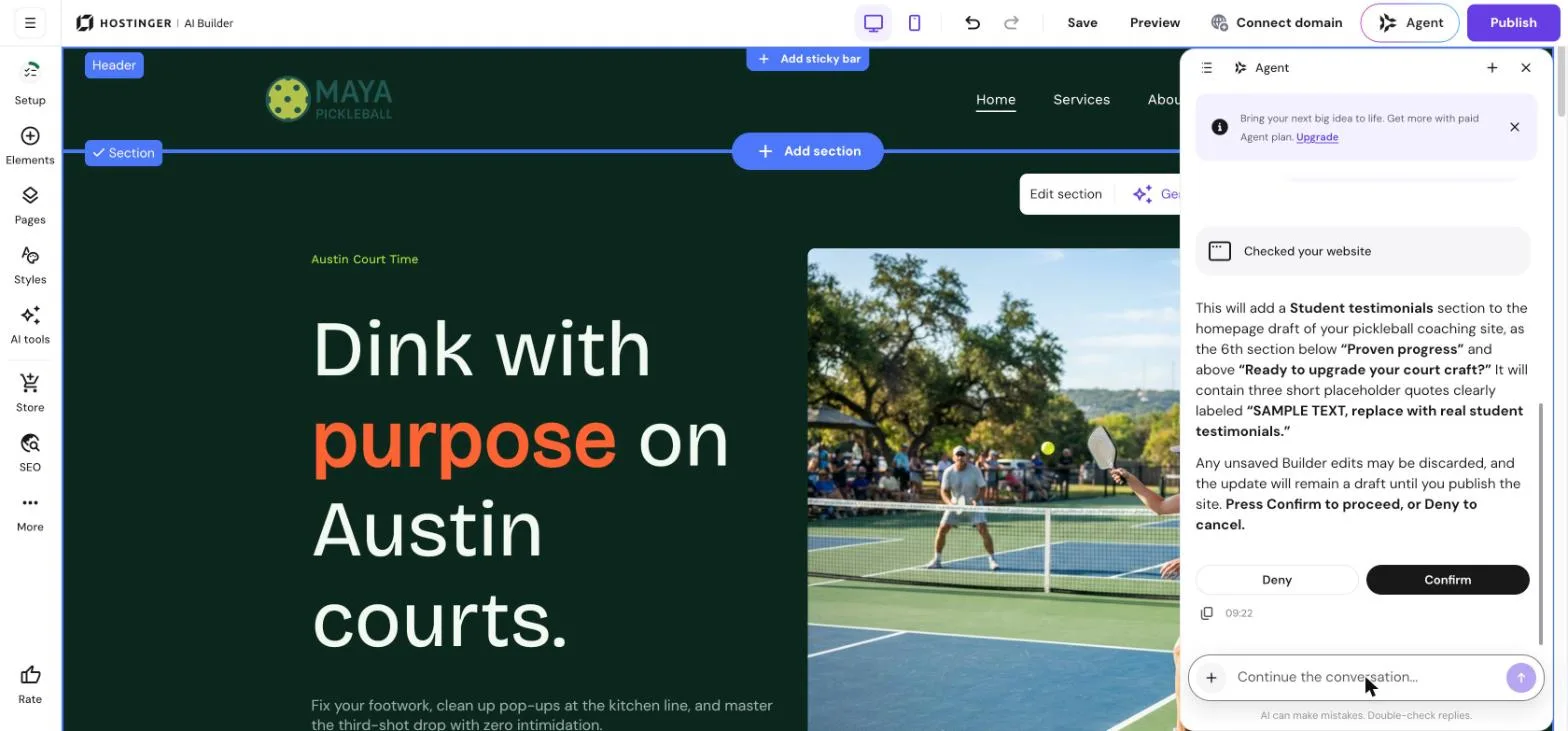
With the Agent, we asked for a testimonials section labeled as sample text. It asked which position to use, then asked us to confirm before changing anything. The section was added in about a minute.
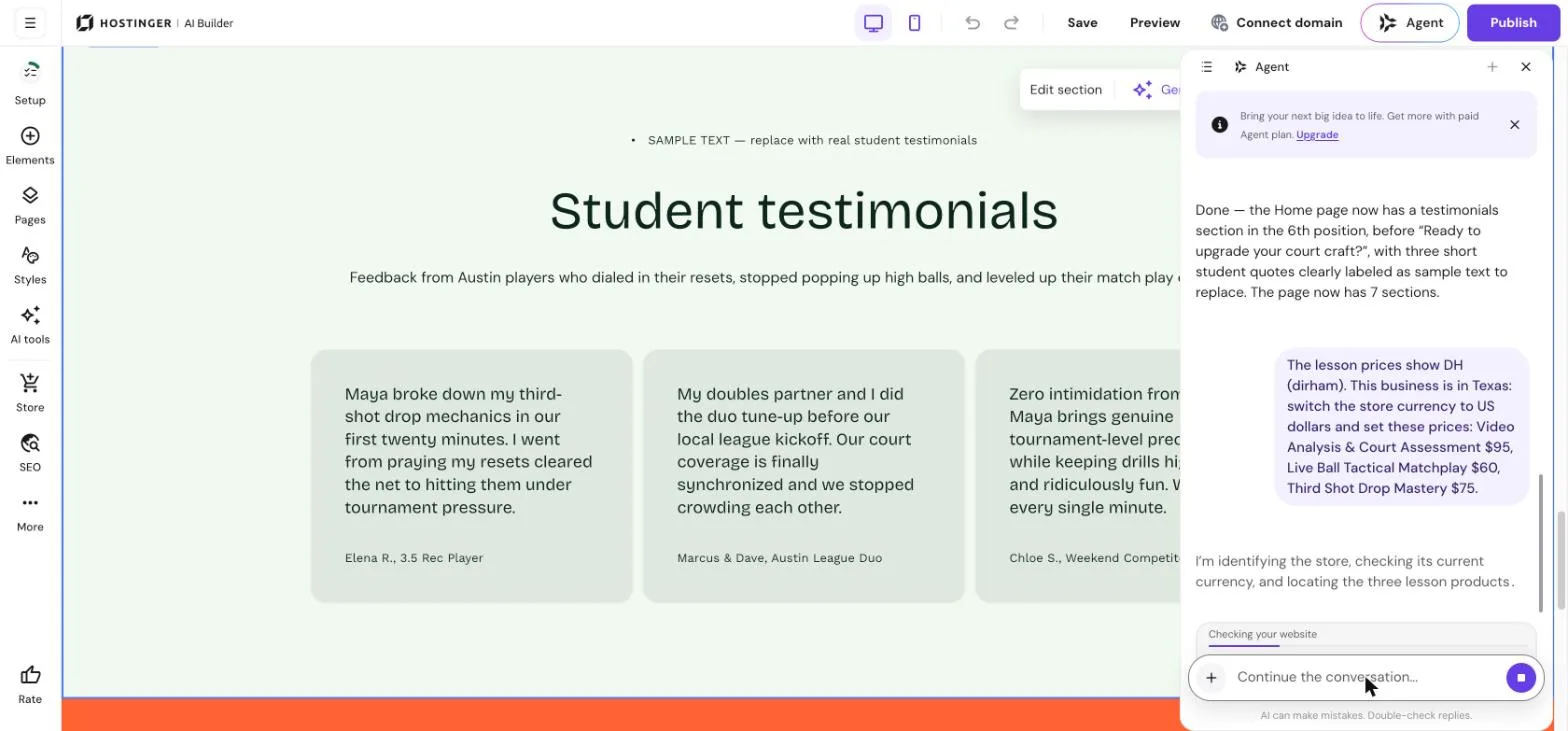
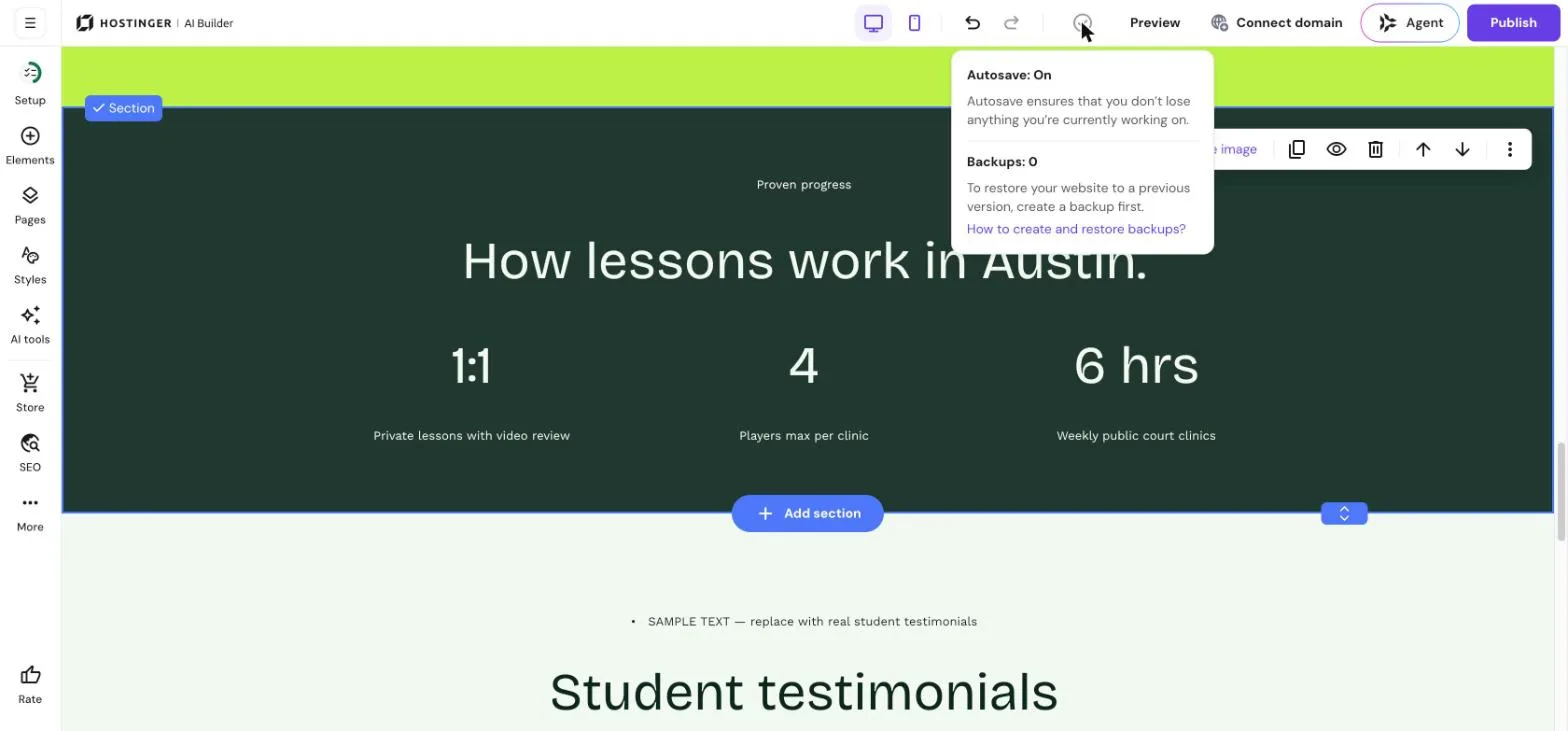
For text, double-click any word and type. We replaced the invented numbers in seconds. Changes are autosaved.
7. Set up SEO and publish
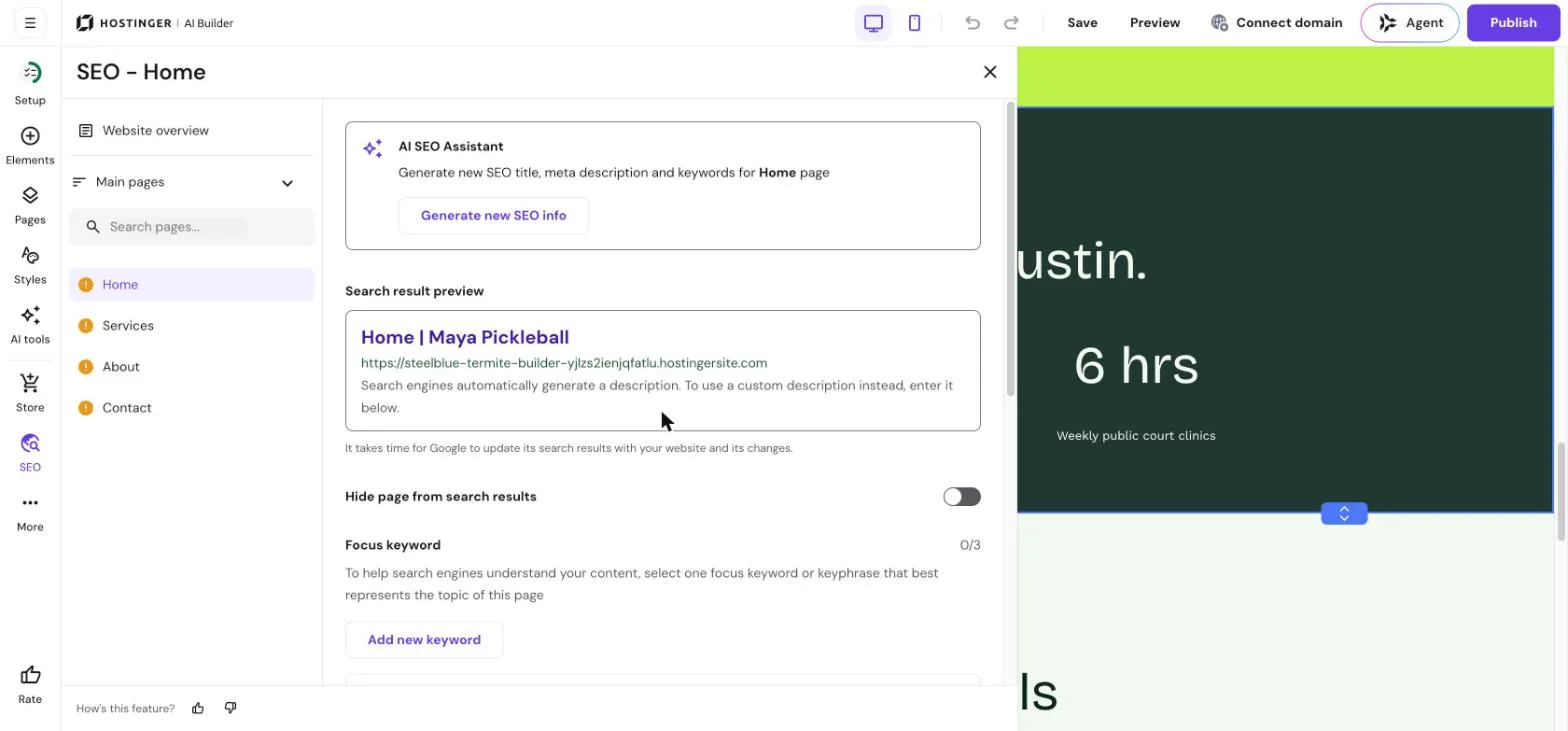
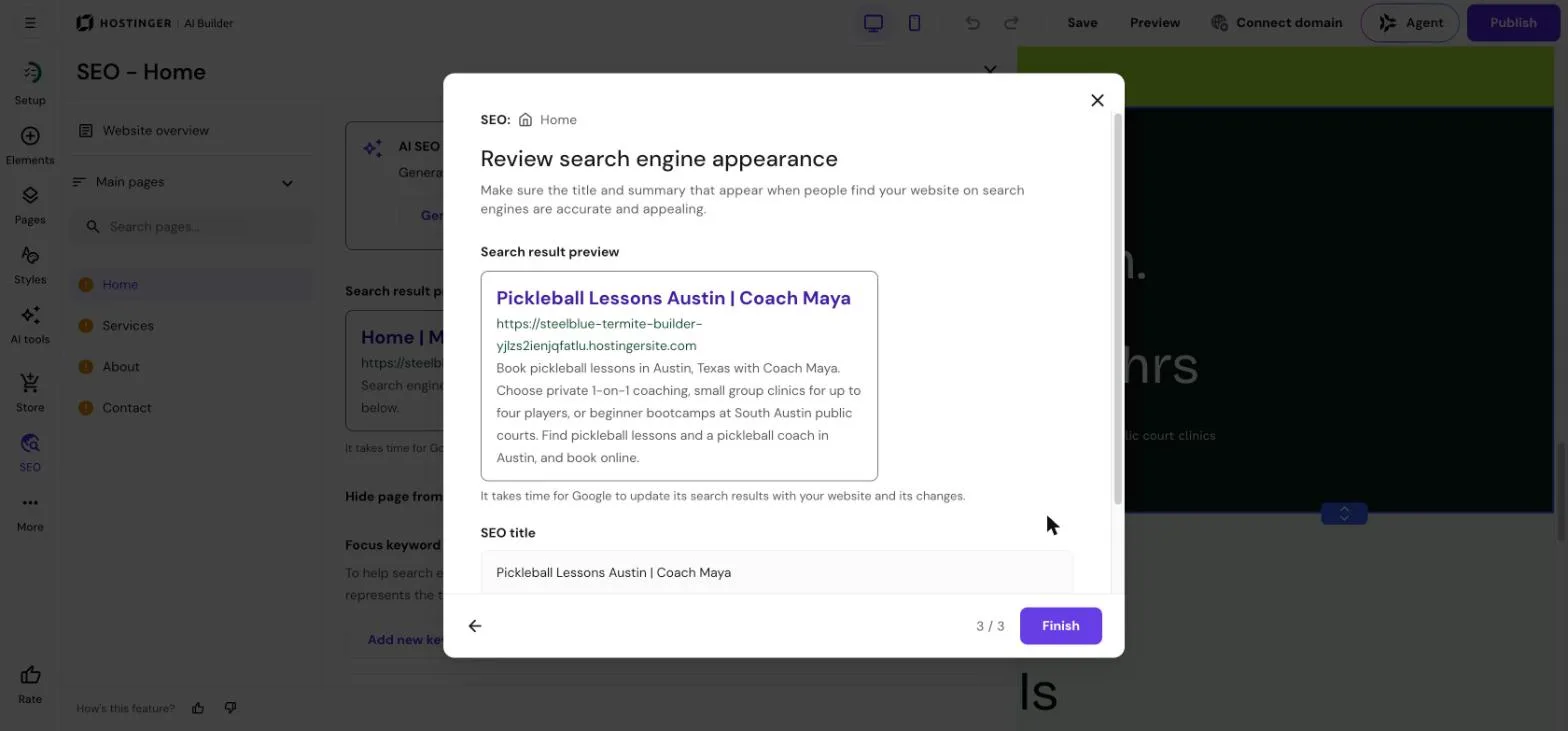
The SEO panel lists every page that needs attention. Add your business name first, then use the AI SEO Assistant on each page: you describe the page, pick three keywords from its suggestions, and it writes the title and meta description. Then click Publish.
What the AI got right
- Design quality. The first draft looked professional: a strong headline, consistent colors, and photos that matched the topic and the city
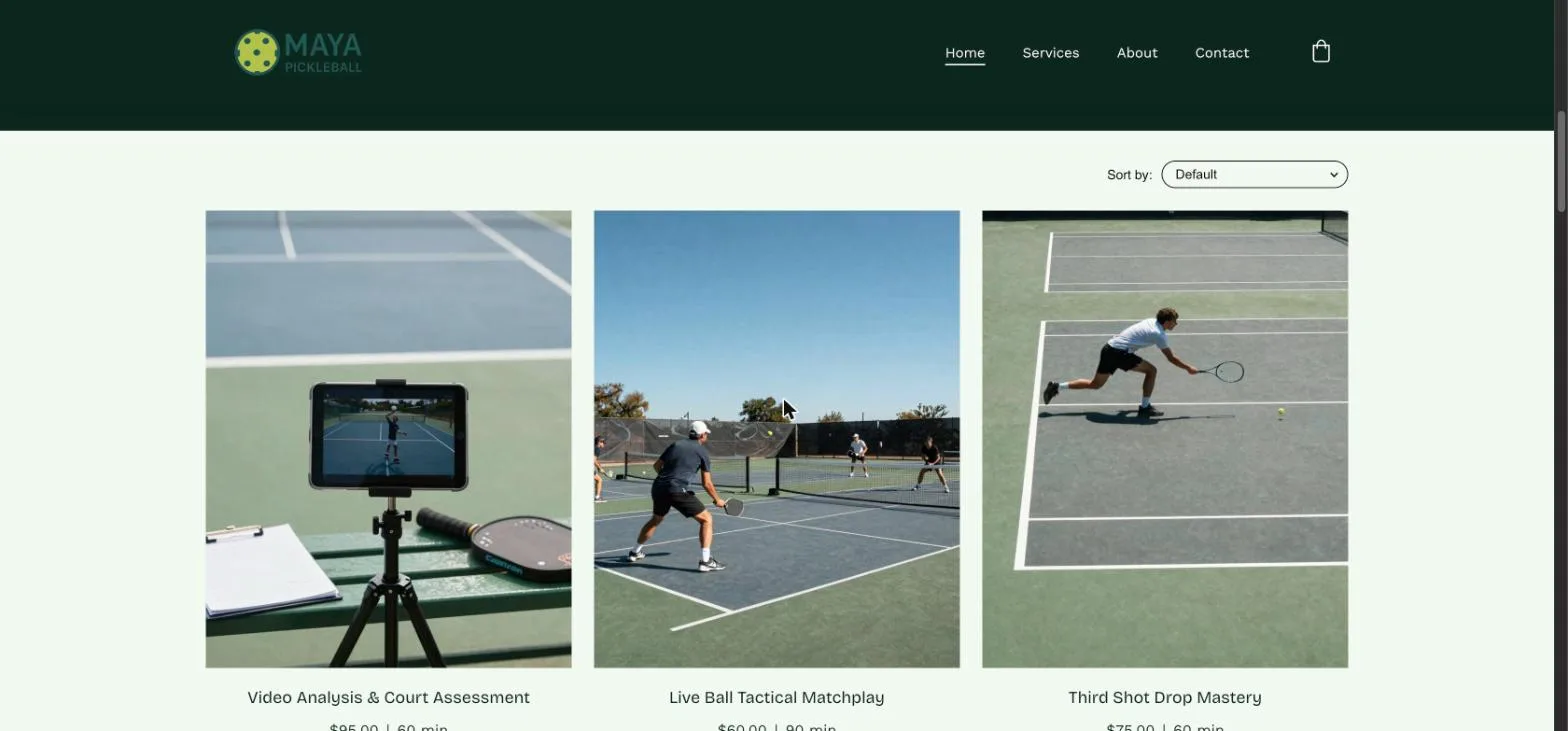
- Real booking, not a placeholder. It created three bookable lessons with durations and a Book now button
- Copy that fits the niche. Headlines and descriptions used real pickleball terms (dinks, third-shot drops, the kitchen line)
- Careful Agent. It asks for confirmation before every change and checked which sites a store change would affect when we asked
- Speed out of the box. 92 on mobile and 93 on desktop without touching any setting
What the AI got wrong
None of these are deal-breakers, but every one would have gone live if we had published the first draft.
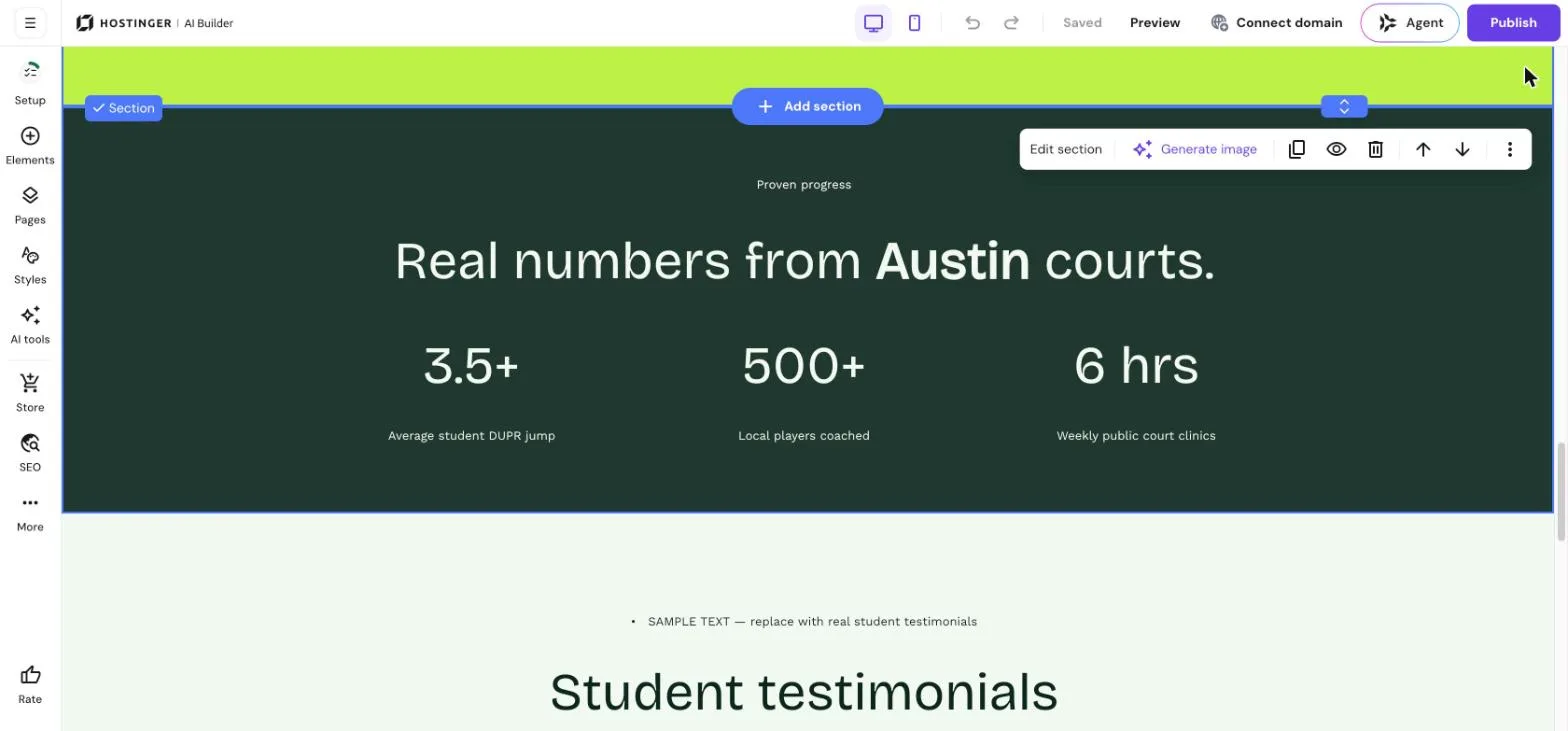
- Invented social proof. The homepage claimed “500+ local players coached” and a “3.5+ average student DUPR jump”. We never gave those numbers. Publishing invented results can mislead customers, so replace or delete them
- Wrong currency. Prices appeared in DH (Moroccan dirham), the currency of our account, even though the prompt said Texas. Switching the store to US dollars through the Agent worked, but only on the third confirmation
- A requested section was missing. We asked for testimonials in the prompt and the first draft had none
- One wrong image. The “Third Shot Drop Mastery” lesson used a photo of a tennis player with a tennis racket
- Meta description too long (about 260 characters)
- Payments need setup. A banner says no payment method is connected: bookings will not take money until you add one
Speed test results
We tested the published homepage with Google PageSpeed Insights at 09:30 on 16 November 2026, on the temporary domain, with no optimisation.
| Metric | Mobile | Desktop |
|---|---|---|
| Performance | 92 | 93 |
| Accessibility | 91 | 92 |
| Best practices | 100 | 100 |
| SEO | 100 | 100 |
| Largest Contentful Paint | 2.5 s | 1.2 s |
| Total Blocking Time | 50 ms | 40 ms |
| Cumulative Layout Shift | 0 | 0 |
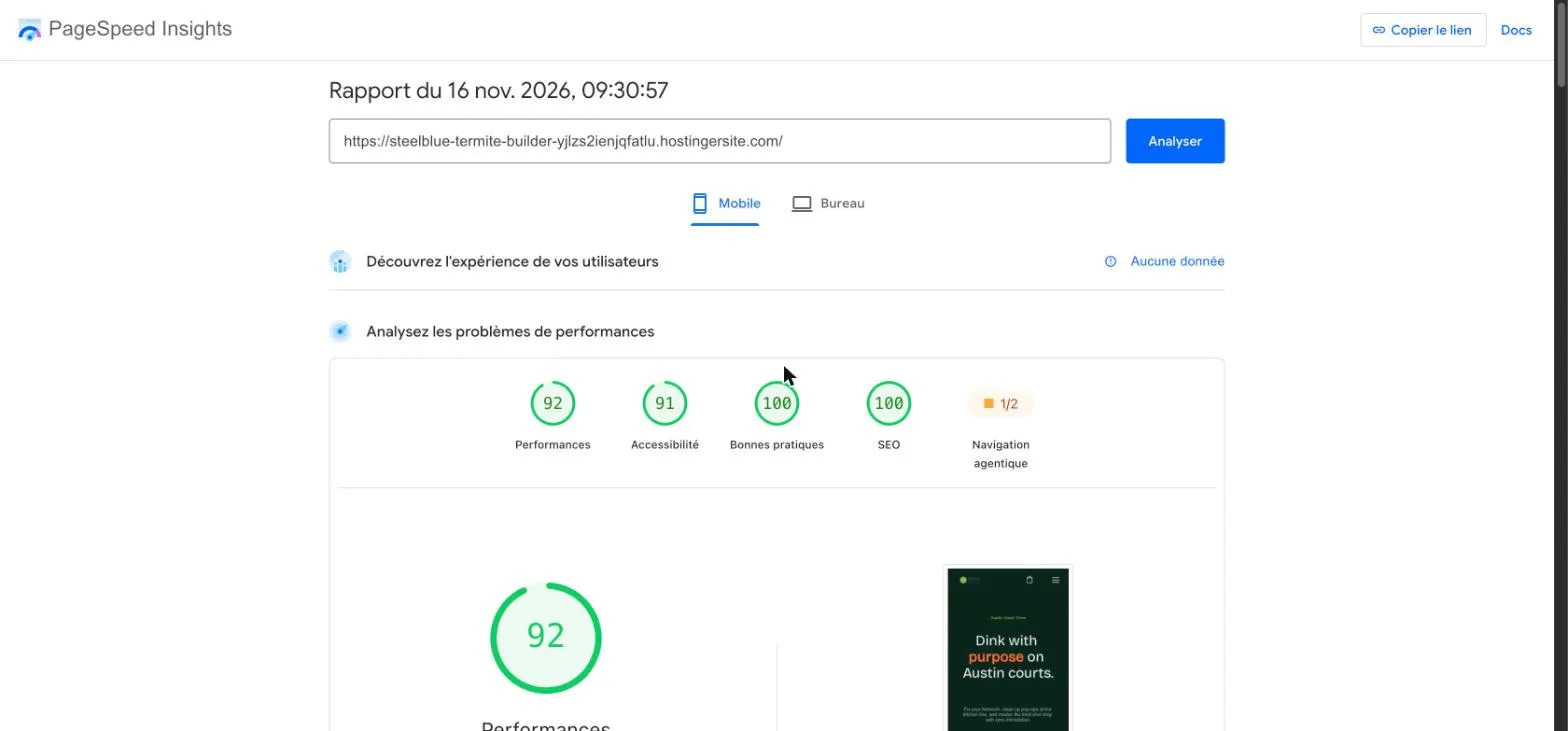
For comparison, our own WordPress site needed caching and image tuning to reach similar scores (see how to speed up WordPress). Here it was the default.
Pricing
AI Builder comes with Hostinger’s website plans; you do not buy it separately. These are the prices shown on hostinger.com on 16 November 2026, for a 48-month term, excluding VAT. The low price is for the first term only.
| Plan | Intro price | Renews at |
|---|---|---|
| Premium | $1.99/mo | $10.99/mo |
| Unlimited | $2.79/mo | $16.99/mo |
| Cloud Startup | $7.99/mo | $25.99/mo |
Two extras to know about: the builder’s AI features use credits included in your plan, and the Agent panel shows an upgrade banner for a paid Agent plan. We did not need it for this test. See current Hostinger plans.
AI Builder or WordPress?
- Choose AI Builder if you want a business site, a portfolio or a small booking or store site live this week, and you do not plan to install plugins or hire a developer
- Choose WordPress if you plan to blog seriously, need specific plugins, or want full control of your files and hosting. Our WordPress blog setup guide walks through it on the same Hostinger account
If you go the WordPress route, our Hostinger WordPress hosting review has the numbers from our own sites.
Pros and cons
| Pros | Cons |
|---|---|
| Idea to live site in about 14 minutes | Invents numbers and claims you must remove |
| Professional design and niche-specific copy | Currency follows your account country |
| Built-in booking, store and SEO tools | Agent changes can need several confirmations |
| 92+ PageSpeed without tuning | No backups until you create one |
Our verdict
Hostinger AI Website Builder is the fastest way we have tested to get a small-business site online without code. The design and speed are genuinely good. Treat the first draft as a draft: check every number, price and photo before you publish, and you will have a site you can be proud of in under half an hour.
Want the full picture beyond WordPress speed? Read our complete Hostinger review, with every hPanel feature we use.
Frequently asked questions
Is Hostinger AI Website Builder free?
No. It is included with Hostinger’s paid website plans. On 16 November 2026 the cheapest plan was $1.99 per month for a 48-month term, renewing at $10.99 per month, excluding VAT.
How long does it take to build a site?
In our test, about two minutes to generate the first draft and about 14 minutes from idea to a live site, including fixes.
Can I edit the site without the AI?
Yes. Choose “Build it visually” and you can double-click any text, move sections and change images by hand. The AI Agent is optional.
Is it good for SEO?
Our test site scored 100 on the PageSpeed SEO audit, and the builder has an SEO panel with titles, meta descriptions and keywords for each page. Shorten the generated meta descriptions and connect your own domain before you expect rankings.
Can I use my own domain?
Yes. You can connect a domain you own, buy one, or start on a free temporary domain and connect one later.

Leave a Reply