
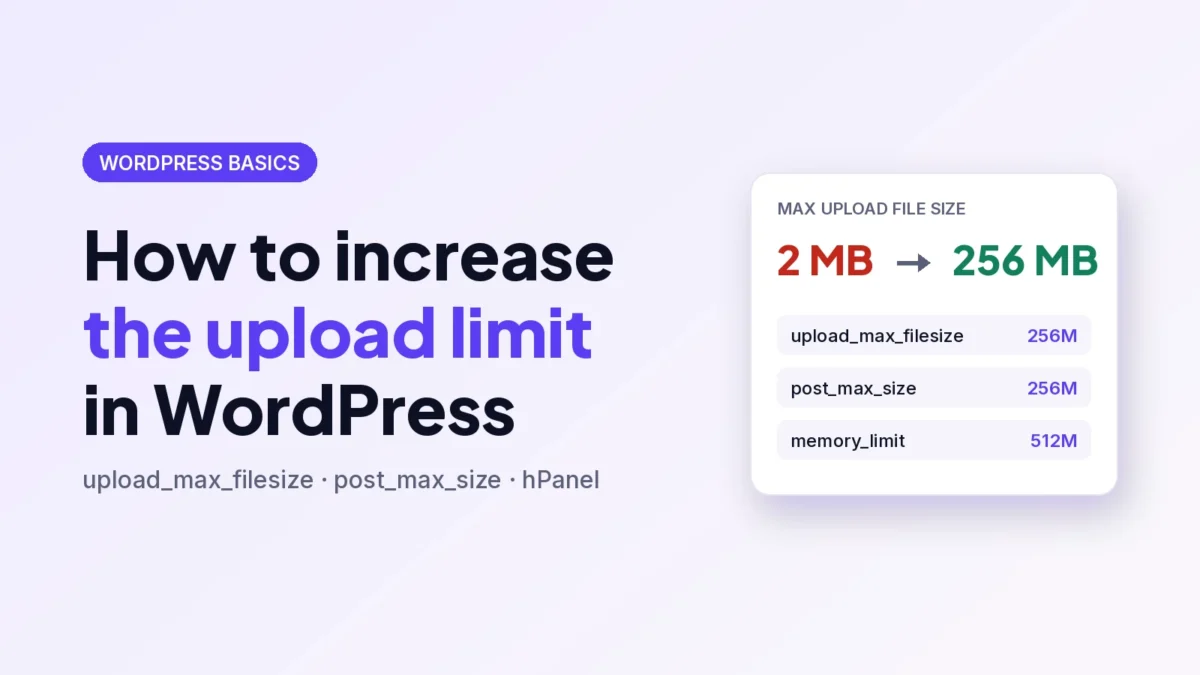
If WordPress tells you a file “exceeds the maximum upload size for this site”, the limit is not set by WordPress itself. It comes from two PHP settings on your server, upload_max_filesize and post_max_size, and WordPress uses the smaller of the two. Below we show how to check your current limit, how to raise it in your hosting panel (the safest way), and the file-based methods to use when your host has no panel option.
Quick answer: check your limit in Media → Add Media File. To raise it, open your hosting panel’s PHP settings (on Hostinger: Websites → Dashboard → Advanced → PHP Configuration → PHP options), set upload_max_filesize and post_max_size to the same higher value, such as 256M, and save. No panel option? Add the same two settings to a .user.ini file, or ask your host.
Step 1: Check your current upload limit
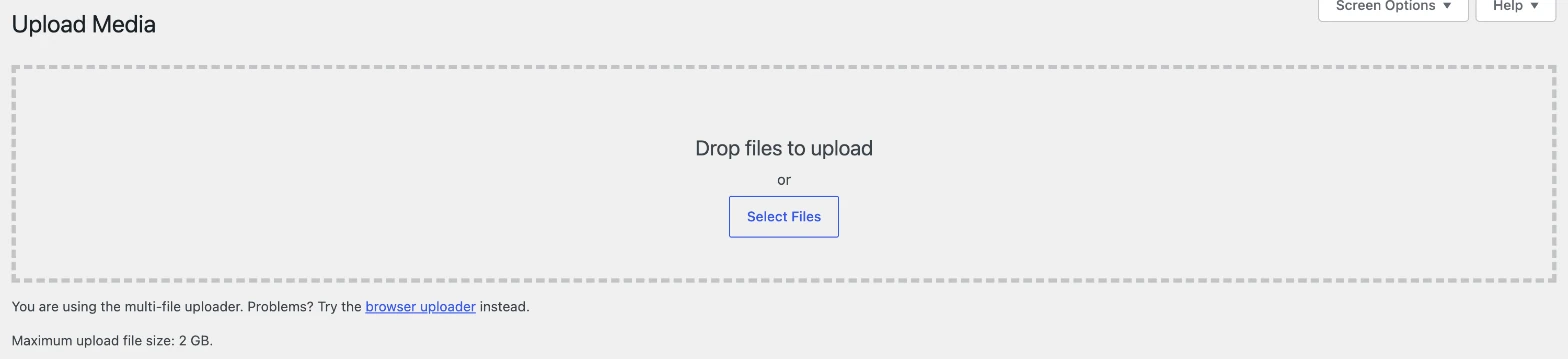
In your WordPress dashboard, go to Media → Add Media File. The limit is printed under the upload box. On this site, which runs on a Hostinger Business plan, it says 2 GB; on many cheaper plans you will see 2 MB to 128 MB.
For the details, go to Tools → Site Health → Info and open Media Handling. You will see three values: Max size of post data allowed (post_max_size), Max size of an uploaded file (upload_max_filesize) and Max effective file size, which is the smaller of the two and the number that actually applies.
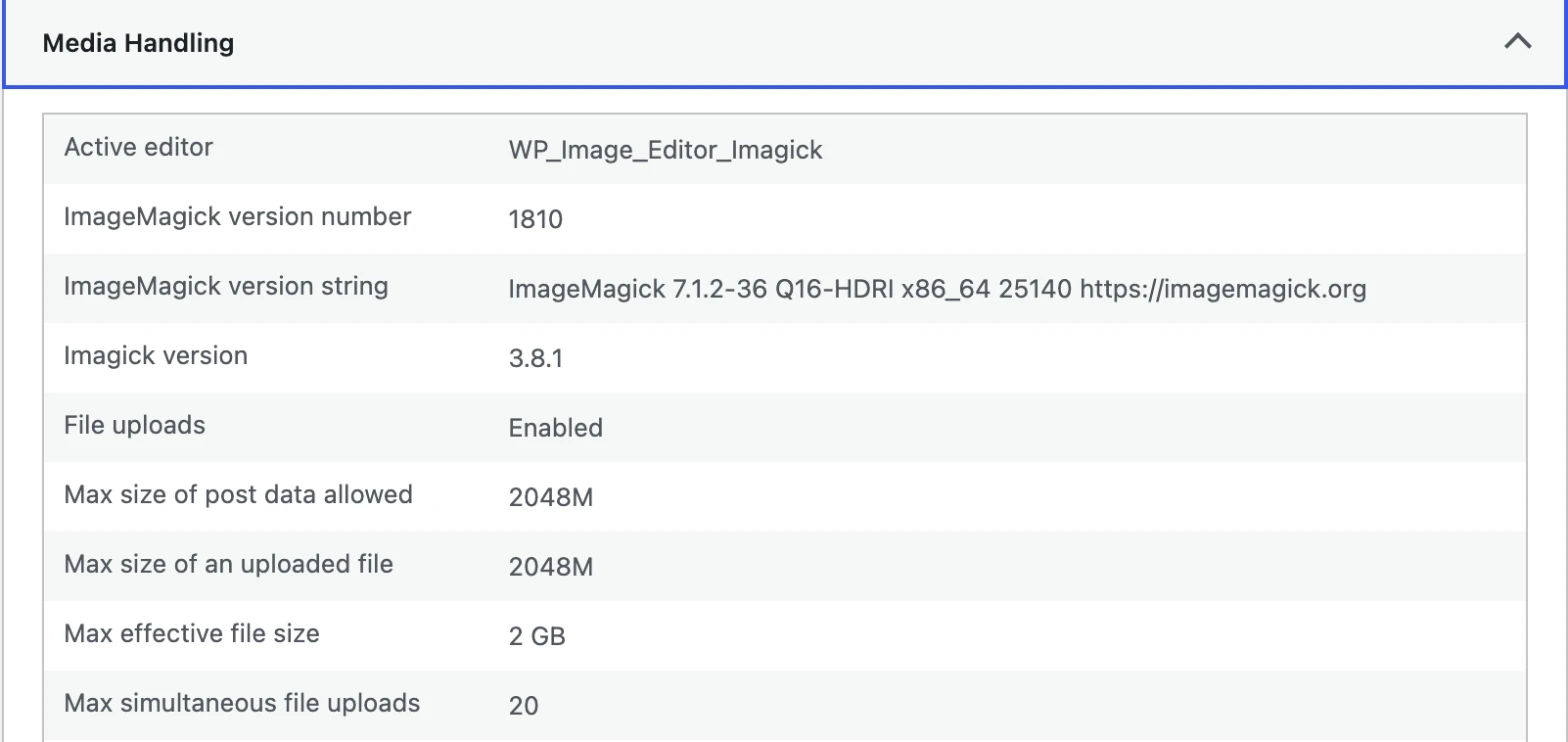
Why both settings matter: post_max_size limits the whole upload request, and the file is part of that request. If you raise upload_max_filesize to 256M but leave post_max_size at 8M, your real limit stays 8 MB. Set post_max_size equal to or slightly above upload_max_filesize.
Step 2: Raise the limit in your hosting panel (recommended)
Most hosts let you change PHP limits from their control panel. It is the safest method because the host applies the setting the right way for its server, and nothing breaks if you make a typo.
On Hostinger (hPanel)
- Log in to hPanel and go to Websites, then click Dashboard next to your site.
- In the left menu, open Advanced → PHP Configuration.
- Open the PHP options tab.
- Set upload_max_filesize and post_max_size to the size you need, for example 256M. If you upload big files, also check memory_limit and max_execution_time.
- Click Save, then reload Media → Add Media File in WordPress to see the new limit.
On cPanel hosts
Look for Select PHP Version → Options or MultiPHP INI Editor. Pick your domain, change upload_max_filesize and post_max_size, and apply. The exact labels vary by host; their help pages usually have a screenshot.
Step 3: No panel option? Use a .user.ini or php.ini file
On many shared hosts that run PHP as CGI or PHP-FPM, you can create a file named .user.ini (or php.ini, depending on the host) in your site’s root folder, the one that contains wp-config.php. Use your host’s File Manager or SFTP and add:
upload_max_filesize = 256M
post_max_size = 256M
memory_limit = 512M
max_execution_time = 300
PHP rereads .user.ini files every few minutes (five by default), so wait a moment before you check the new limit. If nothing changes, your host does not read this file; use the panel or contact support.
Step 4: The .htaccess method (Apache and LiteSpeed only)
On servers running Apache with mod_php, or LiteSpeed, you can add these lines to the .htaccess file in your site root:
php_value upload_max_filesize 256M
php_value post_max_size 256M
php_value memory_limit 512M
php_value max_execution_time 300
Back up .htaccess first. On servers that run PHP-FPM or CGI, php_value lines cause a 500 Internal Server Error on the whole site. If that happens, remove the lines you added and the site comes back.
What does not work
- wp-config.php:
WP_MEMORY_LIMITraises the memory WordPress can use, not the upload size. There is no wp-config constant that lifts the server’s upload limit. - “Increase upload size” plugins: WordPress can filter the limit it displays, but it can never go above what PHP allows. A plugin can lower your limit, not raise it past the server settings.
- Changing it in the theme’s functions.php: same problem, and it disappears when you switch themes.
Common problems
- The limit did not change: you probably changed only one of the two settings. Check Site Health → Info → Media Handling: the effective size is the smaller value.
- Uploads still fail with “HTTP error”: large files can also hit
max_execution_time,memory_limitor a limit at your host’s firewall or CDN. Try a smaller file to confirm, then raise the other limits. - WordPress Multisite: there is a separate network limit. In Network Admin → Settings, change Max upload file size (in KB). It cannot go above the PHP limit either.
- You need to share a huge video: upload it to YouTube or Vimeo and embed it instead. Self-hosted video files are heavy for visitors and slow down your site.
What to do next
Big images slow your pages down even when they upload fine. Our WordPress speed guide covers image sizes and caching, and our LiteSpeed Cache settings handle image optimization on LiteSpeed servers. Setting up a new site? Start with how to start a WordPress blog on Hostinger.
FAQ
What is the default upload size in WordPress?
WordPress has no fixed default. The limit comes from your server’s PHP settings, so it depends on your host and plan. Common values range from 2 MB on basic setups to several hundred MB or more on managed and business plans. Check yours in Media → Add Media File.
What is the difference between upload_max_filesize and post_max_size?
upload_max_filesize limits the size of a single uploaded file. post_max_size limits the entire form submission, including that file. WordPress uses whichever is smaller, so set both.
Can I increase the upload limit without access to hosting settings?
Sometimes. Try a .user.ini file in your site root, or the .htaccess method on Apache or LiteSpeed servers. If neither works, only your host can change it, so open a support ticket.
Is a bigger upload limit bad for security or speed?
A higher limit on its own does not slow your site down or make it less secure. What hurts speed is uploading heavy images and videos. Resize and compress images before you upload, and host videos on YouTube or Vimeo.
Why does WordPress say the file exceeds upload_max_filesize in php.ini?
That message means the file is bigger than your server’s upload_max_filesize setting. Raise that value, and post_max_size with it, using one of the methods above.

Leave a Reply