
How you change the menu in WordPress depends on your theme. Newer block themes (like Twenty Twenty-Five) edit menus in the Site Editor. Classic themes (like Astra or GeneratePress in classic mode) still use Appearance → Menus. This guide covers both, with screenshots from our WordPress test site running Twenty Twenty-Five.
Which one do you have? Go to Appearance in the dashboard. If you see Editor, you have a block theme (method 1). If you see Menus, you have a classic theme (method 2).
Method 1: Change the menu in a block theme (Site Editor)
- Go to Appearance → Editor and click Navigation.
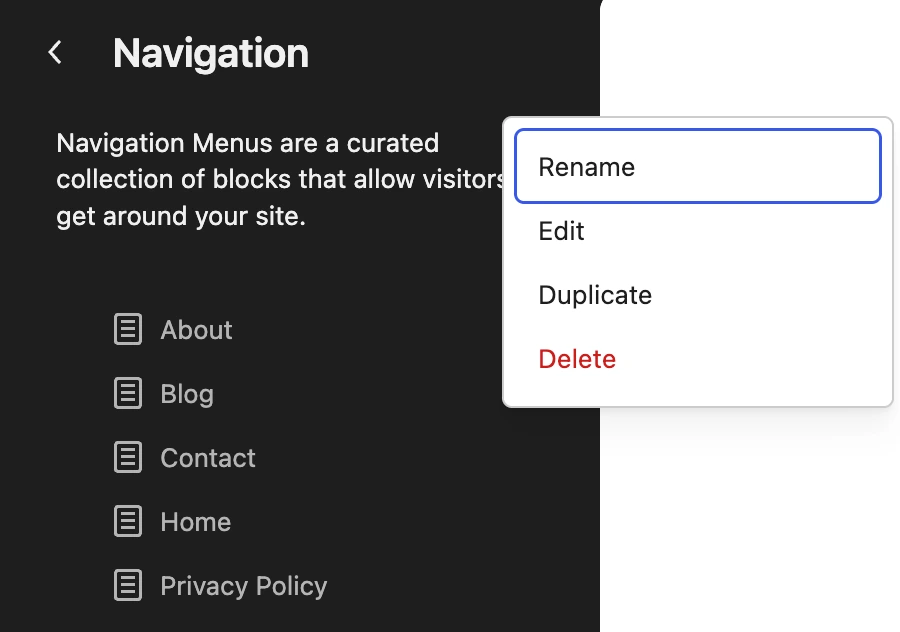
- You see your menu and its items. Click the three-dot icon next to the title to Rename, Edit, Duplicate or Delete the menu.
- Click Edit to open the menu in the editor.
Add, remove and reorder menu items
Click the menu in the editor to select the Navigation block. The settings panel on the right lists every item. On a fresh install the menu is often a single Page List block, which automatically shows all your published pages.
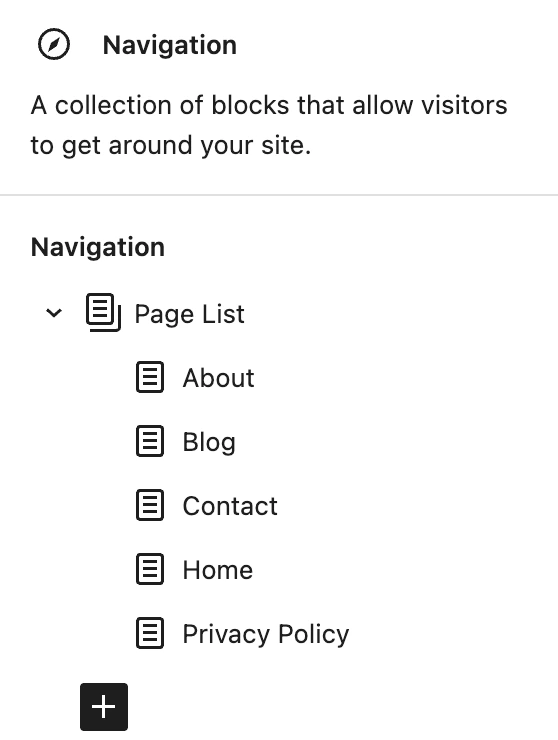
- To choose exactly which pages appear, select the Page List block and use Edit in its toolbar to convert it into individual links. You can then delete or move each link.
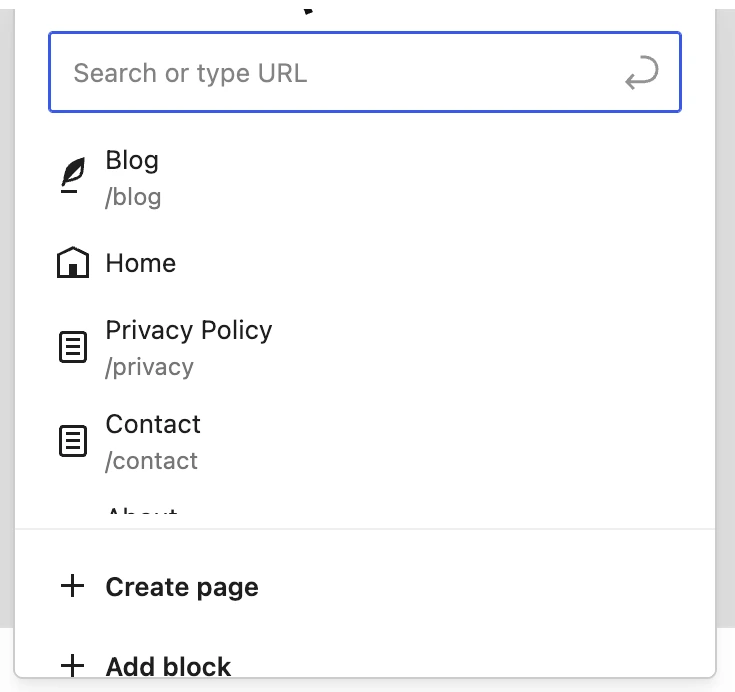
- To add a link, click the + button at the end of the menu, then search for a page or post, or paste any URL (for example a category page or an external site).
- To reorder items, drag them in the list on the right, or use the up/down arrows in the block toolbar.
- To remove an item, select it, open the three-dot menu in its toolbar and choose Delete.
When you are happy with the menu, click Save in the top right. The change appears on every template that uses this menu, usually the header.
Method 2: Change the menu in a classic theme (Appearance → Menus)
- Go to Appearance → Menus.
- Choose the menu to edit in the drop-down at the top, or click create a new menu.
- On the left, tick the pages, posts, categories or custom links you want and click Add to Menu.
- Drag items to reorder them. Drag an item slightly to the right to make it a sub-menu (dropdown) item.
- Under Menu Settings, tick the location where the menu should appear, such as Primary or Header.
- Click Save Menu.
Classic themes also let you edit menus with a live preview in Appearance → Customize → Menus.
Common problems
- New pages appear in the menu by themselves: your menu is a Page List (block theme) or has “Automatically add new top-level pages” ticked (classic). Convert the Page List to links, or untick that option.
- The menu doesn’t change on the site: you may have edited a different menu than the one assigned to the header, or your cache is serving the old page. Check which menu the header uses, then purge your cache (see our LiteSpeed Cache guide).
- No Menus item under Appearance: that is normal for block themes. Use method 1.
FAQ
How do I add a dropdown menu in WordPress?
In a block theme, add a Submenu item inside the Navigation block and put links inside it. In a classic theme, drag a menu item slightly to the right under another item in Appearance → Menus.
Can I have a different menu in the footer?
Yes. Create a second menu and add a Navigation block to the footer template part (block theme), or assign it to a footer location in Appearance → Menus (classic theme). See also how to edit the footer in WordPress.
Does changing the menu affect SEO?
Menu links are internal links, so keep your most important pages in the menu and avoid listing dozens of items. It does not change your URLs.
More WordPress basics: change your header, change your homepage and install a theme.

Leave a Reply