
WordPress stores your site’s address in two settings: the WordPress Address (URL) and the Site Address (URL). You change them when you move to a new domain, switch from a temporary hosting domain to your real one, or move from http:// to https://. Done in the wrong order, it can lock you out of the dashboard, so this guide shows the safe way first and the rescue methods after.
Before you start: take a full backup (files and database). Make sure the new domain already points to your hosting and has an SSL certificate, otherwise the site will stop loading as soon as you save.
Method 1: Change the site URL in Settings → General
This is the normal way, and the one to use when you can still log in.
- In your dashboard, go to Settings → General.
- Find the two fields WordPress Address (URL) and Site Address (URL).
- Replace the old address with the new one in both fields, including
https://and without a trailing slash (for examplehttps://example.com). - Scroll down and click Save Changes. WordPress logs you out; log back in on the new address.
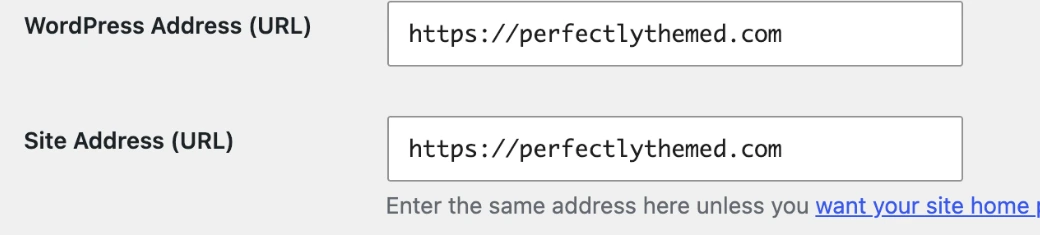 The two URL fields in Settings → General (screenshot from perfectlythemed.com).
In almost every case both fields should be identical. They only differ when WordPress is installed in a subfolder but you want the site to load from the domain root.
Fields greyed out? If you can’t edit them, the URLs are set in wp-config.php (method 2) or by your host. Change them there instead.
Method 2: Set the URL in wp-config.php
Use this if you are locked out after a wrong change, or if you want the address fixed in code. Open wp-config.php in your host’s File Manager (or via FTP) and add these two lines above the line that says /* That's all, stop editing! */:
define( 'WP_HOME', 'https://example.com' );
define( 'WP_SITEURL', 'https://example.com' );
Replace https://example.com with your address and save the file. These values override the database, and the two fields in Settings → General become greyed out while the lines are there.
Method 3: Edit the database with phpMyAdmin
If you prefer not to touch code, you can change the stored values directly:
- Open phpMyAdmin from your hosting panel and select your WordPress database.
- Open the
wp_optionstable (the prefix may differ, for examplewp_abc_options). - Edit the rows
siteurlandhome, put the new address inoption_value, and save.
After moving to a new domain: 3 things not to skip
Changing the two settings only changes where WordPress lives. Your posts, images and menus still contain links to the old domain, and Google still knows the old URLs.
1. Replace old links in the database
Use a search-and-replace tool to change every https://old-domain.com into https://new-domain.com. The free plugin Better Search Replace does this from the dashboard and has a dry-run mode. If your host gives you WP-CLI, the command is:
wp search-replace 'https://old-domain.com' 'https://new-domain.com' --dry-runCheck the result, then run it again without --dry-run. Don’t edit the database with a plain text find-and-replace: WordPress stores some settings in serialized form, and these tools handle that correctly.
2. Redirect the old domain with 301 redirects
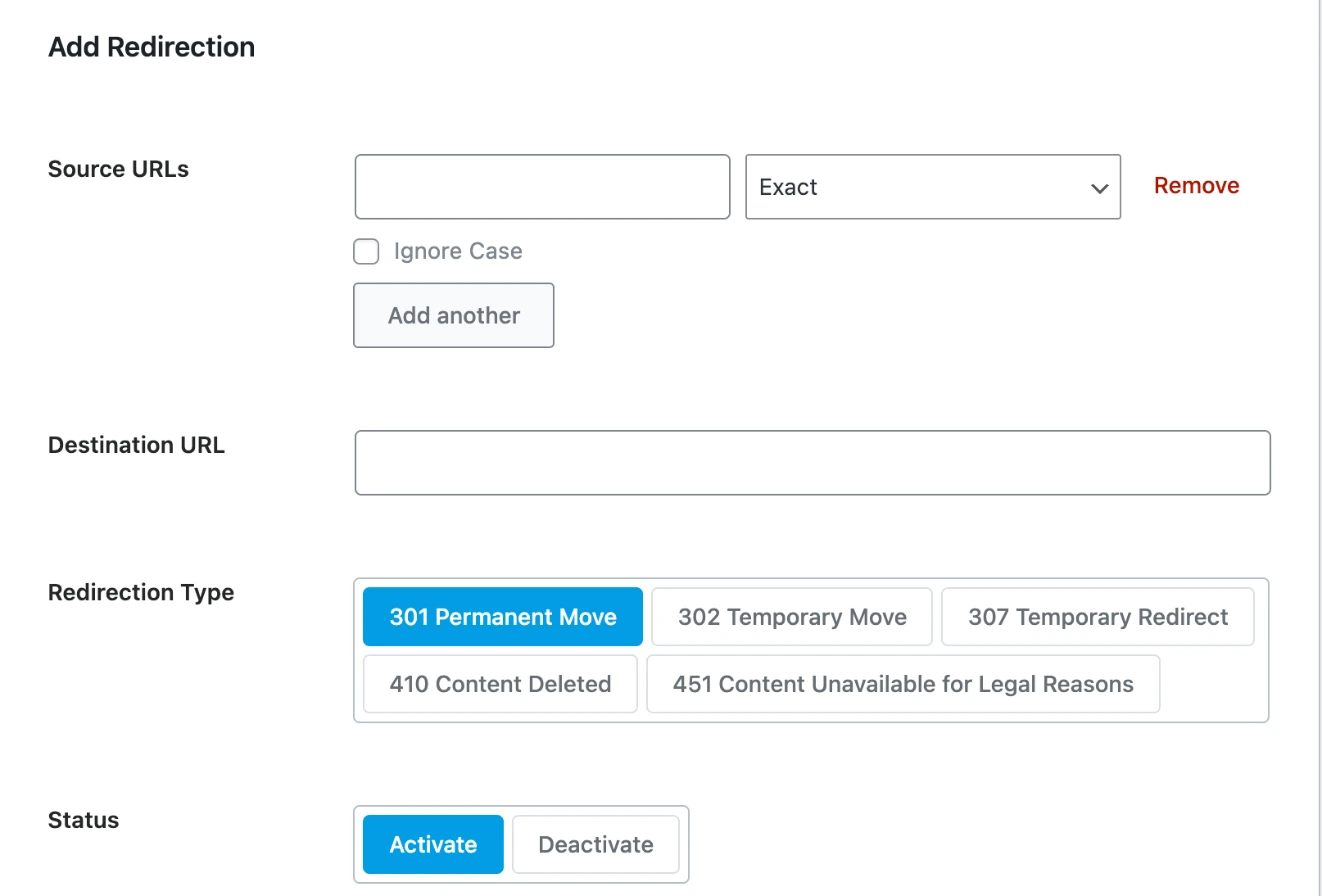
Keep the old domain pointing to your hosting and send every old URL to the same path on the new domain with a 301 (permanent) redirect. Many hosts offer this in the domain settings. For individual URLs you can also use a redirect manager inside WordPress, such as the Redirections module in Rank Math, which we use on this site:
3. Tell Google about the move
Add the new domain as a property in Google Search Console, verify it, and submit your sitemap. Then use the Change of Address tool in the old property’s settings. Keep the 301 redirects in place for a long time, at least a year.
Common problems
- Redirect loop or “too many redirects”: usually
httpvshttpsmismatch. Make sure both fields usehttps://and that SSL is active on the domain. - Site loads without styling: the CSS still points to the old domain, or your cache serves old pages. Run the search-replace above and purge your cache plugin and host cache (see our LiteSpeed Cache guide).
- Can’t log in after saving: use method 2 to put the old (working) address back, then try again once the new domain is ready.
- White screen or critical error: see our guides to the white screen of death and the critical error.
FAQ
What is the difference between WordPress Address and Site Address?
WordPress Address is where the WordPress files are installed. Site Address is the address visitors type to reach your site. For most sites they are the same.
Will changing my domain hurt my SEO?
A domain move always carries some risk. Rankings usually recover when every old URL redirects with a 301 to the matching new URL and you use Search Console’s Change of Address tool. Avoid changing your site structure at the same time.
How do I switch from a temporary hosting domain to my real domain?
Connect the real domain to your hosting and activate SSL on it first. Some hosts have a tool in their panel that changes the domain for you; otherwise use method 1, then run the search-replace step.
More beginner guides: change your homepage, change your logo and find your WordPress login page.

Leave a Reply